Best Social Media Video Editors Ranked - September 2026
We ranked 6 social media video editors for September 2026 on AI features, export quality, and speed for marketing teams.
 Cardboard TeamUpdated 9 min read
Contents12 sections
- What is a Video Editor for Social Media Content?
- How We Ranked Video Editors for Social Media Content
- Best Overall Video Editor for Social Media Content
- InVideo
- Adobe
- CapCut
- Kapwing
- VEED
- Feature Comparison Table of Video Editors for Social Media Content
- Why Cardboard Is the Best Video Editor for Social Media Content
- Final Thoughts on Video Editors Built for Social Media Content
- FAQ
You’ve got footage, you’ve got a deadline, and you need the right tool to get it out the door fast. But with so many editors out there, it’s hard to tell which ones are actually built for social media and which ones just say they are. We ranked six of the best options based on what actually matters: speed, format flexibility, and how well they handle real footage from real workflows.
TLDR:
- Social media video editors focus on fast output and multi-format exports over granular post-production control
- CapCut carries unresolved data privacy concerns for business teams following its 2025 US ban under PAFACA
- Free tiers across VEED, Kapwing, and InVideo come with watermarks, resolution caps, or credit-gated AI tools
- Cardboard is the only tool on this list with agentic AI editing, semantic footage search, and 4K 60fps exports (Creator and Pro) combined
What is a Video Editor for Social Media Content?
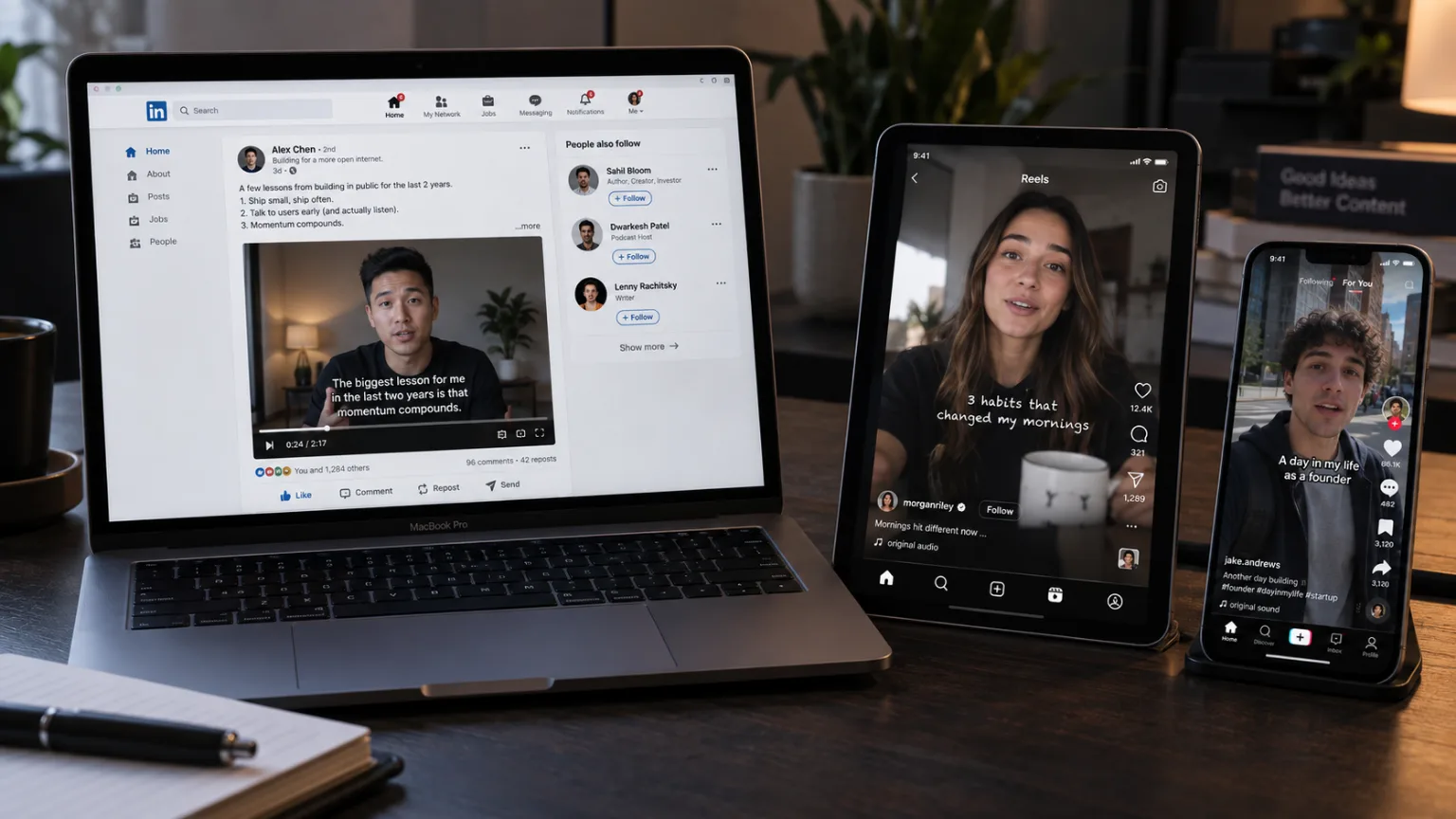
A video editor for social media content is purpose-built for publishing speed, not post-production depth. Where traditional desktop software like Premiere Pro or DaVinci Resolve is designed around feature films and agency campaigns, social media video editors optimize for the realities of content creation: tight deadlines, multiple aspect ratios, and constant pressure to repurpose footage across channels.
The core difference comes down to workflow. Traditional editors give you granular control over every frame. Social media editors give you the right output formats fast: one-click resizing from widescreen to vertical for Reels, square crops for LinkedIn, and captions that render correctly before you hit publish.
For creators and marketing teams shipping content daily, you need a tool that handles format flexibility and gets you to a first cut quickly.
How We Ranked Video Editors for Social Media Content
Each tool on this list was assessed against a consistent set of criteria, pulling from publicly available product information and verified sources.
- AI editing capabilities: how much the tool reduces manual work on cuts, captions, and repurposing
- Export quality: resolution ceilings, watermark restrictions, and format support
- Access model: browser-based vs. download-required, and how that affects team workflows
- Collaboration: shared workspaces, commenting, and version control
- Captioning and localization: auto-subtitle accuracy, language support, and styling options
- Pricing relative to output: what you actually get per dollar at team scale
No single tool wins every category. The right pick depends on whether you’re a solo creator posting daily or a marketing team managing dozens of raw assets at once.
Best Overall Video Editor for Social Media Content: Cardboard
Cardboard runs entirely in the browser and treats editing as a conversation. Describe what you need in plain language, and the AI proposes a first cut on the timeline automatically. “Make a 60s recap from this raw footage” or “cut this into a 20s ad” are real instructions it acts on.
A few things separate it from every other tool on this list:
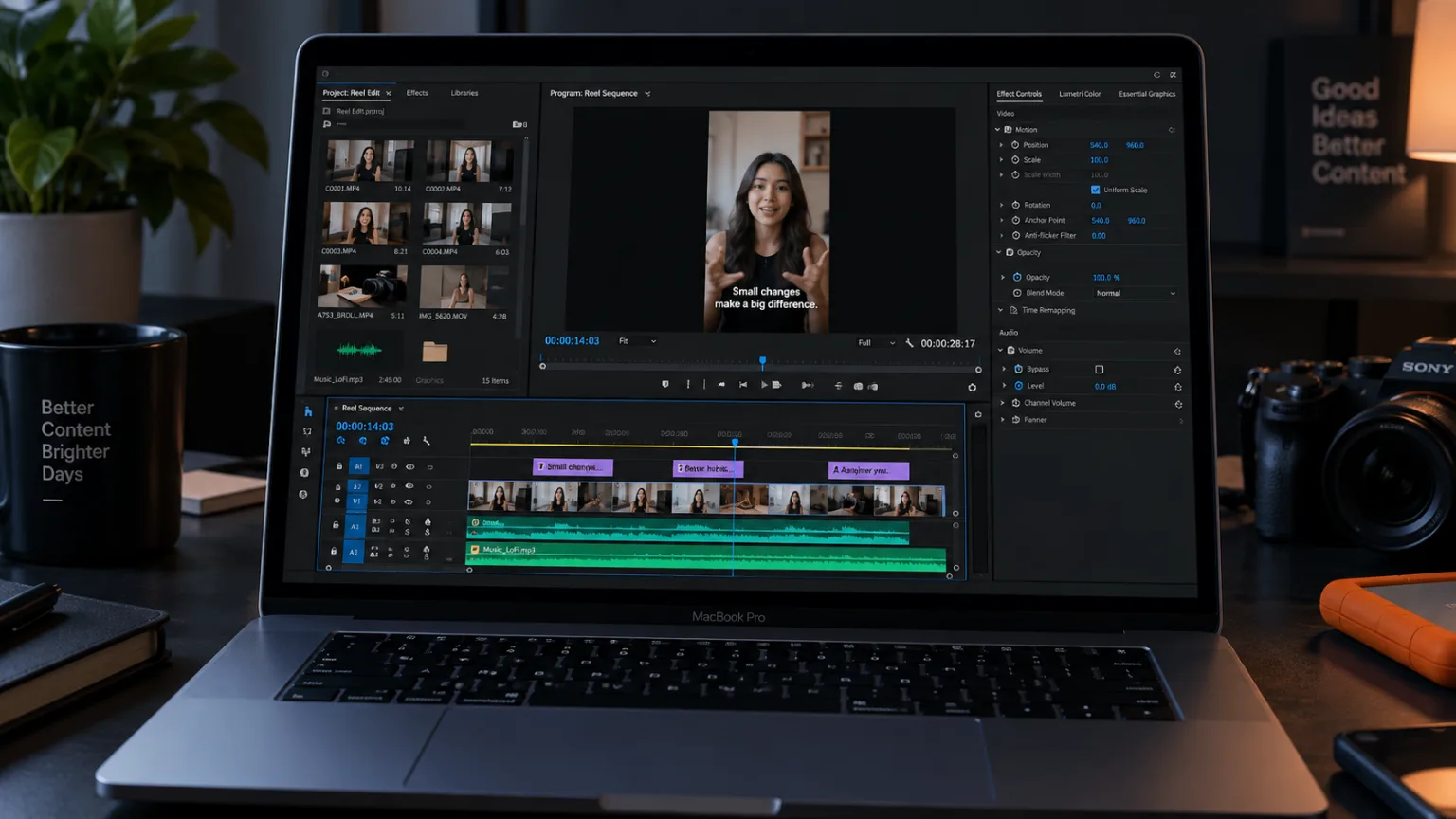
- Agentic AI editing: no manual scrubbing, no installs, no steep learning curve
- Semantic footage search: find specific quotes, reactions, or emotions across hours of raw footage in seconds
- Smart Reframe: one video becomes vertical, square, and widescreen versions automatically, with the key action staying in frame
- Word Pop captions, caption translation into 30 languages, and AI voiceovers built in natively
- Review links with timecoded comments and public share links that require no login
- 4K 60fps exports on Creator and Pro, with XML support for Premiere Pro, DaVinci Resolve, and Final Cut Pro from Starter
For marketing teams managing large libraries of product walkthroughs, customer recordings, and raw event footage, the semantic footage search alone changes what’s possible. Finding the right 10-second clip across three hours of footage used to mean manual scrubbing. With Cardboard, you describe it and it surfaces.
Cardboard plans start at $8/month on Lite ($5 for the first month), and Starter at $29/month adds unlimited watermark-free exports.
InVideo
InVideo runs in the browser and splits into two distinct products: an AI text-prompt pipeline that generates finished videos from scratch, and InVideo Studio, a more traditional drag-and-drop editor for manual assembly.
- Text-prompt-to-video generation with AI script writing and stock footage stitching
- Voice cloning and 50-plus language output for localization
- Drag-and-drop template editor alongside the AI generation flow
Good for solo creators or marketers who need a finished short video fast without sourcing their own footage. The core limitation is that InVideo’s AI pipeline is built around generated and stock footage. If your team has hours of original product walkthroughs, customer interviews, or event recordings to cut and repurpose, the main AI flow simply does not work on that material, pushing you back to manual editing in Studio. That is a stark contrast to agentic AI video editing, where describing a goal is enough to produce a cut.
Adobe
Adobe covers two ends of the range. Premiere Pro is a full professional desktop editor with multi-track timelines, color grading, and deep integration with After Effects and Photoshop. Adobe Express sits at the opposite end: a browser-based, template-driven tool for social graphics and short clips, with Firefly AI features like generative content and background removal built in.
Good for teams already locked into Creative Cloud who need full post-production control or quick branded graphics.
Premiere Pro requires a desktop install with a real learning curve, making fast browser-based collaboration cumbersome. Express is simpler but stays template-first, with no agentic AI video editing, no semantic footage search, and no path to 4K 60fps exports from raw multi-scene footage.
CapCut
CapCut is ByteDance’s editing app, available on mobile, desktop, and browser, and it became the default tool for a large share of TikTok and Reels creators over the past few years.
Here is what the tool offers:
- Extensive template library built around short-form formats and trending aesthetics
- AI auto-captions, background removal, beat sync, and text-to-video tools
- Trending audio tools optimized for TikTok and Instagram Reels
The limitations are harder to ignore for business teams. CapCut was temporarily banned in the US under PAFACA due to its ByteDance ownership (restored within 48 hours but data privacy questions remain unresolved as of mid-2026). It also has no native real-time multi-user collaboration, no agentic editing from raw footage, and no XML export to Premiere Pro or DaVinci Resolve. For solo creators posting daily, those gaps may not matter. For marketing teams managing shared assets and brand standards, they do.
Kapwing
Kapwing is a browser-based collaborative video editor built around subtitle generation, content repurposing, and team workflows, all without a desktop install.
Here is what it offers:
- Browser-based editing with shared workspaces and multi-user collaboration
- Subtitle generation, translation, and dubbing across multiple languages
- AI video generator that scripts and assembles stock footage from a text prompt
- Content resizing and repurposing tools for multi-format social distribution
Good for small marketing teams repurposing podcast or webinar recordings into short social clips. The free plan is restrictive: exports are capped at 720p with a watermark, and paid plans are priced per member. Generative AI models sit behind a separate credit pool, so teams producing at volume can expect costs to climb unpredictably on top of the base subscription. Where it falls short is agentic editing from raw footage, semantic footage search, and clean 4K exports without credit-gated AI layered on.
VEED
VEED is a browser-based editor with a focused feature set: auto-captions, basic trimming, screen recording, a teleprompter, and social format resizing. For a solo creator who mostly needs captions on short clips, that covers the core workflow.
- Automatic subtitle generation and translation for short-form video
- Basic trimming, text overlays, and transitions in a browser timeline
- Screen recording and teleprompter tools for solo creators
- Video resizing for common social aspect ratios
The free plan has real constraints. Every free export carries a mandatory watermark and a 720p resolution cap, which falls below the 1080p standard expected on most social channels today. Video length is also capped at 10 minutes.
Beyond the free tier, VEED’s AI tools stop well short of agentic editing. There is no semantic footage search, no multi-track timeline for raw footage, and no first-cut generation from a plain language prompt. Teams scaling content production will hit those walls fast.
Feature Comparison Table of Video Editors for Social Media Content
| Cardboard | InVideo | Adobe Express | CapCut | Kapwing | VEED | |
|---|---|---|---|---|---|---|
| Agentic AI Editing | Yes | No | No | No | No | No |
| Semantic Footage Search | Yes | No | No | No | No | No |
| Browser-Based (No Install) | Yes | Yes | Yes | Partial (app preferred) | Yes | Yes |
| Real-Time Collaboration | Review links only | No | Limited | No | Yes | No |
| 4K 60fps Export | Yes (Creator and Pro) | No | No | No | No | No |
| Multi-Language Captioning and Dubbing | Yes (translation only) | Yes (50+ languages) | Limited | Yes | Yes | Yes (translation only) |
| Smart Reframe for Multi-Format | Yes | No | No | Yes | Yes | Yes |
| XML Export (Premiere/DaVinci/FCP) | Yes | No | No | No | No | No |
| Free Trial Available | No ($5 first month on Lite) | Yes (free tier) | Yes (free tier) | Yes (free tier) | Yes (free tier, capped) | Yes (free tier, watermarked) |
Why Cardboard Is the Best Video Editor for Social Media Content
Cardboard brings together agentic AI editing, semantic footage search, review links with timecoded comments, and 4K 60fps exports (Creator and Pro) in a single browser tab. No other tool on this list combines all of that.
For CMOs managing content at scale, video editors who need 4K exports and XML roundtrip compatibility with Premiere Pro or DaVinci Resolve, or creators without deep editing backgrounds, the choice comes down to speed without sacrificing quality. Start with Cardboard and go from raw footage to a publish-ready cut faster than any manual workflow, with no desktop install, no steep learning curve, and no separate tool for every step.
Final Thoughts on Video Editors Built for Social Media Content
Most tools on this list do one or two things well, and then ask you to fill the gaps yourself. If your team is managing real footage across multiple formats and channels, that adds up fast. Cardboard is designed for exactly that kind of work, so your time goes toward content, not workarounds.
FAQ
How do I choose the right video editor for social media content from this list?
Start by identifying whether you’re working from original footage or need generated content. If your team has raw recordings to repurpose, Cardboard or Kapwing fit better than InVideo, which is built around stock and AI-generated clips. If you’re a solo creator focused on quick captions and basic cuts, VEED or CapCut may be enough.
Is Cardboard better than Kapwing for marketing teams managing large video libraries?
For teams working from hours of original footage, Cardboard pulls ahead with semantic footage search, agentic first cuts, and 4K 60fps exports on Creator and Pro, none of which Kapwing offers. Kapwing works well for repurposing podcast or webinar clips, but hits a ceiling when teams need to scale production from raw, multi-scene assets.
When should I choose CapCut over other tools on this list?
CapCut is a strong pick for solo creators posting daily to TikTok or Reels who want trending templates and fast mobile editing. Marketing teams with shared assets, brand standards, or data privacy requirements should look elsewhere, given CapCut’s ByteDance ownership and lack of real-time collaboration or XML export support.
Can InVideo handle raw footage from product walkthroughs or customer interviews?
No. InVideo’s AI flow requires stock or generated footage. For original recordings, use InVideo Studio’s manual editor. See the InVideo section above for details.
Which video editors on this list support 4K exports without watermarks?
Cardboard exports at 4K 60fps without watermarks on its Creator and Pro plans. VEED caps free exports at 720p with a mandatory watermark, Kapwing’s free tier restricts exports to one minute at 720p, and InVideo, Adobe Express, and CapCut do not reach 4K 60fps export quality. semantic footage search