Captions 101: Why Every Video Needs Them (Oct 2026)
Captions explained: formats, accessibility benefits, and how to add them to video content, updated for October 2026.
 Cardboard TeamUpdated 12 min read
Contents12 sections
- What Are Captions?
- Captions vs. Subtitles vs. SDH
- Open Captions vs. Closed Captions
- Why Captions Matter for Accessibility
- Why Captions Boost Engagement for Every Viewer
- Caption Styles and Formats That Perform on Social
- Auto-Generated Captions vs. Professional Captions
- How to Add Captions to a Video
- How to Add Translated Captions and AI Dubbing
- How Cardboard Handles Captions and Localization
- Final Thoughts on Captioning Your Video Content
- FAQ
A lot of creators treat captions as a checkbox, something you slap on before publishing and forget about. But the difference between captions that hold attention and captions that get ignored comes down to format, style, and where your video actually lives. Let’s walk through all of it.
TLDR:
- A large share of social video is watched without sound, making captions a basic requirement for comprehension
- Open captions burn into the file and can’t be toggled; closed captions require a separate file but edit in seconds
- Auto-generated captions hit 80-95% accuracy and work for most social content; legal or medical video needs human review
- Word-by-word and keyword-emphasis caption styles outperform static captions on short-form platforms like TikTok and Reels
- Cardboard handles caption styling, translation, and AI dubbing in-browser without exporting to third-party tools
What Are Captions?
Captions are the text you see on screen while a video plays. They transcribe what’s being said, word by word, in sync with the audio, so you can follow along whether or not you can hear what’s happening.
A full caption track also describes non-speech sounds that matter to the content, things like [music], [applause], or [door slams]. That context is what separates captions from a plain transcript, which gives you the words but none of the timing or sound detail. The synchronization is what makes them useful. Captions appear and disappear in time with the speaker, and get that timing wrong and the whole experience falls apart.
Captions vs. Subtitles vs. SDH
These three terms get swapped constantly, even by the services using them.
Captions are built for viewers who cannot hear the audio. They cover all of it: dialogue, speaker identification, and non-speech sounds like [music playing] or [phone rings]. The goal is full audio equivalence in text form.
Subtitles work from the opposite assumption. They presume you can hear the audio just fine, offering a translation of dialogue for viewers who speak a different language. No sound descriptions, no speaker labels.
SDH (Subtitles for the Deaf and Hard of Hearing) sits between the two. Like captions, SDH includes sound cues and speaker identification. Like subtitles, it uses subtitle-style formatting in place of traditional closed caption standards. Netflix describes both SDH and CC as intralingual assets for viewers who cannot fully hear the audio, but notes they differ in technical spec, style, and display.
In the US and Canada, these distinctions matter. In the UK, “subtitles” is often used as a catch-all for both. Worth knowing when publishing for international audiences.
Open Captions vs. Closed Captions
Open captions, also known as head-locked captions, are burned directly into the video file. They’re always visible, can’t be turned off, and travel with the video wherever it’s published. Closed captions live as a separate data layer, toggled on or off by the viewer.
The practical difference comes down to where you’re publishing. YouTube and Vimeo support closed caption files natively. Instagram does not, so open captions are your only option there if you want text on screen.
The trade-offs are real on both sides:
- Open captions give you full creative control over font, size, position, and style, making them the better fit if your brand relies on a specific visual treatment.
- Closed captions hand that control to the viewer and the player, which is cleaner when you want the audience to decide for themselves.
- Open captions can’t be corrected without re-exporting the file, so a single typo means a full re-render. Closed caption files are plain text, so edits take seconds.
Why Captions Matter for Accessibility
Captions started as an accessibility tool, and that origin still carries legal weight. In the US, the ADA and Section 508 of the Rehabilitation Act require captioned video for public institutions, broadcasters, and federal agencies. Skip captions and you may be out of compliance.
For deaf and hard-of-hearing viewers, accurate captions are the only way to access what’s being said. Sound descriptions matter here too: [music playing] or [crowd cheering] fills in context that dialogue alone can’t carry.
The reach extends further than most people assume. A 2025 AP-NORC poll found that one third of US adults always or often use subtitles when watching TV or movies, and adults under 45 are especially likely to. Among people who use them at all, about a third do so because they’re in a noisy environment, and a quarter because of poor audio or multitasking.
Why Captions Boost Engagement for Every Viewer
People watch video without sound for countless reasons: commuting, sitting in waiting rooms, or avoiding disturbing coworkers with no headphones nearby. Without captions, your video isn’t understood by a large share of the audience seeing it. Captions serve all of them. Research from 3Play Media shows the benefits go deeper than filling a sound gap, with studies finding captions improve focus, comprehension, and brand recall.
Non-native speakers get a meaningful lift too. Reading along while listening reduces the cognitive strain of parsing accents or fast speech, keeping viewers in the video longer.
Caption Styles and Formats That Perform on Social
Style matters as much as accuracy when captions are the thing keeping someone from scrolling away.
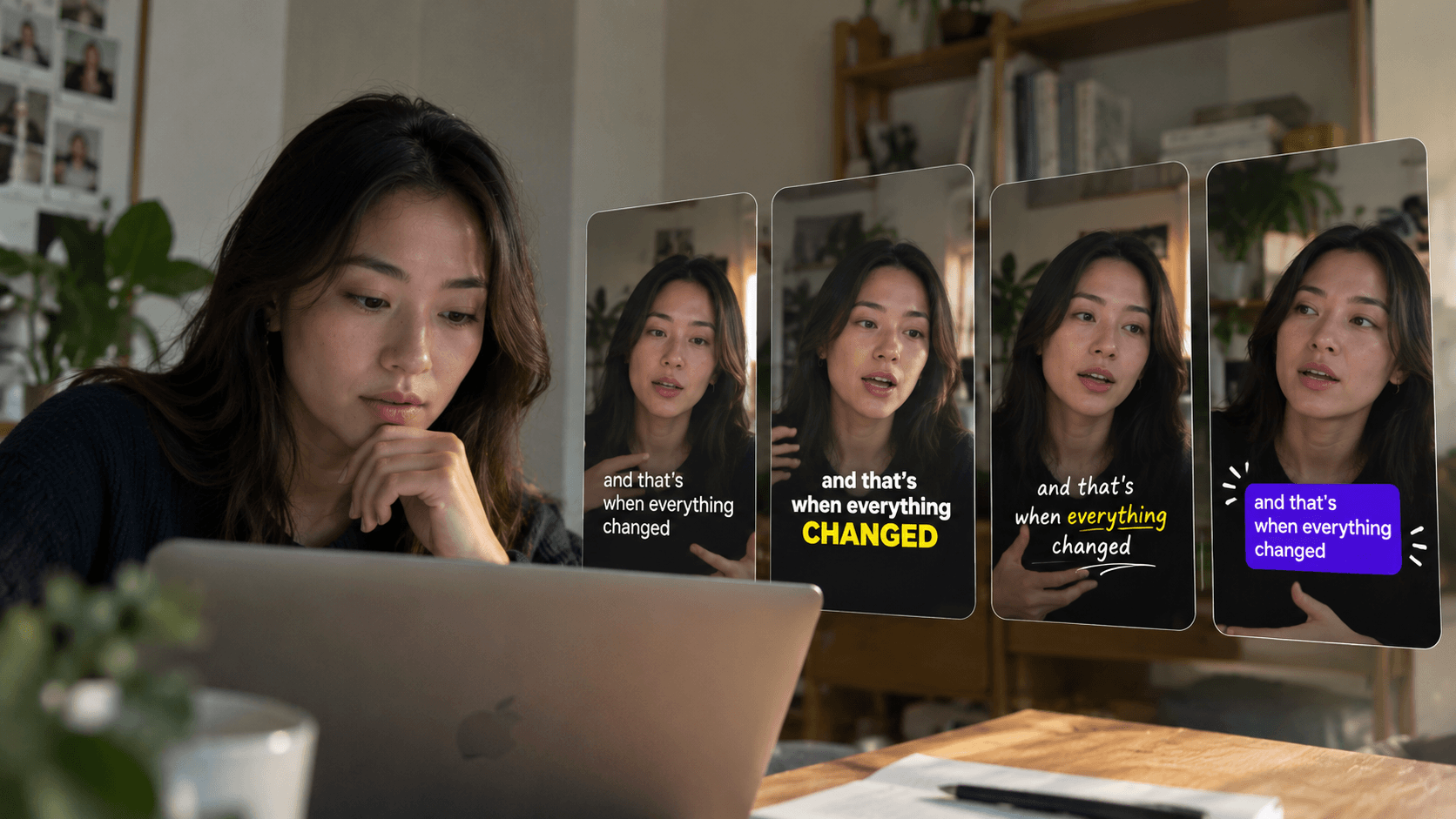
Single-line static captions are the baseline: clean, readable, low distraction. They work well on long-form YouTube content where captions serve as a support layer and not the main event. For short-form, they rarely hold attention on their own.
Word-by-word reveals, sometimes called karaoke-style or tracked captions, light up each word as it’s spoken. They pull the viewer’s eye and create a rhythm that mirrors speech. On TikTok and Reels, this format performs consistently because it gives viewers something to track even at low attention, which matters a lot when you turn a podcast into short clips for social feeds.
Keyword-emphasis captions take that further, with a key word appearing larger or isolated on its own line to signal importance. This style suits punchy scripted content, product explainers, and ads where certain phrases need to land harder than the rest, which is why it shows up often when creators learn editing a UGC video with captions.
A few practical rules worth following:
- Short-form video (under 60 seconds) rewards lively, animated caption styles that create energy and pace, a key detail covered in our AI YouTube Shorts generator guide.
- Long-form content works better with static captions that stay out of the way.
- Captions should pause during extended silences instead of displaying blank text, which looks unpolished.
- Position matters: center-bottom works for most content, but vertical video with lower UI elements like TikTok’s action bar may need captions shifted higher.
Auto-Generated Captions vs. Professional Captions
AI captions have improved dramatically. For most content, a good auto-caption tool gets you close enough, fast enough, that manual captioning is hard to make a case for.
Where auto-generated captions still stumble: heavy accents, fast speech, technical jargon, overlapping speakers, and low-quality audio. A product demo full of brand-specific terminology will produce errors that matter. A polished interview recorded in a quiet room will come out nearly clean.
Professional captions, whether human-edited or reviewed after an AI pass, close that gap. The tradeoff is time and cost.
| Auto-Generated | Professional/Human-Reviewed | |
|---|---|---|
| Speed | Seconds to minutes | Hours to days |
| Cost | Low to free | Higher per minute |
| Accuracy | 80-95% depending on audio | 99%+ |
| Best for | Social content, drafts, internal video | Legal, medical, broadcast, education |
For most marketing video, auto-captions with a quick review pass hit the right balance. For anything where accuracy carries legal or reputational risk, human review is worth the cost. Very few creators need perfect captions on every video, but everyone benefits from checking before publishing.
How to Add Captions to a Video
There are four main ways to add captions, and the right one depends on where your video lives and how much control you want over the result.
Upload a caption file to your video host
YouTube, Vimeo, and most major hosts accept caption files in SRT or VTT format. SRT is the most universally supported: plain text, with each caption block containing a sequence number, a timestamp range, and the text. VTT is nearly identical but supports additional styling. Once uploaded, the host displays your captions as closed captions with viewer toggle control.
Use a video editor’s built-in caption tool
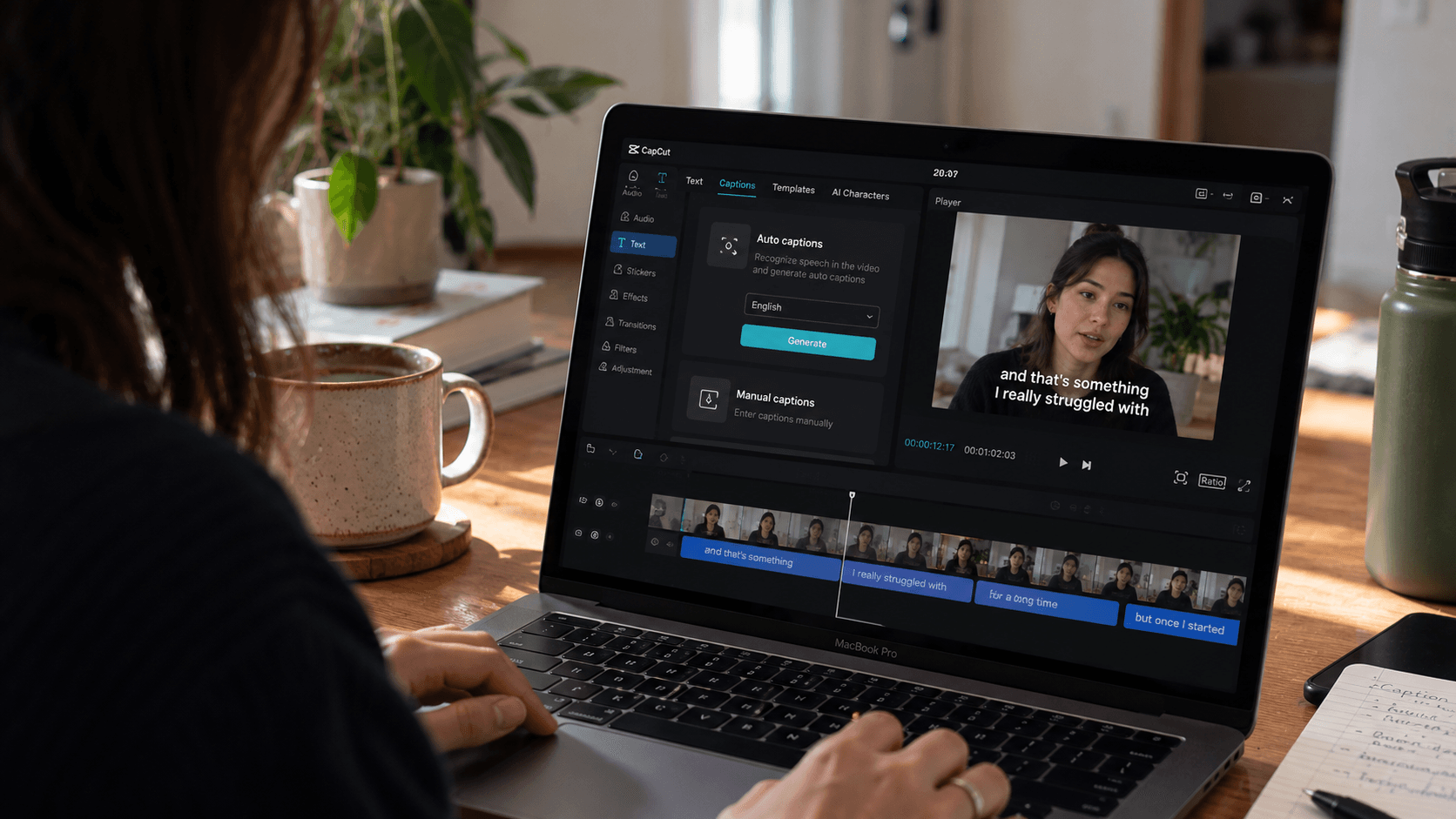
Most editors can generate a caption track from your audio and let you refine timing and text before export, a workflow covered in more depth across our video editing guides. The output is either a caption file or open captions burned into the video, depending on what you choose.
Use a dedicated caption tool
If your editor’s built-in tool falls short on accuracy, standalone tools like Rev or 3Play Media run your audio through transcription and return an editable file, though it’s worth comparing the best Descript alternatives before committing to a separate workflow. You then download the SRT or VTT and upload it wherever you’re publishing.
Burn open captions into the export
For Instagram or any host that doesn’t support caption file uploads, open captions get burned directly into the video. Style them in your editor first, then export. There’s no viewer toggle, so get the timing right before you finalize.
Before publishing, verify that captions sync within half a second of the audio, display between one and six seconds per block, and suppress blank lines during silence.
How to Add Translated Captions and AI Dubbing
Translated captions are the simplest entry point for reaching viewers in other languages. You generate a caption file in your source language, run it through a translation tool, and upload the result alongside your original. Most major hosts accept multiple caption tracks, so viewers can pick their language from the player.
Direct translation alone can create timing problems. Sentence length varies by language, and a phrase that fits neatly in English may run twice as long in German or half as long in Japanese. Good localization adapts phrasing to fit caption display windows instead of translating word-for-word, keeping the reading pace comfortable.
AI dubbing goes further: a synthetic voice reads the translated script over your video, replacing the original audio track. For content where reading captions feels like friction, such as ads or short explainers, dubbed audio removes that barrier entirely. The tradeoff is that lip-sync rarely matches perfectly. Viewers generally accept minor drift on talking-head content, a factor worth knowing when you edit a talking head video, but tight product demos where mouth movement is visible can feel off.
Dubbing adds meaningful value when your audience is large enough to warrant it, or when the viewing context makes reading impractical, which is often the case for teams looking to build AI video ads fast.
How Cardboard Handles Captions and Localization
Cardboard’s caption tools are built around the formats that actually perform on social. The Word Pop style reveals words as they’re spoken and pulls keywords onto their own line at larger size, designed for retention-focused short-form that stops scrolls. Every caption preset automatically suppresses display during silences, so nothing looks unfinished.
Beyond styling, you can translate captions across languages in one click and dub into any language with AI voiceovers and voice cloning. No external tools, no file exports to a third-party service. It all runs in the browser or the native Mac app.
Captions come with every plan. Lite costs $8/month ($5 for the first month) and covers captions and reframing. Starter is $29/month ($9 for the first month) and adds translation and unlimited watermark-free exports. Creator is $59/month ($30 for the first month) and adds voice cloning and 4K exports. Pro is $175/month ($89 for the first month) and adds priority processing. Rates change, so check the Cardboard pricing page before you buy.
Growth and marketing teams at PostHog, Airtable, and Google already use Cardboard to ship captioned, localized video without the async back-and-forth that comes with freelancer workflows.
Final Thoughts on Captioning Your Video Content
Your captions are doing more work than you probably give them credit for: keeping silent viewers engaged, supporting accessibility, and helping non-native speakers stay in the video longer. Getting the basics right, accurate text, good timing, and the right style for the format, goes a long way. Cardboard can handle the captioning and localization side so you can stay focused on the content itself.
FAQ
What is the easiest way to add translated captions and AI dubbing to a video?
Generate a caption file in your source language, run it through a translation tool, and upload each translated track to your video host. Most major platforms accept multiple caption tracks so viewers can pick their language. For AI dubbing, tools like Cardboard let you translate captions and dub into any language with AI voiceovers directly in the editor, with no file exports to third-party services required. The main limitation with dubbing is lip-sync drift, which viewers generally tolerate on talking-head content but notice more on tight product demos.
Open captions vs. closed captions: which should you use for social video?
It depends on where you’re publishing: Instagram has no native caption file support, so open captions burned into the video are your only option, while YouTube and Vimeo support closed caption file uploads natively. Open captions give you full control over font, size, and style, but a single typo means a full re-export; closed caption files are plain text, so corrections take seconds. For multi-platform distribution, many teams burn open captions for social-first cuts and upload a separate closed caption file for hosted or long-form versions.
How do I repurpose long-form video into short clips and ads automatically?
AI-based editors can scan your footage semantically, letting you pull quotes, reactions, or scenes by description without scrubbing a timeline manually. Tools like OpusClip and Vizard focus on clipping, while Cardboard lets you describe the cut you want in plain language and builds a first draft on the timeline, with captions, reframing, and beat sync applied automatically. The fastest workflow is to generate the first cut with AI, then spend your editing time on refinement and not assembly.
How do I reformat a widescreen video into vertical and square versions automatically for Instagram and TikTok?
AI reframe tools track the main subject across the timeline and crop each version so the key action stays in frame, instead of applying a static crop. Cardboard’s Smart Reframe handles vertical, square, and widescreen outputs in one pass, and the result looks hand-edited instead of mechanically cropped. For social-native formats, pair reframing with open captions and a word-by-word caption style, since silent viewing is common on Facebook, Instagram, and TikTok.
What caption style performs best on TikTok and Instagram Reels?
Word-by-word reveals, where each word is shown as it’s spoken, consistently outperform static single-line captions on short-form video because they give viewers something to track and create a rhythm that mirrors speech. Keyword-emphasis captions, where a key phrase appears larger or on its own line, work well for scripted product content where specific phrases need to land harder. Both styles should suppress text during extended silences, since blank caption lines read as unfinished.