Video Editing for Educators and Course Creators (2026)
Discover how to edit lectures, screen tutorials, and talking-head modules into clear lesson videos, updated for November 2026.
 Cardboard Team9 min read
Contents14 sections
- What Should a Video Editor for Educators Actually Do?
- How Long Should a Lesson Video Be?
- How Do You Plan and Record a Lesson So It Is Easy to Edit?
- Workflow 1: How Do You Turn a Recorded Lecture Into Short Lesson Videos?
- Workflow 2: How Do You Edit a Screen Recording Tutorial or Software Demo?
- Workflow 3: How Do You Make a Talking-Head Course Module With B-Roll and Graphics?
- How Do You Make Lesson Videos Accessible With Captions?
- Which Type of Video Editor Fits Your Teaching?
- What Mistakes Make Lesson Videos Harder to Learn From?
- How Do You Use Cardboard to Edit a Recorded Lesson?
- How Can You Revise and Review Lessons in Cardboard?
- What Should You Check When Editing Lesson Videos?
- FAQ
- How Can You Start Editing Your Next Lesson?
Choose a video editor for educators based on your footage: lectures need topic cuts, and screen tutorials need readable steps. Talking-head modules need visuals that support the explanation. These three workflows take you from raw recordings to captioned lessons, with a final check that students can still follow.
TLDR:
- Split your 50-minute lecture into 6 to 8 topic-based clips, keeping each explanation complete.
- Zoom screen tutorials to 150 to 200 percent, then check text readability on your phone.
- Cover talking-head jump cuts with B-roll, and keep diagrams visible during explanations.
- Check auto captions for technical terms, names, and formulas before you publish.
- Cardboard AI (cardboard.ai) is a video editor for educators editing their own lesson footage.
What Should a Video Editor for Educators Actually Do?
A video editor for educators should turn raw lesson footage into clear, captioned videos without eating your weekend. Use this checklist before comparing tools.
- Must have: trim dead air and mistakes, split recordings into lessons, add captions and on-screen callouts, clean up audio, combine screen and webcam footage, and export files your LMS or course host accepts.
- Nice to have: B-roll, motion graphics, collaboration, and AI editing tools.
Try a 50-minute recorded Zoom class: check that you can separate topics and remove housekeeping while keeping each explanation complete.
How Long Should a Lesson Video Be?
Keep most lesson videos under about 6 minutes as a planning target, splitting longer topics into a series.
Guo, Kim and Rubin’s edX video engagement study covered 6.9 million watching sessions across four courses. According to this 2014 study, shorter videos drew more engagement. In those courses, informal talking heads and Khan-style tablet drawings also performed better; polished classroom recordings could struggle online.
Give each video one concept, and cut the warm-up.
For a 45-minute lecture, aim for six to eight segments after trimming. Tutorials and reference videos can run longer. Preserve the full procedure so students can replay individual steps.
How Do You Plan and Record a Lesson So It Is Easy to Edit?
Plan your lesson in segments and leave pauses to make cuts easier. For a math teacher recording a worked problem on a document camera:
- Give each segment one learning goal, a worked example, and a check for understanding.
- Use a USB or lavalier mic for clear audio, and keep the camera steady.
- Leave 2 to 3 seconds before and after each section. Clap or say “take two” to flag mistakes.
- Record screen and webcam separately when possible, and close notifications.
- Check your editor’s upload limits before recording a long lesson.
Workflow 1: How Do You Turn a Recorded Lecture Into Short Lesson Videos?
Turn your recorded lecture into standalone lessons: transcribe it, mark concept boundaries, and extract clips with captions and title cards.
- Aim for 6 to 8 clips of 3 to 7 minutes from 50 minutes of footage.
- In a transcript-based editor, delete words to cut video. Remove fillers and long pauses; preserve reasoning.
- Add captions, a 5-second “Lesson 2.3: Balancing Equations” intro card, and an end card naming the next lesson.
- Name LMS files sequentially:
02-03-balancing-equations.mp4.
Review each clip for missing context before uploading. Use a manual editor if you want control over every cut.
Workflow 2: How Do You Edit a Screen Recording Tutorial or Software Demo?
Cut your screen recording tutorial to the actions students need to copy. Zoom into the working area and label clicks or shortcuts.
For a 12-minute spreadsheet formula recording, aim for a 4-minute tutorial:
- Trim the start and end.
- Remove loading waits and typing mistakes; keep formula entry visible.
- Check that your zoom keeps the selected cell, formula bar, and any open menu items fully visible.
- Add picture-in-picture webcam footage if your expression clarifies a tricky step.
- Caption the finished cut.
Check that instructions remain readable at 1.5x or 2x playback speed. Skip fancy transitions.
Workflow 3: How Do You Make a Talking-Head Course Module With B-Roll and Graphics?
Build your talking-head video course module by cutting stumbles, then use B-roll and graphics to cover jump cuts and explain ideas. For a 9-minute photosynthesis lesson:
- caPick your best takes and cut filler words.
- Add leaf footage when discussing leaves and diagrams for each photosynthesis stage.
- Put key terms in lower-third titles.
- If you add background music, lower it under speech.
- Apply light color correction to match shots.
Keep diagrams visible throughout their explanations. For a 60-second social teaser, reframe an excerpt from 16:9 to 9:16 and reposition labels.
How Do You Make Lesson Videos Accessible With Captions?
Make lesson videos accessible with accurate captions, following the basics of why videos need captions, and check auto captions before publishing.
- In a chemistry lesson, check technical terms such as “mole” and “molar,” plus names and formulas.
- Choose open captions burned into the video or closed captions viewers can toggle.
- Review translated captions for multilingual classes.
- Use readable caption text and describe important visuals aloud.
As of November 2026, the DOJ Title II rule names WCAG 2.1 Level AA, not the newer WCAG 2.2, as the technical standard for state and local government web content, including public education. An April 2026 interim final rule extended compliance deadlines to April 26, 2027 for entities with populations of 50,000 or more, and April 26, 2028 for smaller entities and any special district government.
Captions are only part of accessibility. Check your institution’s requirements before publishing.
Which Type of Video Editor Fits Your Teaching?
Choose a video editor for educators based on your footage and editing time. These categories offer a starting point, but caption support varies by tool.
| Editor type | Footage | Editing time | Learning curve | Captions | Best fit |
|---|---|---|---|---|---|
| Professional | Mixed recordings | More hands-on | Steep | Check tools | Full control |
| Screen-recording | Screen capture | Short for basic edits | Moderate | Check tools | 2-minute walkthrough |
| Template or animation | None needed | Varies | Varies | Check tools | Animated explainer |
| Free classroom or browser | Student clips | Short for basic cuts | Often gentle | Check limits | Student projects |
| AI editor | Your recordings | Draft, then review | Often gentle | Review output | Adjustable lesson drafts |
What Mistakes Make Lesson Videos Harder to Learn From?
Lesson videos become harder to follow with excessive length, poor audio, unreadable text, or unchecked captions. Before publishing:
- Split long lectures at topic boundaries so each lesson covers 1 topic.
- Check for echo with a 10-second external-mic recording.
- Preview spreadsheet footage on 1 phone to check text readability.
- Start music 20 dB below speech, then listen for competing sound.
- Use 0 decorative wipes to keep transitions simple.
- State the learning goal within 10 seconds.
- Review captions against the audio in 1 full pass.
How Do You Use Cardboard to Edit a Recorded Lesson?
Cardboard edits your recorded lessons from plain-language requests. In the AI video editor for Mac (Apple Silicon required), bring in your lecture and ask: “Remove housekeeping and repeated takes from this 50-minute lecture, but keep each worked example complete.” Review the cuts before publishing.
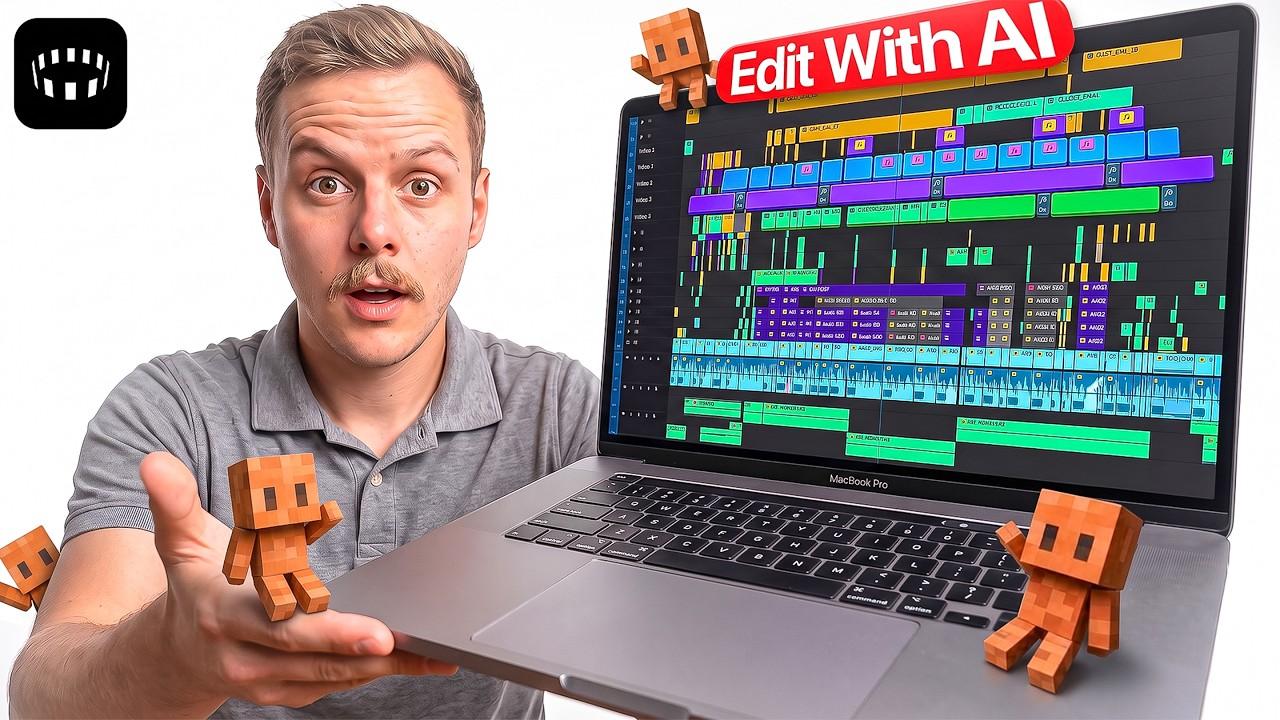
Want to see prompt-based editing on real footage? This Cardboard AI review video shows a creator editing a full video from plain-language prompts and recipes.
Cardboard is not the right fit if you have no footage and want an AI presenter to deliver your lesson script. Use an avatar tool for that task instead.
How Can You Revise and Review Lessons in Cardboard?
Revise lessons on Cardboard’s editable timeline, then share a project link for feedback. For a spreadsheet tutorial, replace a changed formula explanation and ask a colleague to check the following steps.
Can you use Cardboard to shorten a lecture without cutting the pauses students need?
Yes, you can ask Cardboard to remove dead air while keeping deliberate thinking time. Try: “Remove housekeeping and repeated takes, but keep pauses after questions and each step of the worked example.” Review those cuts before publishing, since a useful teaching pause can look like silence.
Do you need to rerecord your whole lesson if one explanation changes in Cardboard?
No, you can revise the affected section on Cardboard’s editable timeline and keep the rest of your lesson. Record the corrected explanation, replace the outdated segment, and check nearby captions and title cards. For a spreadsheet tutorial, replay the following steps to check that they still match the new formula.
How do you get a colleague to review your Cardboard lesson before uploading it?
Share a Cardboard project link and ask your colleague to leave timestamped comments on unclear explanations or caption errors. For a 5-minute chemistry lesson, request one pass for scientific accuracy and one for readability. Resolve the comments, then export the reviewed lesson for your course host.
What Should You Check When Editing Lesson Videos?
When editing lesson videos, check that each explanation is complete, screen text is readable, and captions are accurate. For a recorded lecture, replay each topic cut to check that it includes the setup students need.
FAQ
How do you split a 50-minute recorded lecture into short lesson videos?
Aim for 6 to 8 clips of 3 to 7 minutes by cutting at topic boundaries and removing housekeeping. Keep each explanation complete so students can watch one clip without needing the others. In Cardboard, type “Remove housekeeping and repeated takes from this 50-minute lecture, but keep each worked example complete” and review the cuts before publishing.
What zoom level should I use when editing a screen recording tutorial for students?
Try 150 to 200 percent zoom around the working area, keeping the selected cell and formula bar visible in a spreadsheet tutorial. After zooming, check readability on a phone at 1.5x and 2x playback speed.
Cardboard vs. an avatar tool for editing lesson videos: which fits educators better?
Cardboard fits when you already have footage, such as recorded Zoom classes, screen tutorials, or talking-head modules you filmed yourself. An avatar tool fits when you have no footage and want an AI presenter to deliver a script. If your workflow starts with a recording, Cardboard builds an editable first cut from it.
How do I make lesson videos accessible with captions as a video editor for educators?
Auto captions are a starting point, not a finished product. For a chemistry lesson, check technical terms such as “mole” and “molar,” subject-specific names, and any formulas before publishing, then choose whether to burn captions into the video or offer closed captions viewers can toggle. If your institution is a state or local government entity, the DOJ Title II rule sets WCAG 2.1 AA requirements you need to meet.
Can I shorten a lecture in Cardboard without cutting the pauses students need to think?
Yes. Ask Cardboard to remove dead air while keeping deliberate thinking time, for example: “Remove housekeeping and repeated takes, but keep pauses after questions and each step of the worked example.” Review those cuts before publishing, since a useful teaching pause can look like silence to an automated cut.
How Can You Start Editing Your Next Lesson?
Start your next lesson edit by trimming a recorded worked example and checking its captions. Keep the reasoning complete and remove housekeeping. Open Cardboard to edit it into a focused lesson in the web editor.