How to Remove Music From a Video and Keep the Voice Clear (2026)
See how to strip background music from a video while keeping the voice clean, plus free tools and a Mac option for longer files.

Contents12 sections
- Can You Remove Background Music From a Video and Keep the Voice?
- Which Option Fits
- How Does Removing Background Music Work?
- How Do You Remove Background Music From a Video Step by Step?
- How Do You Remove Music From a Video for Free Online?
- Can You Remove Background Music in CapCut, Premiere Pro, Canva or KineMaster?
- How Do You Lower the Music Instead of Removing It?
- How Do You Reuse a Video Without Copyrighted Music?
- Why Does Some Music Stay After Separation?
- How Do You Remove Background Music With Cardboard for Mac?
- What Should You Check Before You Publish?
- FAQ
You can remove background music from video and keep the voice by deleting a separate music track or, if the music is baked into the audio, by using AI source separation. It also helps when you need to reuse a clip without copyrighted music, though it doesn’t change who owns the footage or the song. Separation works best on speech over light music, and results vary when the music is loud, so test a short section before you process the whole file.
TLDR:
- Mute or delete the music track if it sits separately. Baked-in music needs AI separation.
- Test the loudest 30 seconds first to check the voice survives before running the full file.
- Loud music under quiet speech is hardest. Light instrumentals under clear speech usually separate well.
- Free browser tools suit one 1 to 2 minute clip. Longer or private footage fits local processing.
- Cardboard AI (cardboard.ai) for Mac isolates voice locally on Apple Silicon. As of November 2026, Lite is free with 3 watermarked 1080p exports.
Can You Remove Background Music From a Video and Keep the Voice?
Yes, AI source separation can pull the music out of most clips and leave the voice. It works best on speech over light music, and results vary when the music is loud.
Here is a quick decision rule. If the music sits on its own audio track in your editor, mute or delete that track and you’re done. If it’s baked into a single audio track, like a 90-second phone clip of a street interview with a café playlist underneath, you need AI separation.
Run a 30-second test first, then check that the voice came through clean before processing the full file.
Which Option Fits: Free Online Tools or Cardboard for Mac?
| Option | Cost | Best for | Main limit |
|---|---|---|---|
| Cardboard for Mac | Free with the Lite plan, no card needed | Longer clips and repeat work, processed locally | Mac only (Apple Silicon); Lite includes 3 watermarked 1080p exports |
| Free browser vocal removers | Usually free, often capped | A one-off clip of 1 to 2 minutes | Upload required; limits vary by tool |
| CapCut or Premiere Pro audio tools | Depends on your plan | People who already edit there | Tools vary by app and version |
| Deleting a separate music track | Free | Music sitting on its own track | Does nothing if music is baked into the voice |
Cardboard pricing is as of November 2026, and paid plan prices are on the pricing page.
Deleting the music track beats everything else when the music is separate, since nothing gets processed. A free browser tool suits a single short clip you don’t mind uploading. Cardboard for Mac fits longer footage, regular use, or files you’d rather not upload. It isn’t the right pick on Windows, since voice isolation lives in the Mac app.
How Does Removing Background Music Work?
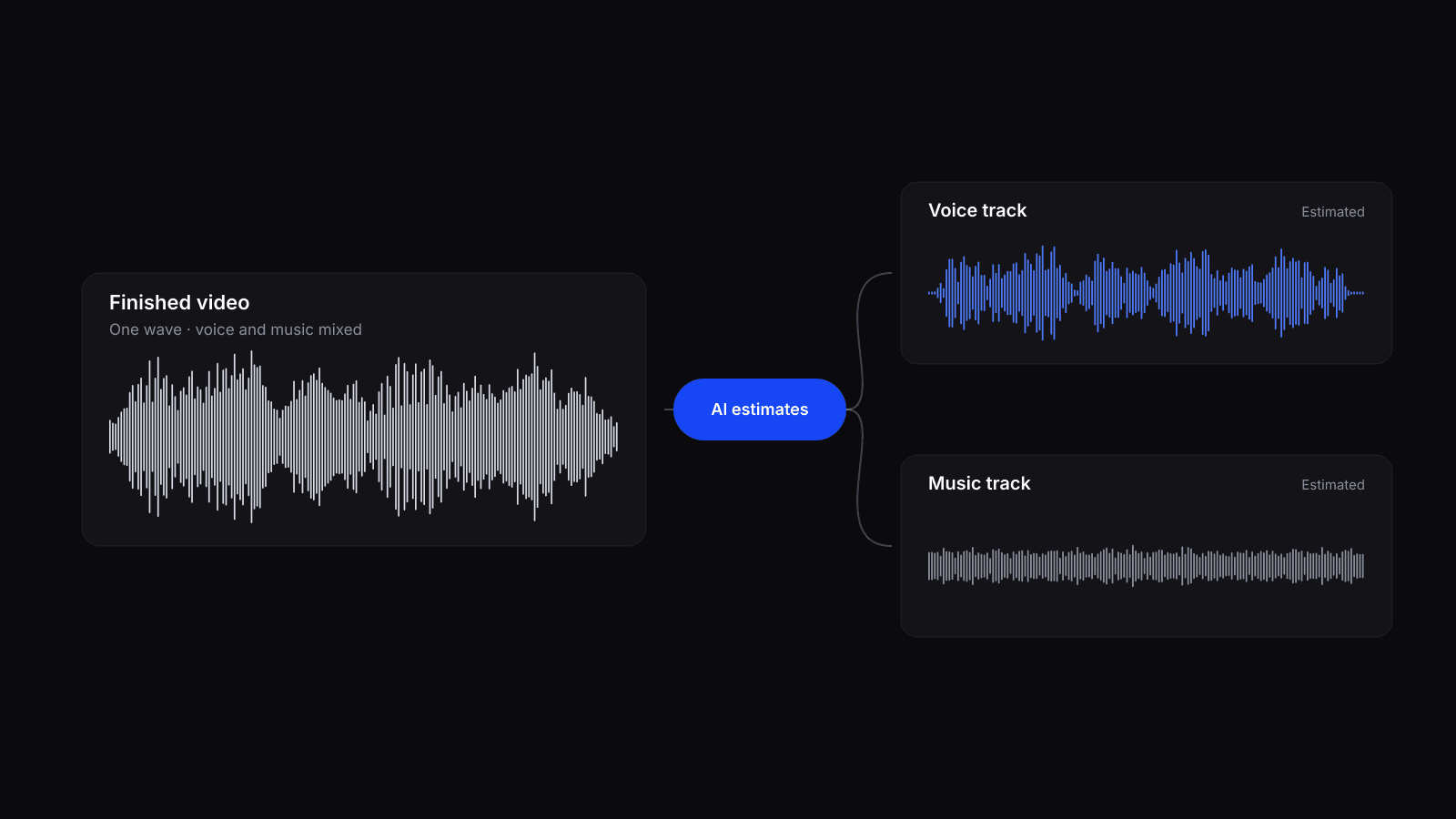
A finished video has one audio wave, with voice and music mixed together like flour and sugar in a baked cake. AI source separation can’t unbake it. It estimates which parts of the wave belong to the voice and which to the music, then writes those estimates out as separate tracks, much like CreateMusicAI describes it.
These models learn from songs where the parts are already known. Meta AI’s Hybrid Transformer Demucs paper reports 9.20 dB of SDR on MUSDB, a 150-song benchmark, but that is its best result, reached with extra training data and per-source fine-tuning. SDR scores how clean a stem is, so a higher number means less bleed.
Video tools treat the voice as the stem to keep and everything else as music to remove. Take a lecture with piano underneath: the model reads frequency patterns over time, separates the piano from the speech, and exports the voice as its own track.
Meta’s open-source Demucs GitHub repository was archived on January 1, 2025, which means it no longer receives updates. Tools built on it rely on the last release.
How Do You Remove Background Music From a Video Step by Step?
Removing background music takes five steps with any separation tool, and a 30-second test comes before the full run.
- Find your original file. Use the highest-quality version you have, not a re-downloaded or compressed copy, because compression smears the frequencies the model needs to tell voice from music.
- Run a 30-second test on the loudest music section. If it sounds clean, the rest should be easier.
- Choose the voice-only or “remove music” output. Skip “mute,” which silences everything.
- Listen with headphones. Check quiet words, “s” sounds and the gaps between sentences, where leftover music shows up first.
- Export to MP4, or place the cleaned voice track under your original video in your editor.
Run separation before any EQ or compression, then polish the voice afterward.
How Do You Remove Music From a Video for Free Online?
Free browser tools suit a short clip you only need cleaned once. Upload, preview, download.
Free tiers often cap clip length, file size, or add a watermark, and limits change often, so read each tool’s own page first. Before you upload, check:
- The file size limit, since phone clips can run to hundreds of megabytes.
- Whether it accepts MP4 and MP3.
- Whether it returns a voice-only video or just audio you must re-attach.
- How it handles your upload, including whether files get deleted.
Try a 2-minute phone clip. Listen to the preview for leftover music between words, then download. For MP3s, skip the re-attach step.
Move to local processing on a Mac app when the recording is long, private, or a weekly job.
Can You Remove Background Music in CapCut, Premiere Pro, Canva or KineMaster?
It depends on the editor and your plan. Each app handles background music differently, so check its current help page before you build a workflow around a feature your version may not have.
- CapCut: search the help center for voice isolation or music removal, and check whether it sits behind a paid tier.
- Premiere Pro: check Adobe’s own help page for current audio tools, including any dedicated music removal.
- Canva and KineMaster: check each app’s current help page for any tool that separates voice from music, since options depend on the app and your plan.
Two fallbacks work in any editor. If the music sits on its own track, delete it. If it’s baked into the clip’s audio, separate it with a dedicated tool, then import the clean voice file and line it up by waveform. That sync usually takes under a minute.
Noise filters target steady hiss and hum, as covered in removing background noise from video. Music overlaps with speech, so a noise filter tends to leave the music or chew up the voice.
How Do You Lower the Music Instead of Removing It?
Ducking is the quicker fix when you only need the voice to be clearer. It automatically lowers the music whenever someone speaks, so the track stays in your video but stops competing with the words.
Picture a voiceover tutorial with a licensed track you added yourself: the music sits full under the intro, dips when you start narrating, and rises again during a 5-second pause between steps. Check your editor’s current help page for an auto-ducking tool and its exact steps, for example in Premiere Pro, DaVinci Resolve or CapCut.
A common starting point is music about 15 to 20 dB under speech. Treat that as a first guess, then adjust by ear with headphones on.
Ducking only works if the music sits on its own track. If it’s baked into the clip’s audio, there is nothing to lower separately, and you need separation instead.
How Do You Reuse a Video Without Copyrighted Music?
Removing the music changes the file, not the rights. Separating the audio doesn’t settle who owns the video or the song in it, so work out which situation you’re in first.
Three cases come up most:
- Your own video picked up a music claim after you uploaded it. YouTube’s help center explains how to dispute a copyright claim if you have the rights to the track, such as a license.
- You filmed a clip at an event with a song playing in the background.
- You saved a reference video from social media. The footage isn’t yours to reuse just because the music is gone.
This isn’t legal advice, so check the platform’s terms if the stakes are high.
When you do have the right to reuse the footage, try these in order: remove the music and keep the voice, replace it with a licensed track, mute the section, or cut it. For a wedding clip, keep the toast through separation, then lay a licensed track underneath at a low level.
Separation can leave faint traces of a song in quiet gaps, and detection systems may still catch them. For a monetized channel, a licensed replacement is the safer path.
Why Does Some Music Stay After Separation?
Some music stays because voice and music share the same frequencies, and separation is never perfect when they overlap heavily. Loud music under quiet speech is the hardest case, since the model has little voice to hold onto.
Even a good separation leaves traces:
- A watery or robotic tone on the voice
- Faint echoes of the music between words
- Lost “s” and “t” consonants
- Dips where the voice and a loud instrument collide
Light instrumental music under clear speech usually separates well. Songs with vocals are harder, because the model can mistake the singer for your speaker and keep pieces of both.
If leftovers remain, try these in order:
- Test the loudest 30 seconds before processing the full file.
- Use a lower-strength setting if offered.
- Start from the highest-quality original.
- Run noise reduction after separation, not before.
If the voice still sounds damaged, re-record a short narration or swap in a quieter licensed track.
How Do You Remove Background Music With Cardboard for Mac?
Cardboard has a free Mac app for Apple Silicon (M1 or later) that isolates your voice and removes background music in one step. Lite needs no card, and footage is processed on your Mac, so nothing uploads first.
- Open the clip in the Mac app.
- Run voice isolation, or type “Remove the background music from this clip and keep my voice clear”.
- Play the timeline and listen for leftover music between sentences.
- Export your MP4.
As of November 2026, Lite includes 3 exports at 1080p with a small watermark. Starter and above remove it. Details are on the Cardboard AI pricing page.
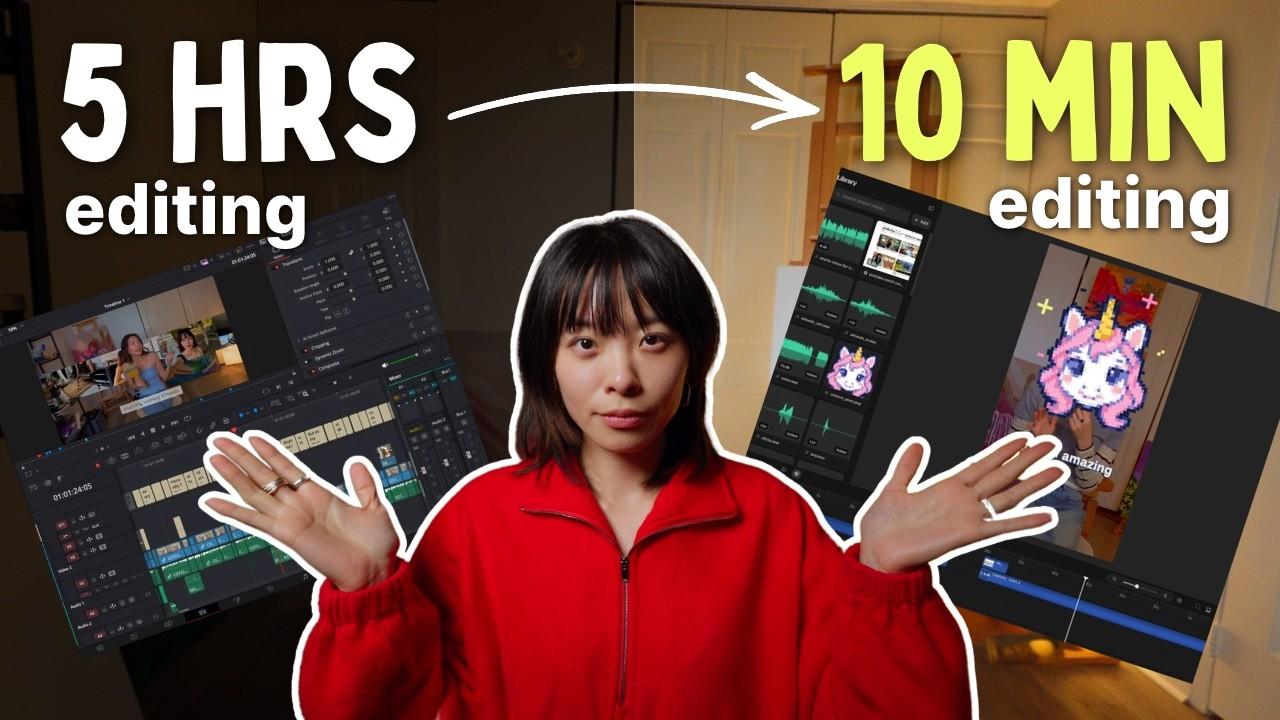
Want to see the editor before you install it? This sponsored 15-minute walkthrough from June Does covers planning an edit, a rough cut, B-roll and motion layouts in Cardboard. It doesn’t cover music removal, so treat it as a look at the editor itself.
Loud music over quiet speech can leave artifacts, so test the loudest 30 seconds first. One-click voice isolation is Mac only, and for a single short clip a free browser tool is the better pick.
Try the free Cardboard for Mac app and run your first clip through it.
What Should You Check Before You Publish?
Start small. Check your quiet words and the gaps between sentences, since that’s where leftover music hides. For longer or private footage, Cardboard for Mac processes everything on your machine and costs nothing to try.
FAQ
Can I remove music from a video but keep the voice for free online?
Yes, free browser vocal removers can separate the voice from the music on a short clip, usually 1 to 2 minutes, though many cap length or file size. If the clip is long, private, or a weekly job, the free Cardboard for Mac app (Lite plan, no card needed) processes it on your Mac with nothing to upload.
Cardboard vs CapCut for removing background music from a video?
CapCut works if you already edit there, but music removal tools vary by app version and plan, so check its current help page first. Cardboard for Mac runs one-click voice isolation on Apple Silicon for free on the Lite plan, which includes 3 watermarked 1080p exports (as of November 2026). On Windows, CapCut or a browser tool is the better pick, since Cardboard’s voice isolation lives in the Mac app.
What’s the best free background music remover for a long video on a Mac?
For a long recording, a local tool beats a browser upload, since you skip file size caps and uploading a large MP4. Cardboard for Mac isolates your voice and removes the music in one step on Apple Silicon (M1 or later), and you can ask in plain language: “Remove the background music from this clip and keep my voice clear”. Test the loudest 30 seconds first to confirm the voice comes through clean.
Why does background music still show up after I try to remove it?
Voice and music share the same frequencies, so an AI separator can’t split them perfectly when they overlap heavily. Loud music under quiet speech is the hardest case, and songs with vocals can fool the model into keeping pieces of both. Start from your highest-quality original, test the loudest 30 seconds, and run noise reduction after separation, not before.
Can I remove music from audio but keep the voice if it’s an MP3?
Yes, the same AI separation works on MP3 files, and you skip the step of re-attaching the voice track to a video. Run a 30-second test on the loudest section, listen with headphones for leftover music between words, then export the voice-only file.