Kapwing vs Cardboard AI: Which Fits You?
Kapwing and Cardboard AI compared for social clips: editing style, pricing and timeline export options as of Nov 2026.
 Cardboard Team8 min read
Contents8 sections
Choose Kapwing if you want to arrange a recorded lesson on a browser timeline. Choose Cardboard AI (cardboard.ai) to turn your existing footage into a first cut through chat. For an interview, ask Cardboard, “Turn this interview into captioned social clips,” then review the cut.
TLDR:
- Kapwing offers browser timeline editing and prompt-to-video generation.
- Cut your podcast into 9:16 clips under 60 seconds, each with one complete idea and captions.
- Cardboard builds first cuts from your footage through chat; you refine the edit.
What Is Kapwing?
Kapwing combines browser timeline editing with prompt-to-video generation, as of November 2026. You can generate scenes from a script, then refine them on its timeline.
For example, if you’re editing a recorded lesson, its timeline gives you a way to arrange your footage. Consider Kapwing if you want browser-based timeline editing alongside tools for generating video from prompts.
What Is Cardboard?
Cardboard is an AI video editor that edits your existing footage through conversation. Its built-in Director builds editable first cuts on multi-layer timelines, so you can keep shaping the edit.
For a recorded interview, try asking, “Build a first cut from this interview.” Review the timeline and decide which takes stay.
Windows users access Cardboard through the web editor in their browser, not a desktop app. You can also use Cardboard through ChatGPT and Claude, subject to early access. On an Apple Silicon Mac, you can use the Mac app, where Lite is free as of November 2026.
How Do Kapwing and Cardboard AI Handle Your Own Footage?
Kapwing suits hands-on edits to your footage; Cardboard AI builds a requested cut you can refine.
| Task | Kapwing | Cardboard |
|---|---|---|
| Editing approach | Timeline edits and chat-based editing, as of November 2026 | Requested edits and manual timeline refinement |
| ChatGPT or Claude access | Workspace connector | Early access |
| Premiere Pro / DaVinci Resolve export | Not listed on the Kapwing plans page, as of November 2026 | XML / FCPXML, Starter and above, web editor only, as of November 2026 |
Which Is Better for Podcast Clips?
For a 45-minute podcast, choose based on how you want to select excerpts.
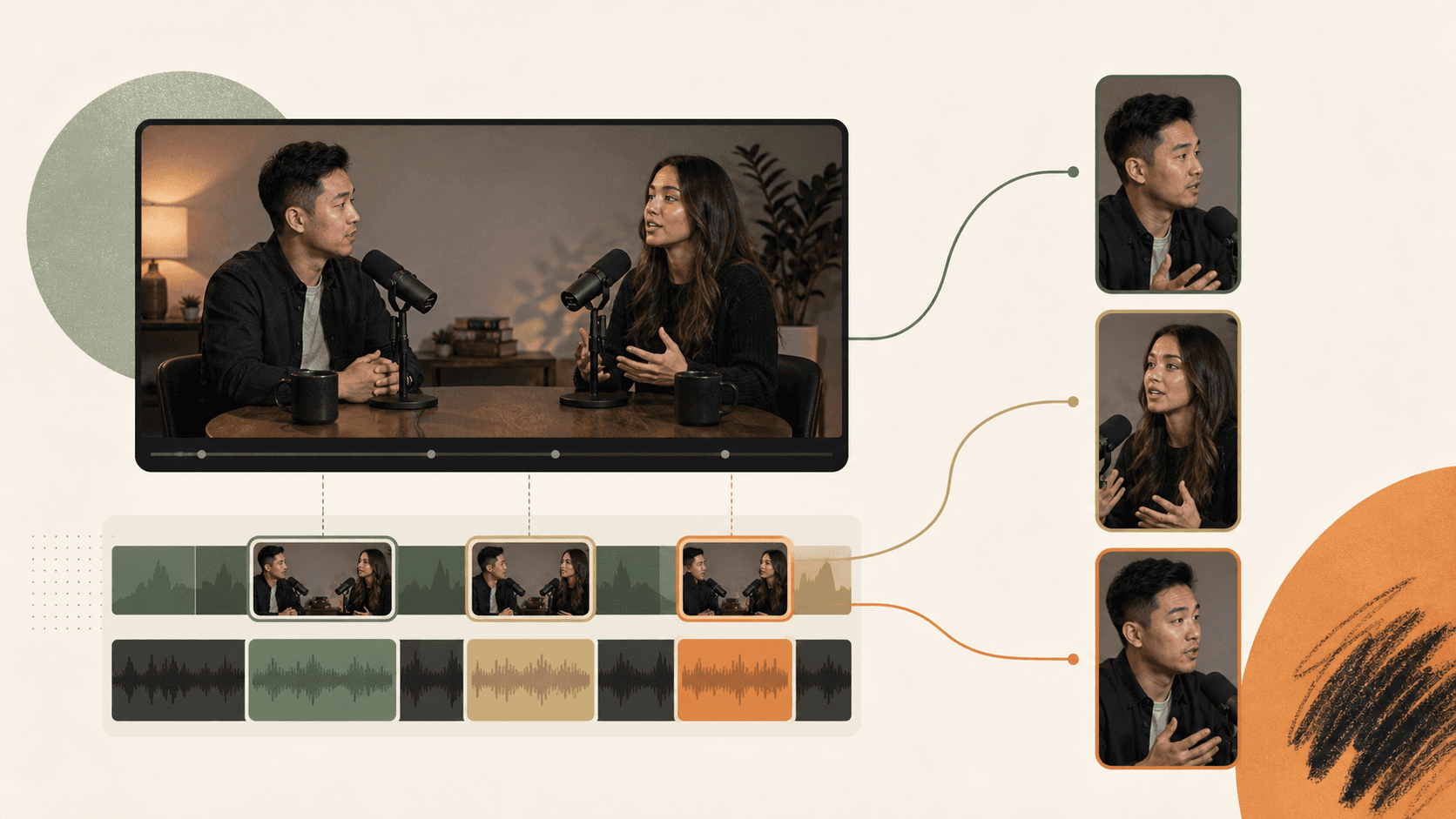
- In Kapwing, trim selections, add subtitles, then resize to 9:16 using its editing tools, as of November 2026.
- In Cardboard, upload the episode. Ask: “Make three vertical clips, each with one complete idea, under 60 seconds, with Word Pop captions.”
- Review the cuts before sharing a link for comments.
Which Is Better for Talking-Head and UGC Edits?
For a 12-minute talking-head take, Kapwing suits manual control. Cardboard supports transcript-first cleanup and closes gaps.
“Remove the pauses and filler words, reframe to 9:16 and add captions.”
Review the result before publishing.
How Do Kapwing and Cardboard AI Fit Your Workflow?
Kapwing and Cardboard both support editing through chat; Cardboard also offers timeline handoff for finishing a client interview. Use Cardboard’s web editor on Starter and above for that handoff, as of November 2026.
Can You Edit Inside ChatGPT or Claude?
Yes, Kapwing’s MCP connector lets you edit through ChatGPT or Claude, as of November 2026. Add the connector in your assistant’s settings, then sign in to Kapwing. For a recorded interview, ask the assistant to upload the clip and add subtitles.
Cardboard’s ChatGPT plugin needs no API key, but remains in early access. Install it, connect your account, then type @Cardboard and attach your interview footage. Ask, “Cut this into a 90-second testimonial with captions,” then review the result.
Can You Finish in Premiere Pro or DaVinci Resolve?
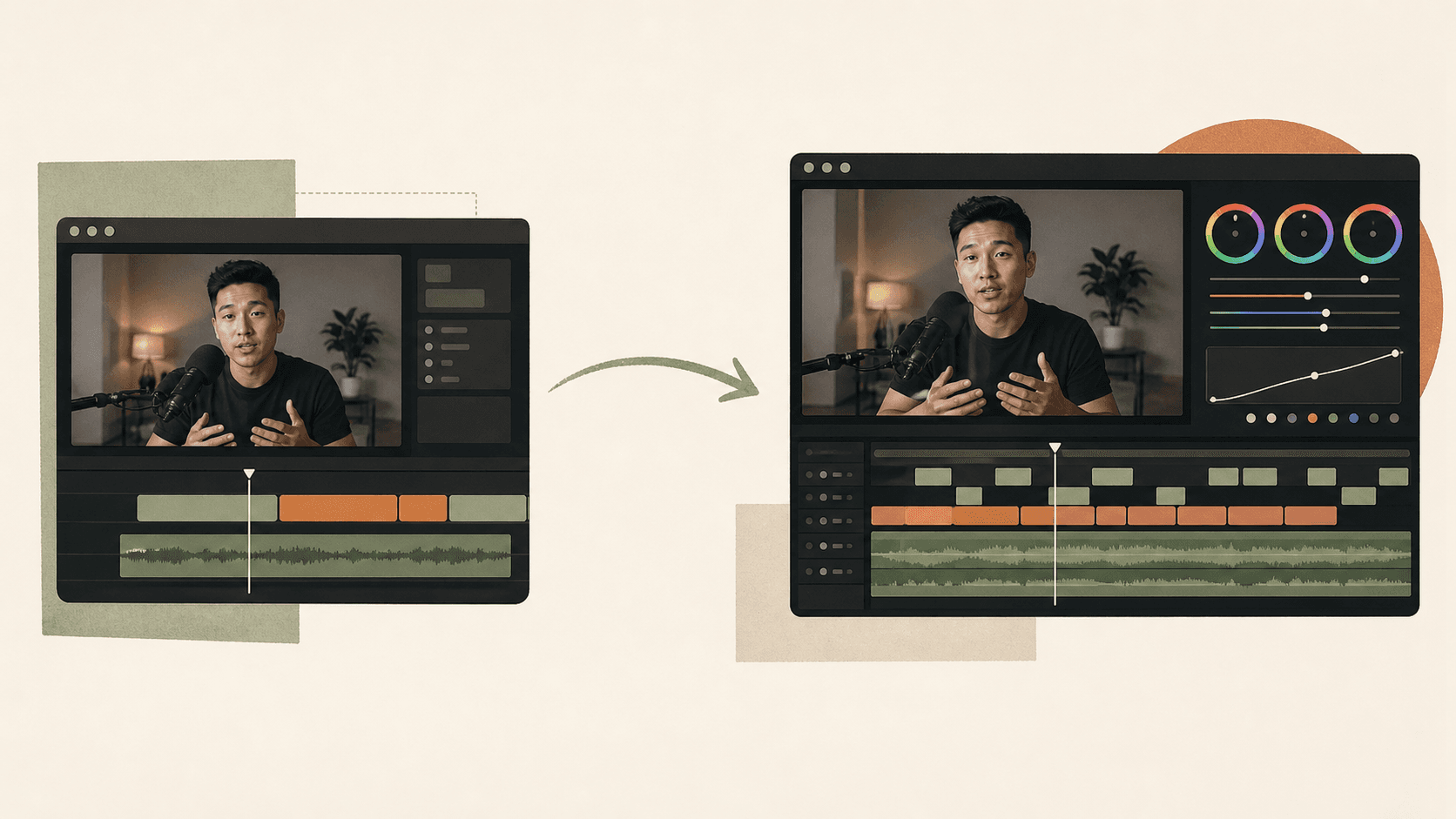
Yes, Cardboard supports timeline handoff on Starter and above, through its web editor only, as of November 2026. Export XML for Premiere Pro or FCPXML for DaVinci Resolve.
For a client interview, ask: “Cut this into a 90-second testimonial with captions.” Export the timeline for your final grade.
How Do You Switch From Kapwing to Cardboard AI?
- Gather downloaded exports or original footage.
- Open Cardboard’s Mac app or web editor.
- Pick the Editorial Interview recipe.
- Type the testimonial request above.
- Share a review link for timestamped comments.
How Do Kapwing and Cardboard AI Compare on Pricing and AI Generation?
Kapwing charges per member; Cardboard AI has four plans. Credits measure different work.
How Does Pricing Compare?
As of November 2026, Kapwing pricing uses per-member billing, while Cardboard pricing separates first-month offers from recurring monthly prices. For captioned client interviews, compare recurring costs and the export quality you need. The table pairs plans for display, not as equivalent allowances; Lite is free in the Cardboard Mac app as of November 2026.
| Plan | Kapwing USD/member/month, annual billing, as of November 2026 | Cardboard USD/month, first month then recurring monthly, as of November 2026 |
|---|---|---|
| Free / Lite | $0 | $5 then $8; free on Mac |
| Pro / Starter | $16 | $9 then $29 |
| Business / Creator | $50 USD/member/month, billed annually, as of November 2026 | $30 then $59 |
| Enterprise / Pro | Custom | $89 then $175 |
Which Is Better When You Have No Footage?
Choose Kapwing for product explainers generated from a script through its AI video generator, as of November 2026. Cardboard supports AI-generated video clips, images, music and sound effects on Starter and above as of November 2026, but footage editing remains its focus. The OpusClip comparison covers another footage-editing choice.
What Can’t Cardboard AI Do Yet?
Cardboard has no Windows desktop app or phone app, and does not offer AAF or Final Cut Pro export. For a client interview, use the web editor on Windows and share a review link for timestamped feedback.
- Use a desktop browser on Windows; there is no Windows desktop app.
- For timeline handoff, export XML for Premiere Pro or FCPXML for DaVinci Resolve through the web editor on Starter and above, as of November 2026.
- Share the published cut for timestamped comments rather than planning simultaneous timeline edits.
Kapwing vs Cardboard AI FAQ
- Is Cardboard useful for podcast clips?
Yes. Ask: “Find a complete 30-second answer.” - Does Cardboard work on Windows?
Yes, through a desktop browser.
Compare plans against your editing needs.
Why Cardboard Is the Better Choice
Cardboard is a stronger Kapwing alternative if you already have footage and want AI to handle the first pass, similar to the InVideo own-footage comparison. For a podcast recorded across several cameras, ask: “Sync these angles and remove false starts, keeping each answer intact.” Cardboard combines multicam sync with transcript-first cleanup, using recipes to build your first cut.
Consider Kapwing if prompt-to-video generation and per-member workspaces matter more to your workflow. With Cardboard, you can process footage locally on Apple Silicon Macs, tackling hard problems in editing.
For Premiere Pro or DaVinci Resolve handoff, use Cardboard’s timeline export in the web editor on Starter and above, as of November 2026. Lite is free in the Mac app as of November 2026.
Final thoughts on Cardboard as a Kapwing Alternative
Cardboard suits your footage-first projects, while Kapwing suits video generation from prompts. You keep control of the final edit. Start with one talking-head take in Cardboard and review its cleanup.
FAQ
When should you choose Cardboard over Kapwing for weekly social videos?
Choose Cardboard if you regularly turn interviews, podcasts or screen recordings into finished edits. Ask, “Make three vertical clips from this interview, each under 60 seconds,” then review the cuts. Kapwing suits creators who prefer hands-on browser editing or need prompt-to-video generation, as of November 2026.
How should you review a Cardboard first cut if you usually edit manually in Kapwing?
Treat Cardboard’s first cut as a draft you still control. For a talking-head video, check that removed pauses preserve the meaning and that vertical framing keeps you in view. Ask, “Restore the pause before the final sentence,” or adjust the multi-layer timeline by hand.
What should you bring from Kapwing when you start your first Cardboard project?
Bring your original footage when possible; a downloaded Kapwing export is a finished video, not a transfer of its editable layers. Start with one interview and ask Cardboard, “Cut this into a 90-second testimonial with captions.” Keep your Kapwing project available while you check the new cut.
How do you compare Kapwing and Cardboard costs for captioned client videos?
Compare the same billing period and export needs: as of November 2026, Kapwing pricing lists per-member charges, while Cardboard separates usage credits from generation credits. As of November 2026, Cardboard Lite is free in the Mac app with three watermarked 1080p exports; Starter offers unlimited watermark-free 1080p exports. For client-ready captioned interviews, compare Cardboard plans using recurring prices, not first-month offers.