InVideo vs Cardboard AI for Own-Footage Edits
Breaking down InVideo AI vs Cardboard AI for footage edits, captions, pricing and exports as of November 2026.
 Cardboard Team14 min read
Contents9 sections
- What Is InVideo AI?
- What Is Cardboard?
- Which Is Better for Editing Your Own Footage?
- Which Is Better for Social Clips, Ads and Videos Without Footage?
- How Do Pricing, Exports and Team Review Compare?
- When Should You Choose Cardboard?
- What else should you know before choosing InVideo AI or Cardboard?
- Is InVideo AI or Cardboard better for editing recorded footage?
- What is the main difference between how InVideo AI and Cardboard handle a video project?
- Who is Cardboard best suited for, and who is InVideo AI best suited for?
- What export and format limits should you check before switching from InVideo AI to Cardboard?
- Can you manually adjust a Cardboard edit after giving it a prompt?
- Is Cardboard free?
- Can I use Cardboard inside ChatGPT or Claude?
- FAQ
- Should You Choose InVideo AI or Cardboard for Your Next Video?
Choose Cardboard AI (cardboard.ai) if you want to edit recordings through plain-language requests in its browser editor or Mac app; consider InVideo AI if you want to generate a video from a written brief. Both also support editing uploaded footage, so source material alone does not decide the comparison. For an interview, try “Shorten this interview and add captions” in Cardboard, then review the timeline and sharing workflow.
TLDR:
- Compare the editing and delivery workflow alongside the starting material: both tools can work with uploaded footage.
- InVideo AI creates videos from prompts with scripts, visuals, voiceover and music.
- Try: “Cut this 40-minute webinar into three 30-second clips with captions.”
- Cardboard edits your own footage through prompts and a multi-layer timeline.
What Is InVideo AI?
InVideo AI can generate a video from a written idea; Cardboard focuses on editing your recordings. InVideo AI’s AI Video Generator page describes scripts, visuals, voiceovers and music, plus prompt-based revisions. For example, try “Create an explainer for a meal-planning app aimed at busy parents. Show how planning dinners ahead helps simplify grocery shopping, with a friendly voiceover and background music.” This requests a narrated product explainer without needing product recordings. Review the generated scenes and script, then request changes where needed.
InVideo AI also supports your own footage: its getting-started guide describes uploading media, arranging a timeline, requesting edits and exporting. Its media upload guide explains how to add video, images and audio to the project.
For an InVideo AI vs Cardboard comparison, try the same recorded product walkthrough in each editor. In Cardboard, request “Cut this product walkthrough into a shorter video.” In InVideo AI, upload the recording to the timeline and describe the cut you want. Compare the resulting cuts and the work needed to finish them without assuming only one tool accepts recordings.
What Is Cardboard?
Cardboard is a video editor you talk to, built for editing your own footage. Ask it to cut, caption and reframe a recording, then refine the result on a multi-layer timeline using the Cardboard Mac app.
For a webinar, try:
Cut this webinar into a 30-second clip with captions.
Which should you choose: InVideo AI or Cardboard?
Choose Cardboard for its recording-to-edit workflow, or InVideo AI for generating an explainer from a brief; both can edit uploaded recordings. For an interview, try Cardboard with “Shorten this interview and add captions,” then compare the timeline and delivery options you need.
| Detail | Cardboard |
|---|---|
| Best for | Editing podcasts, webinars and talking-head recordings |
| Where it runs | Browser and Mac app for Apple Silicon |
| Free option, as of October 2026 | Lite is free in the Mac app; exports include a “Made with Cardboard” watermark |
| Captions and translation, as of October 2026 | Captions on all plans; translation on Starter and above |
| Timeline handoff, as of October 2026 | Starter and above: XML for Premiere Pro; FCPXML for DaVinci Resolve |
Which Is Better for Editing Your Own Footage?
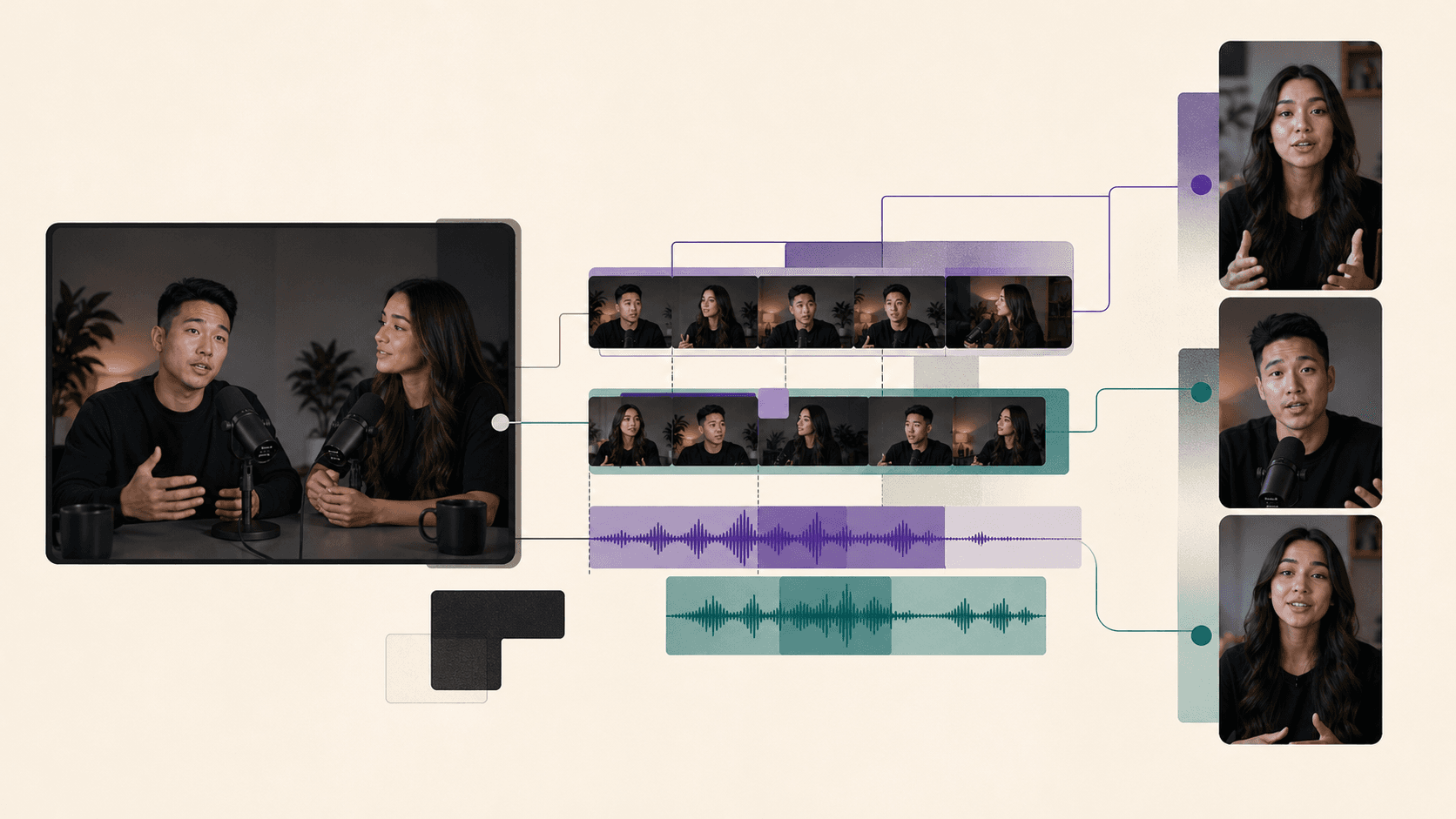
Cardboard and InVideo AI both edit your own footage, so choose based on the workflow you want to use. InVideo AI’s getting-started guide describes uploading a recording, arranging it on a timeline and requesting a cut. In Cardboard, upload a recorded interview and search for quotes or reactions. Request “Shorten this interview and add captions,” then review the cuts and caption timing on the multi-layer timeline. Adjust manually or ask for changes, remove background noise and reframe vertically for a social clip. Choose Cardboard if this interview-to-clip workflow fits how you want to work, not because InVideo AI lacks footage editing.
How Does Each Tool Work?
InVideo AI and Cardboard both accept plain-language requests, but the steps below compare InVideo AI’s idea-to-video workflow with Cardboard’s footage-editing workflow. For an explainer without recordings, start in InVideo AI:
- Type your video idea.
- Review the generated script, visuals and voiceover.
- Refine with more prompts.
Cardboard:
- Upload footage in your browser or Mac app.
- Type “Make a 60s recap from this raw footage.”
- Review the multi-layer timeline draft.
- Refine through requests or manual edits.
- Export or share a review link.
Which Is Better for Turning a Long Recording Into Clips?
Cardboard is a practical choice for turning a recorded webinar into captioned clips; InVideo AI also accepts recordings, so this is a workflow recommendation, not an exclusive capability. In InVideo AI, upload the webinar, place it on the timeline and describe the shorter cut using its editing steps. In Cardboard, turn the recording into short clips with these steps:
- Upload the recording.
- Search for strong quotes or reactions.
- Type “Cut this 40-minute webinar into three 30-second clips with captions.”
- Apply Word Pop captions to reveal words as spoken and display keywords larger.
- Reframe vertically.
- Remove background noise and balance loudness for rough room audio.
Which Is Better for Social Clips, Ads and Videos Without Footage?
InVideo AI is the better fit for a prompt-led explainer without footage; Cardboard is a practical choice for repurposing recorded demos. InVideo AI’s video generator lets you describe the idea, select the audience and platform, generate the video and revise it with prompts. In Cardboard, upload a product walkthrough and request “Cut this into a 20s ad with captions.” Review the first cut, adjust the opening, then use Smart Reframe for vertical, square and horizontal versions. Choose InVideo AI for this no-footage explainer workflow and Cardboard for this recording-first workflow; InVideo AI also supports uploaded footage.
Which Is Better When You Have No Footage?
Choose InVideo AI over Cardboard for a prompt-led explainer when you have no product recordings. Its own AI Video Generator page describes creating scripts, visuals and voiceovers from an idea. Describe your product and audience, generate the explainer, then request revisions to the scenes or voiceover.
Cardboard offers 3D graphics, voiceovers and generated clips, but its workflow starts with your recordings.
Which Is Better for Ad Variations and Multiple Formats?
Cardboard is a practical choice for reframing one product walkthrough into several ad formats; InVideo AI also supports editing uploaded footage. For your 2-minute walkthrough in Cardboard:
- Upload your recording and type “Cut this into a 20s ad.”
- Use Smart Reframe to make vertical, square and horizontal versions while keeping the action in frame, similar to the steps in editing a talking head video.
- Translate captions for other markets on Starter or above, as of October 2026.
- Add music, then request “beat-sync this to the music I just added.”
Choose Cardboard for this workflow when you need several formats of the same recorded demo. To compare it with InVideo AI, upload the same recording, arrange it on the timeline and request the ad cut using its getting-started steps.
How Do Pricing, Exports and Team Review Compare?
Compare Cardboard and InVideo AI on recurring cost, timeline handoff and how clients leave feedback, alongside the introductory price. As of October 2026, InVideo AI’s pricing page lists Starter at $20 per seat per month, or an advertised $10 per seat per month billed annually. Cardboard separates first-month and recurring prices on its pricing page, and Lite is free in the Mac app as of October 2026. Budget Cardboard’s editing usage separately from generative credits instead of treating them as one allowance. As of October 2026, Cardboard Starter and above support XML exports for Premiere Pro and FCPXML for DaVinci Resolve, so you can hand off a rough cut for finishing. Teammates can edit together in real time and leave comments at exact timecodes. For a recorded product demo, request “Cut this into a 20s ad,” then send a public review link so clients can watch the latest published cut and leave timestamped comments without signing up.
How Does Pricing Compare?
For Cardboard and InVideo AI, compare recurring costs and the allowances needed for your project without treating credits as interchangeable. For a recorded demo in Cardboard, request “Cut this into a 20s ad,” then choose a plan for your export needs. Cardboard pricing and limits as of October 2026:
| Plan | First month | Recurring monthly | Monthly, billed annually | Generative credits | Exports |
|---|---|---|---|---|---|
| Lite | $5 | $8 | $8 | None | 3, 1080p, watermarked |
| Starter | $9 | $29 | $20 | 400 | Unlimited 1080p, watermark-free |
| Creator | $30 | $59 | $39 | 1,500 | Unlimited 4K, watermark-free |
| Pro | $89 | $175 | $125 | 5,000 | Unlimited 4K, watermark-free |
As of October 2026, Lite is free in the Mac app. Budget Cardboard editing usage separately from generative credits.
Can You Export to Premiere Pro or DaVinci Resolve?
Yes, as of October 2026, Cardboard Starter and above support XML for Premiere Pro and FCPXML for DaVinci Resolve; InVideo AI also describes editor handoff in its timeline editor guide. For an interview in Cardboard, request “Shorten this interview,” refine the cut and export the timeline for a colorist. If you are comparing other transcript-led workflows, see these Descript alternatives.
How Do Teams Review Edits?
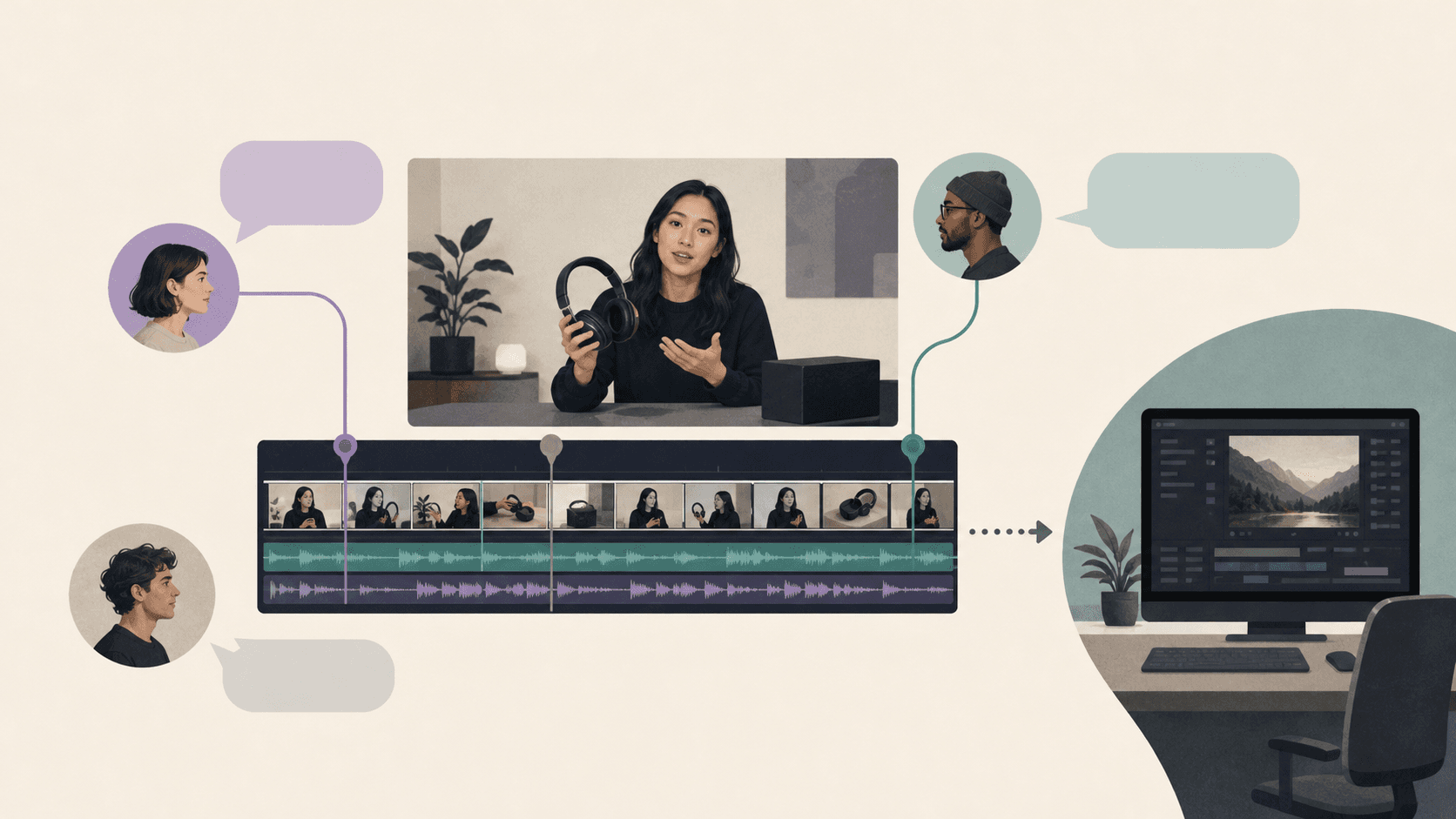
Cardboard teammates can edit together and pin timecoded comments; InVideo AI also describes live team editing in its editor guide. For a recorded podcast in Cardboard, ask teammates to pin comments to tangents they would cut or answers they would keep. To compare more tools for this workflow, see the best AI video editors.
When Should You Choose Cardboard?
Choose Cardboard if its recording-to-clip workflow fits your work; InVideo AI also supports uploaded footage and timeline editing. For a recorded interview in Cardboard, upload the footage and search for quotes or reactions. Request “Shorten this interview and add captions,” then review the first cut on the multi-layer timeline and adjust it manually or through follow-up requests. For client feedback, send a public review link so clients can watch the latest published cut and leave timestamped comments without signing up. For finishing elsewhere, Starter and above support XML for Premiere Pro and FCPXML for DaVinci Resolve, as of October 2026.
What Should You Know Before Choosing Cardboard?
Cardboard has export and import limits to check before switching from InVideo AI. For an interview, request “Shorten this interview,” then confirm that the required recordings and finishing format fit the limits below.
- AAF, Avid and Final Cut Pro exports aren’t supported.
- As of October 2026, Lite is free in the Mac app, not a trial.
- ChatGPT and Claude plugin docs still mention early access.
- As of October 2026, Google Drive folder links import only the first file into Cardboard, so check your media before editing.
How Do You Switch From InVideo AI to Cardboard?
Start a new Cardboard project with your original recordings when moving from InVideo AI. For an interview, gather the source footage, upload it and request “Shorten this interview” before moving more projects.
- Save your finished InVideo AI videos and source media.
- Gather the recordings you want to edit.
- Open Cardboard.
- Upload your footage.
- Request “Shorten this interview.”
- Refine the timeline.
- Share the cut for review.
What Else Should You Know About InVideo AI vs Cardboard?
For InVideo AI and Cardboard, judge the learning curve on one real recording before moving your workflow. In Cardboard, start with an interview and request “Shorten this interview.”
Is Cardboard hard to learn?
No, you do not need to learn timeline controls before requesting a first cut in Cardboard. Upload an interview in the browser or Mac app and type “Shorten this interview and add captions.” Review the draft’s cuts and caption timing, then request “Shorten the opening” or adjust the timeline manually.
Try the interview request on one recording you already have.
What else should you know before choosing InVideo AI or Cardboard?
Is InVideo AI or Cardboard better for editing recorded footage?
It depends on your workflow: InVideo AI and Cardboard both edit uploaded footage through plain-language requests and a timeline. Try the same interview in each, requesting “Shorten this interview and add captions” in Cardboard. Compare the cuts, caption timing and delivery steps before committing.
What is the main difference between how InVideo AI and Cardboard handle a video project?
InVideo AI can generate a video from a written idea, while Cardboard focuses on editing your recordings; both also support footage editing. In Cardboard, upload a webinar, type “Cut this 40-minute webinar into three 30-second clips with captions,” and refine the result on a timeline. Choose InVideo AI for a prompt-led explainer without recordings, or Cardboard if its recording-to-clip workflow fits your project.
Who is Cardboard best suited for, and who is InVideo AI best suited for?
Cardboard fits people editing their own recordings, while InVideo AI suits a prompt-led explainer without source footage. For a recorded product walkthrough in Cardboard, request “Cut this into a 20s ad with captions,” then review the opening and caption timing.
What export and format limits should you check before switching from InVideo AI to Cardboard?
As of October 2026, Cardboard Starter and above export XML for Premiere Pro and FCPXML for DaVinci Resolve; AAF, Avid and Final Cut Pro exports are not supported. Lite is free in the Mac app but limits you to three watermarked 1080p exports, and a Google Drive folder link imports only the first file, so check your media is accessible before moving your full workflow over.
Can you manually adjust a Cardboard edit after giving it a prompt?
Yes, Cardboard produces a first draft on a multi-layer timeline that you can refine through follow-up requests or direct manual edits. For an interview clip, type “Shorten the opening and add captions,” then review the cut and caption timing before exporting or sending a public review link to a client.
Is Cardboard free?
Yes, as of October 2026, Cardboard Lite is free in the Mac app, with three watermarked 1080p exports. Upload an interview and request “Shorten this interview and add captions” to try the workflow before paying.
Can I use Cardboard inside ChatGPT or Claude?
Yes, Cardboard has a ChatGPT and Claude plugin, but its docs still mention early access as of October 2026, so access is not guaranteed for every account. If you have access, try editing an uploaded interview with “Shorten this interview”; editing in chat uses your plan’s usage credits.
FAQ
Should I choose InVideo AI or Cardboard AI (cardboard.ai) for editing a recorded interview?
It depends on your workflow. Cardboard is built for editing recordings through plain-language requests on a multi-layer timeline, so upload your interview and type “Shorten this interview and add captions” to get a first cut fast. InVideo AI also edits uploaded footage, so try the same request in both and compare the cuts, caption timing, and delivery steps before deciding.
What is the core difference between how InVideo AI and Cardboard handle a video project?
InVideo AI can generate a complete video from a written brief, producing scripts, visuals, voiceover, and music without any source footage. Cardboard starts with your recordings and lets you request cuts, captions, and reframes through plain language, then refine the result on a timeline. Choose InVideo AI for a prompt-led explainer you need to build from scratch, and Cardboard for turning recorded webinars, podcasts, or walkthroughs into finished clips.
Who is Cardboard best suited for, and who is InVideo AI best suited for?
Cardboard fits creators, podcasters, marketers, and teams who regularly edit their own recordings and want a plain-language shortcut to a first cut. InVideo AI suits people who want to generate polished explainer videos from a written idea without needing source footage. Both tools accept uploaded recordings, so the decision comes down to whether your work starts with a brief or a recording.
What export and format limits should you check before switching from InVideo AI to Cardboard?
As of November 2026, Cardboard Starter and above export XML for Premiere Pro and FCPXML for DaVinci Resolve, but AAF, Avid, and Final Cut Pro exports are not supported. Lite is free in the Mac app but limits you to three watermarked 1080p exports, and a Google Drive folder link imports only the first file, so confirm your media is accessible before moving your full workflow over.
Is Cardboard hard to learn if you are coming from InVideo AI?
No, you do not need to learn timeline controls before getting a first cut in Cardboard. Upload a recording in the browser or Mac app, type “Shorten this interview and add captions,” and review the draft on the timeline, then adjust manually or with follow-up requests. Start with one recording you already have before moving any larger project across.
Should You Choose InVideo AI or Cardboard for Your Next Video?
Choose InVideo AI for a prompt-led explainer without recordings, or Cardboard if its recording-first editing workflow fits your project. Both can work with uploaded footage, so compare the editing and delivery steps instead of focusing on source material alone. Give one recording a first pass in Cardboard with a simple request: “Shorten this interview.”