Make a Lyric Video with AI in October 2026
Make a lyric video with AI this October 2026. Captions sync to speech automatically, no motion design needed.
 Cardboard Team12 min read
Contents13 sections
- What a "Lyric Video" Means for Marketing Content
- Why Animated Captions Drive Retention on Social Feeds
- Kinetic Typography vs. Static Captions
- The Types of Marketing Videos That Benefit Most from This Format
- How to Structure a Caption-Forward Video Before You Edit
- How to Use AI to Generate a First Cut from Raw Footage
- How to Add Word-by-Word Captions That Spotlight Keywords
- How to Reformat One Video for Every Social Channel Automatically
- How to Repurpose Long-Form Content into Short Social Clips
- How to Collaborate on Caption-Forward Videos Without Exporting Files
- How Cardboard's Word Pop Captions Turn Marketing Clips into Scroll-Stopping Content
- Final Thoughts on Kinetic Captions and the Lyric Video Creator Style
- FAQ
Scroll through any feed and the clips that stop you usually share one thing: text that moves with the audio. That lyric video style has moved well beyond music releases into product clips, testimonials, and launch content, and you do not need a motion designer to pull it off anymore.
TLDR:
- 85% of mobile video is watched without sound, making word-by-word captions a retention tool, not a design choice.
- 80.2% of viral TikToks use burned-in captions, and 78.6% of those rely on animated text over static subtitles.
- AI editing lets you prompt a first cut from raw footage instead of scrubbing timelines manually.
- One source edit can produce vertical, square, and widescreen versions automatically using smart reframe.
- Cardboard’s Word Pop captions sync keywords to speech with automatic silence clearing, no keyframing required.
What a “Lyric Video” Means for Marketing Content
The term “lyric video” used to mean one thing: a music release with animated text set to a song. Since then, the format has leaked out of music and into everyday short-form content. Scroll through any feed and you’ll see product clips, founder stories, and customer testimonials built around the same core mechanic: words appearing in sync with speech, with key phrases popping visually to hold attention.
That’s the lyric video aesthetic applied to marketing. It works for the same reason it always did: it gives viewers something to track even when sound is off, which is how 85% of mobile video gets watched. For launch content, testimonials, or product walkthroughs, caption-forward video turns passive scrollers into engaged viewers before a single word is heard.
Why Animated Captions Drive Retention on Social Feeds
An analysis of 13.5 million short-form clips found that 80.2% of viral TikToks use burned-in captions, and 78.6% of those rely on animated text. Static captions have largely stopped working. When every video in a feed competes for the same half-second of attention, text that just sits there gets ignored.
Animated, word-by-word captions create motion without requiring sound, giving the eye something to follow across the full duration of a clip. That’s a retention mechanism, not a design flourish, and it keeps viewers watching even when their phone is on mute.
Kinetic Typography vs. Static Captions: What Actually Works
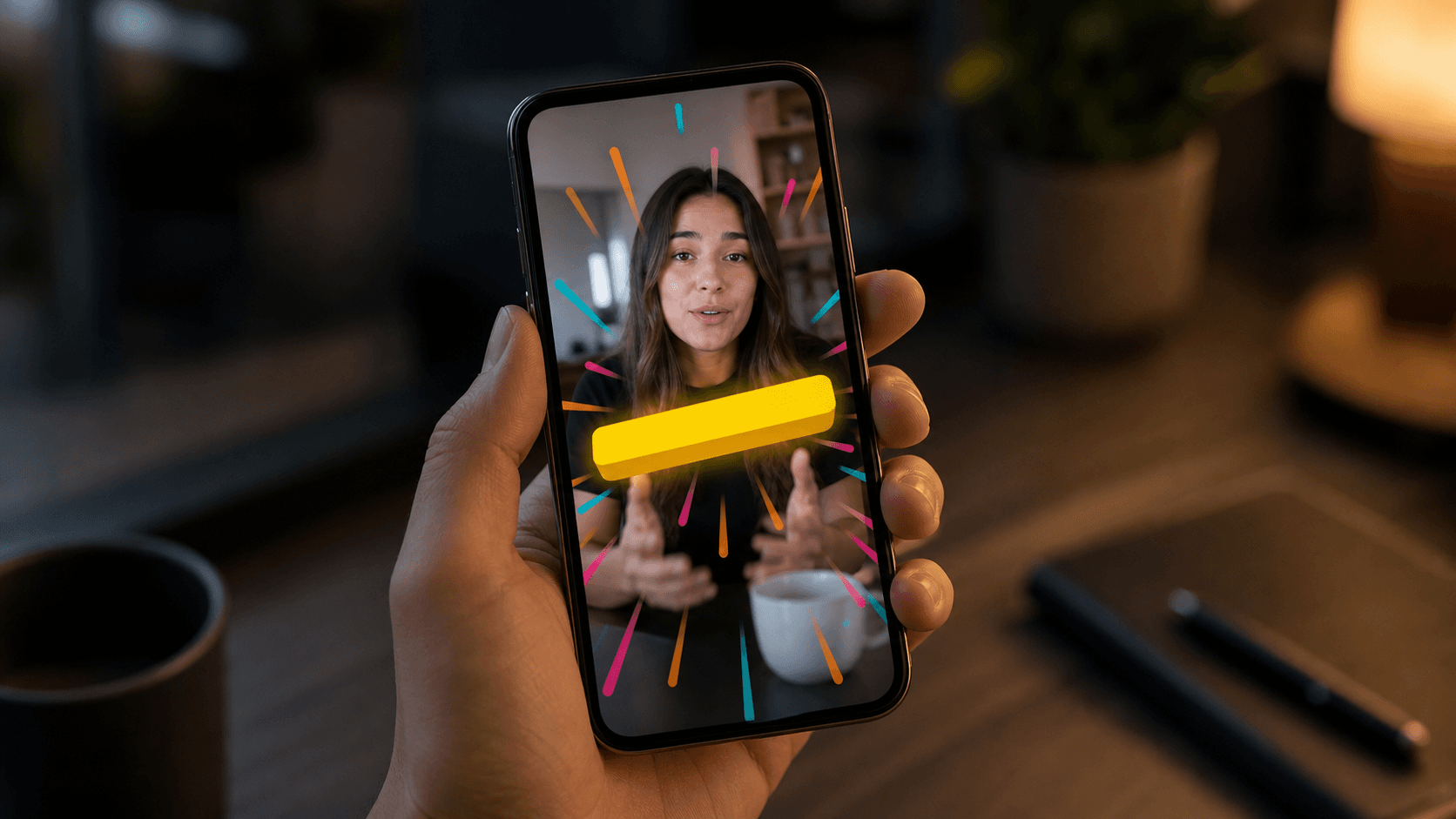
Static captions tell viewers what was said. Kinetic captions make them feel it.
The difference is timing. When words appear all at once as a subtitle block, the eye reads ahead, disconnects from the speaker, and loses the rhythm of the content. Word-by-word reveals lock text to the cadence of speech, so reading and listening happen at the same pace. That sync is what makes lyric videos feel electric, and it’s what makes caption-forward marketing clips perform differently from standard subtitled content.
Keyword emphasis takes it further. Displaying a key phrase larger or on its own line draws the eye to what matters most. According to research on caption styles and retention, caption style directly impacts how long viewers stay, with static approaches consistently underperforming against motion-based alternatives.
For marketing content, attention is the constraint. A product clip or testimonial lives or dies in the first few seconds, and kinetic text gives viewers a visual thread to follow even before they decide whether to care about the message.
The Types of Marketing Videos That Benefit Most from This Format
Not every video format benefits equally from kinetic captions. These four content types see the biggest lift.
| Video Type | Primary Use Case | How Kinetic Captions Help |
|---|---|---|
| Product walkthroughs | Feature demos and onboarding clips | Keeps viewers absorbing dense product language without falling behind the voiceover |
| Customer testimonials | UGC and social proof content | Makes the single punchiest line land with weight: isolated, larger, timed to the speaker’s voice |
| Launch clips | Countdowns and announcements | Builds momentum visually through text synced to a rising voiceover, even for silent viewers |
| Ad experiments | Split-testing creatives | Swapping static subtitles for word-by-word reveals is a low-cost change that can shift watch time and CTR |
Product walkthroughs
Feature demos move fast. When you make a product demo video, word-by-word captions help viewers absorb what’s happening on screen without falling behind, especially when the voiceover is dense with product-specific language.
Customer testimonials
A great testimonial lives or dies on one punchy line, which is why learning editing a UGC video with captions matters. When that line appears larger, isolated, and timed to the speaker’s voice, it lands with weight that a subtitle block never achieves.
Launch clips
Short countdown or announcement videos rely on building momentum. Kinetic text synced to a rising voiceover creates that momentum visually, even for viewers watching silently at 6am on a commute.
Ad experiments
Split-testing ad creatives is easier when the variable is caption style instead of a full reshoot, similar to how you’d approach turning a podcast into short clips. Swapping static subtitles for word-by-word reveals is a low-cost change that can meaningfully shift watch time and click-through rates.
How to Structure a Caption-Forward Video Before You Edit
Before you open any editor, structure determines whether kinetic captions help or hurt. Word-by-word reveals only work when the script has rhythm, clear emphasis points, and a strong opening line.
Start by finding your anchor quote. Scan your raw footage or script for the single sharpest line that would make someone stop scrolling. That line goes first, or as close to first as possible. Caption style cannot rescue a clip that buries its best moment at the 40-second mark.
From there, mark the phrases worth calling out. Pick two or three per clip where the meaning is densest, and plan for those to appear larger or isolated on their own line.
Pacing varies by destination, and pairing that pacing with head-locked captions keeps text anchored to the speaker. TikTok and Instagram Reels reward faster reveals with cuts every two to three seconds. LinkedIn audiences tolerate slightly longer takes, but still expect tight editing. Aim for 30 to 45 seconds for social, up to 90 seconds if the content earns it.
How to Use AI to Generate a First Cut from Raw Footage
With 91% of businesses using video marketing and 63% of marketers actively using AI to edit and scale output, the manual first-cut workflow is increasingly hard to defend. Scrubbing through an hour of raw footage to find three usable clips is where most video projects stall.
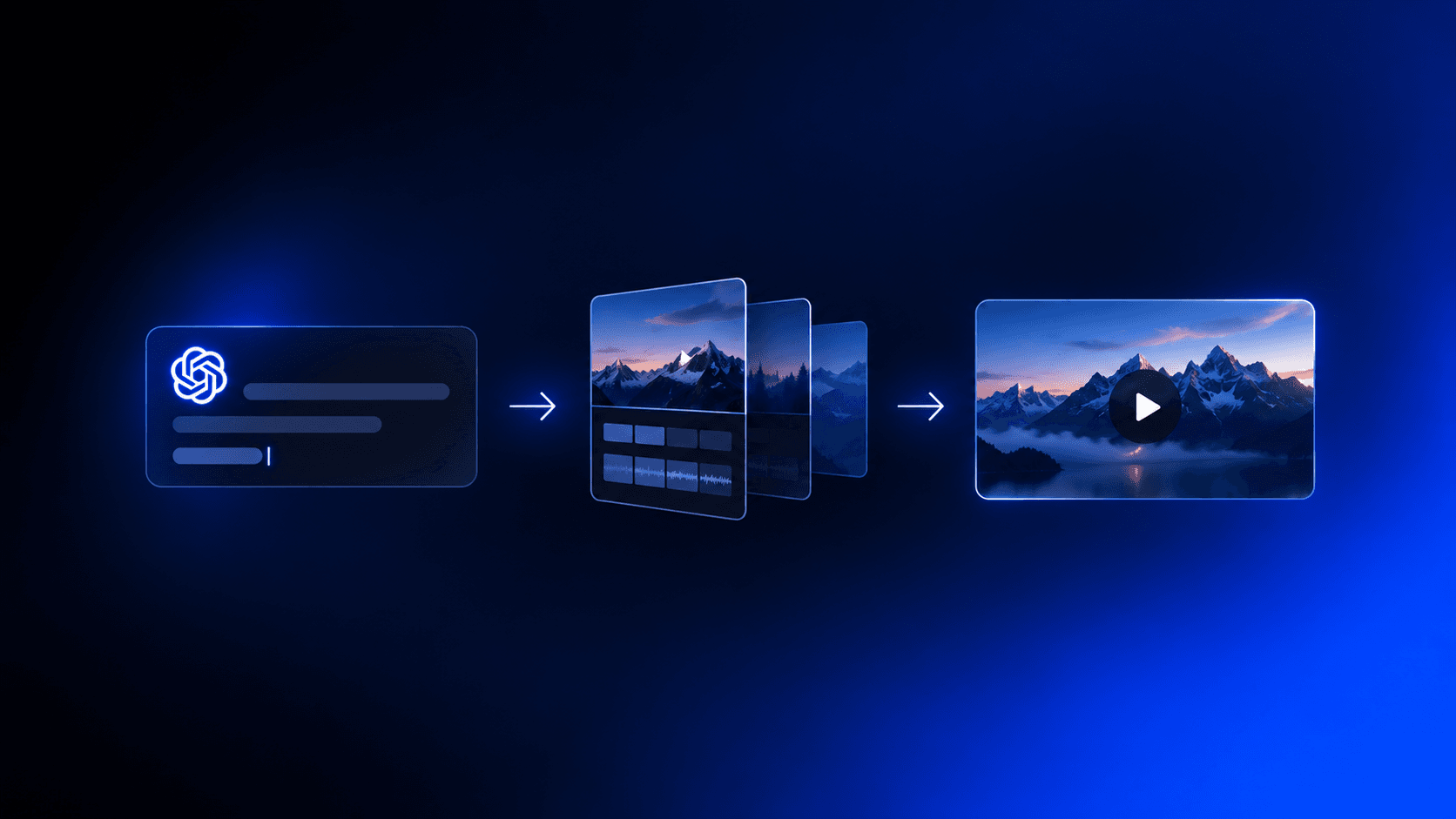
AI editing skips that part. You upload your clips, type something like “cut this walkthrough into a 30s ad” (the same approach covered in our guide on building AI video ads fast) and the editor proposes a first draft on the timeline. From there, you refine it instead of building from scratch.
How to Add Word-by-Word Captions That Spotlight Keywords
Once your first cut is on the timeline, captions are next. Word-by-word reveals work by displaying each word exactly as it’s spoken, timed to the audio instead of dropped in as a subtitle block. The result feels closer to a lyric video than a transcript.
Keyword emphasis is where the format separates itself. Pick the terms that carry the most weight in your clip and configure them to appear larger or on their own line. A phrase like “ships in 24 hours” or “no setup required” hits differently when it takes up the full width of the frame for a beat, isolated from the surrounding text, following the same principle behind tracked captions.
Suppressing captions during silences matters more than most editors realize. When text lingers on screen through a pause, it reads as clutter. Clearing it during natural breaks keeps the visual rhythm clean and makes the next word reveal feel deliberate.
How to Reformat One Video for Every Social Channel Automatically
Reformatting for every platform used to mean three separate exports, three rounds of manual cropping, and hoping the subject’s face didn’t end up half off-screen in the vertical version.
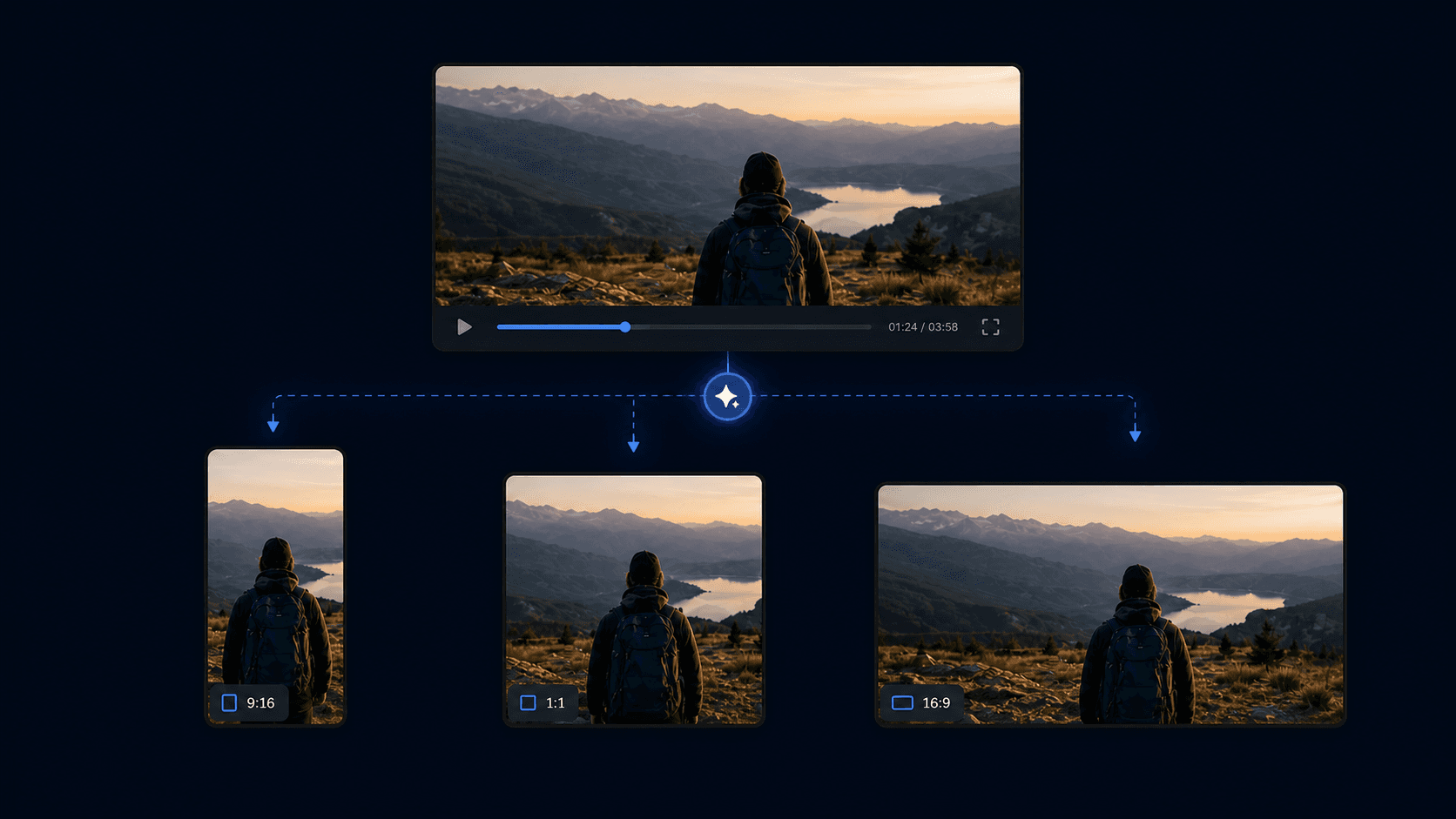
Smart reframe handles this automatically. It detects where the important action is sitting in the frame and repositions the crop for each aspect ratio, so the speaker stays centered in the vertical cut without you dragging a single bounding box.
For caption-forward videos, text placement changes when the aspect ratio changes. When you edit a talking head video, a caption that reads cleanly across a widescreen frame can collide with a speaker’s chin in a 9:16 crop. Reframe tools that account for active caption regions move text placement along with the crop, so nothing overlaps in the final output.
The practical result: one source edit produces a TikTok-ready vertical clip, a square Instagram version, and a widescreen LinkedIn cut without rebuilding the project three times. For teams running regular content, that removes hours from the weekly production cycle.
How to Repurpose Long-Form Content into Short Social Clips
Most teams already have the raw material: a 40-minute webinar, a recorded customer interview, a product walkthrough that never made it past the internal Slack channel. The problem is extraction, not creation.
Semantic footage search changes that calculus. Instead of scrubbing a timeline manually, you type what you’re looking for: “find the moment she talks about onboarding” or “pull every clip where pricing comes up.” The editor surfaces those moments directly, so you’re choosing between candidates instead of hunting for them.
From there, generating short cuts is a prompt away. Drop the best moment into a 30-second window, let AI propose the trim points, and refine from there. Add word-by-word captions, set your emphasis keywords, and the clip is ready to stand alone in a feed without any context from the original recording, the same workflow you’d use to make a promo video for your business.
How to Collaborate on Caption-Forward Videos Without Exporting Files
The slowest part of any video project is usually what happens after the first cut exists. Someone exports a file, uploads it somewhere, a stakeholder watches it 48 hours later and leaves feedback in a Slack thread with no timestamps, and the editor has to decode what “the part around 0:23 feels slow” actually means.
Browser-based collaboration removes that entire loop. Share a project link and reviewers see the latest cut without downloading anything. Timestamped comments pin feedback to the exact frame being referenced, so “the caption on the pricing line is too fast” lands on the timeline and not in someone’s inbox.
For caption-forward work, this matters more than it might seem. Caption timing and keyword emphasis are subtle enough that vague feedback rarely leads to a useful revision. When a comment lives at a specific timecode, the editor sees exactly which word reveal is the problem.
Public share links take it further: anyone can view and comment without an account, and comment owners can resolve or delete threads once changes are made. No login friction means faster sign-off from stakeholders who aren’t in the tool day-to-day, and teams new to the workflow can lean on our video editing guides to get up to speed quickly.
How Cardboard’s Word Pop Captions Turn Marketing Clips into Scroll-Stopping Content
Cardboard’s Word Pop captions reveal words exactly as they are spoken, with keywords appearing larger and isolated on their own line. Captions clear automatically during silences. No manual keyframing, no timing adjustments, no design work.
The workflow runs in the browser, and Cardboard also offers a native Mac app for editing outside the browser. Type a plain-language instruction like “cut this into a 45-second product clip” and Cardboard proposes a first cut on the timeline. From there, add Word Pop captions, set emphasis keywords, apply smart reframe to generate vertical, square, and widescreen versions at once, and translate captions into any language without rebuilding the project. Early users include teams from PostHog, Airtable, and Google.
Pricing starts at $8/month on the Lite plan, with a launch offer of $5 for the first month. Captions are included on every plan. The Creator plan at $59/month adds 4K exports, voice cloning, and web-sourced B-roll. No installs required.
Final Thoughts on Kinetic Captions and the Lyric Video Creator Style
Most marketing videos lose viewers in the first few seconds, and static captions do nothing to stop that. Word-by-word reveals keep your audience reading and watching even when sound is off, which is most of the time. The lyric video approach is less of a trend and more of a retention tool your content can actually use. Cardboard makes it easy to build that kind of clip without rebuilding your whole production process.
FAQ
How do I reformat a widescreen lyric video into vertical and square versions automatically?
Smart reframe tools detect where the key action sits in the frame and reposition the crop for each aspect ratio, keeping speakers centered without manual adjustments. For caption-forward videos, a good reframe tool also moves text placement alongside the crop so captions don’t collide with faces in 9:16. Cardboard’s smart reframe handles both in one pass, producing TikTok, Instagram, and LinkedIn cuts from a single source edit.
OpusClip vs Cardboard for repurposing long-form footage into short lyric-style clips?
OpusClip is built around clipping: it finds quotable moments and exports them with minimal control over caption style or timeline refinement. Cardboard adds semantic footage search so you can prompt for specific moments (“find every clip where pricing comes up”), then applies Word Pop captions with keyword emphasis and auto-silence suppression directly on the timeline. If the goal is polished, caption-forward social clips over quick cuts, Cardboard gives you more control at the editing stage.
What is the easiest way to add translated captions and AI dubbing to a marketing video?
The fastest path is an AI editor that handles transcription, translation, and dubbing in one workflow without exporting to a separate tool. Cardboard translates captions across multiple languages and dubs with AI voiceovers inside the same browser session, so you’re not stitching together three different services to get a localized cut.
How do I turn raw product footage into a polished lyric video without hiring an editor?
Type a plain-language instruction like “cut this walkthrough into a 30-second ad,” and an AI editor proposes trim points on the timeline as a first draft to refine. From there, add word-by-word captions, mark emphasis keywords to display larger, and export in every aspect ratio at once. The whole process replaces the scrubbing, manual cutting, and async freelancer feedback loop that slows most teams down.
How do I collaborate on a lyric video with stakeholders without exporting files back and forth?
Share a browser-based project link and reviewers see the latest cut without downloading anything, leaving timestamped comments pinned to the exact frame in question. For caption-forward work in particular, this matters because vague feedback like “the text feels off” becomes useless without a timecode. Cardboard’s public share links let anyone view and comment without an account, so sign-off happens faster and revision notes are always tied to a specific word reveal.