Add Video Text Fast: October 2026 Guide
Speed up your editing with this October 2026 guide on adding text, captions, and overlays to any video format.
 Cardboard Team11 min read
Contents13 sections
- Why Text Makes or Breaks Your Video
- The Different Types of Text You Can Add to a Video
- How to Choose the Right Text Style for Your Content
- How to Add Text to a Video Step by Step
- How to Add Animated and Moving Text to a Video
- How to Add Captions and Subtitles to a Video
- How to Add Translated Captions and AI Dubbing to a Video
- How to Reformat a Video for Multiple Aspect Ratios After Adding Text
- Best Practices for Text Timing and Readability
- How to Add Text to a Video on Desktop vs. Browser vs. Mobile
- How Cardboard Handles Text, Captions, and Reformatting
- Final Thoughts on Using Text Effectively in Video
- FAQ
You filmed it, edited it, and now you need to add text to the video before it goes out. Captions, titles, maybe a stat overlay or two. It’s the step that slows everyone down, but it doesn’t have to take nearly as long as it usually does.
TLDR:
- Over 85% of social media videos play on mute, making text overlays and captions non-negotiable for reach
- Use burned-in captions for social media since most feeds ignore external SRT/VTT files
- Keep text on screen at roughly one second per three words, with high-contrast strokes or background blocks
- Finish your edit in widescreen (16:9) first, then reposition text layers per aspect ratio for multi-format exports
- Cardboard handles captions, Smart Reframe, and AI dubbing in one workflow without separate tools
Why Text Makes or Breaks Your Video
Over 85% of social media videos are watched on mute, which means your voiceover, interview audio, and carefully mixed soundtrack are often completely irrelevant to the viewer scrolling past. If your message lives only in the audio track, most of your audience never gets it.
Text overlays, captions, and titles carry your video when sound is off. They guide attention, reinforce key points, and give viewers a reason to keep watching. Skip them, and you’re effectively publishing a silent film with no intertitles.
The Different Types of Text You Can Add to a Video
Not every text element serves the same purpose, so knowing what you’re working with before opening an editor saves real time. Here are the five main types:
- Titles and intro cards are full-screen text moments that open a video or mark a chapter break, useful for branding and cold opens.
- Lower thirds sit in the bottom portion of the frame to identify who’s speaking without interrupting the visual flow.
- Text overlays layer copy directly over footage to punch in a stat, callout, or product detail at exactly the right moment.
- Captions and subtitles sync transcribed dialogue to audio, covering silent viewing, accessibility, and SEO.
- Kinetic or animated text moves, scales, or reacts to audio to recapture attention when a clip starts losing momentum.
Why the type matters before you pick a tool
Some social media video editors handle captions well but have weak overlay controls. Others are built for motion graphics and make simple subtitles a chore. Matching the text type to the right tool is what keeps your workflow from stalling.
How to Choose the Right Text Style for Your Content
Text style choices vary by format and audience. A bold sans-serif centered on screen works for a TikTok ad, but subtler lower thirds feel more credible on a LinkedIn thought-leadership clip.
A few quick rules of thumb:
- Vertical video (9:16) needs larger text set in the upper or lower safe zone, away from UI elements
- Square video (1:1) gives you more flexibility but punishes small fonts on mobile screens
- Widescreen (16:9) supports more text on screen, but keep captions in the bottom third so they don’t compete with your subject
Font weight, contrast, and timing all matter. Light text on a busy background disappears fast. If your brand uses a thin serif, add a semi-transparent background block behind it. For pacing, text should stay on screen long enough to read at a single glance, roughly one second per three words as a baseline.
How to Add Text to a Video Step by Step
Upload your video to a browser-based editor (no install needed), then create a new text layer from the toolbar. Type your copy and adjust the font, size, color, and weight to fit your visual. Drag the text element to your preferred position on the canvas, keeping it inside the safe zone for your aspect ratio.
On the timeline, trim the text clip’s in and out points to control exactly when it appears and disappears. Then export at your target resolution.
The most common mistake is skipping the preview step. Text that looks clean in the editor often feels rushed or lingers too long once you watch it at full speed. Give yourself one real-time playback before you export.
How to Add Animated and Moving Text to a Video
Animated text holds attention in ways static overlays rarely do. A word-by-word reveal forces the viewer’s eye to follow along, while a simple fade-in feels polished without requiring any motion graphics knowledge.
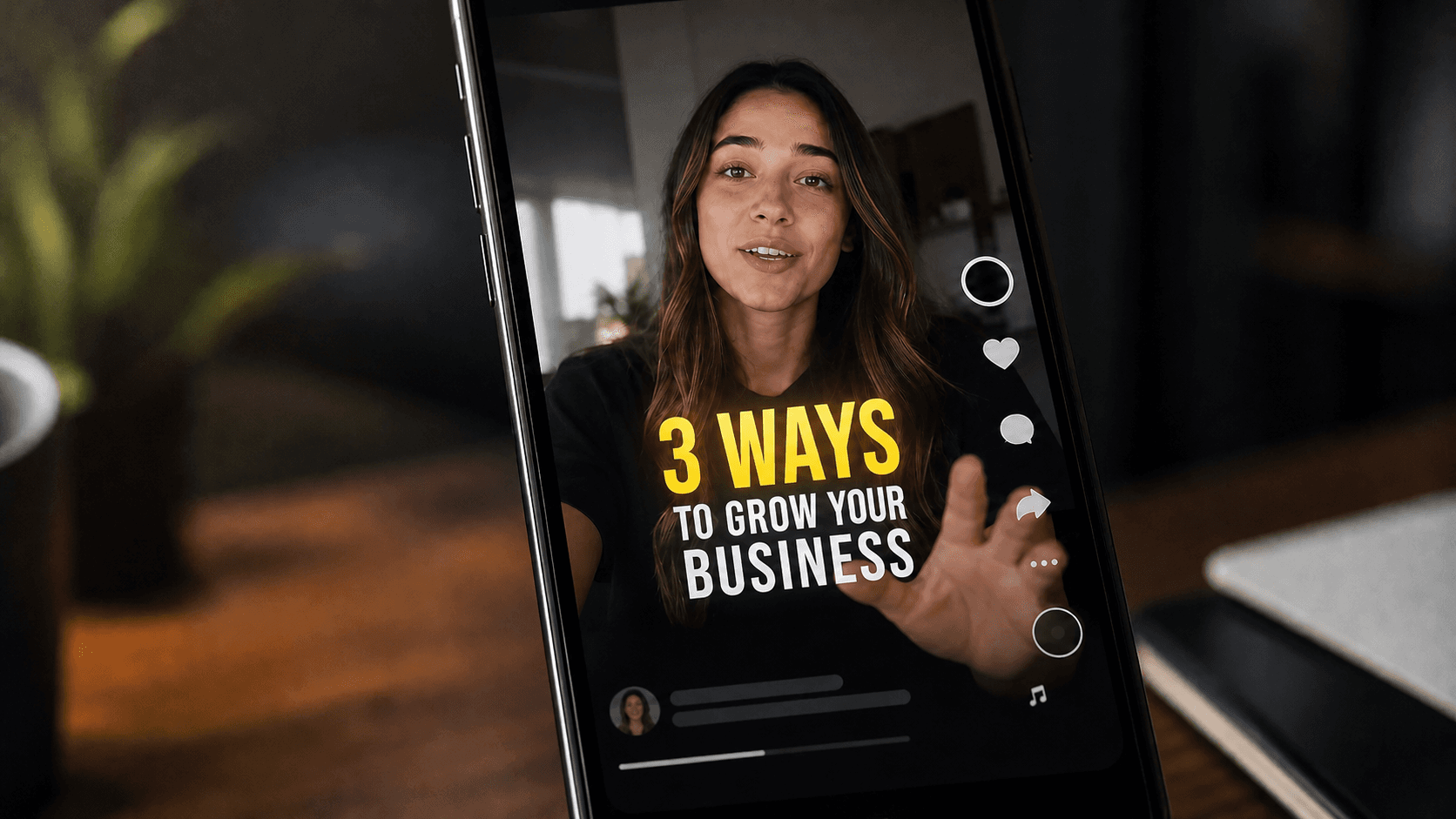
For short-form social content, a few animation styles tend to outperform the rest:
- Word-by-word reveals sync text to speech rhythm, making captions feel alive instead of stamped on
- Typewriter effects work well for stats or quotes where the reveal itself creates anticipation
- Fade-ins and fade-outs keep things clean without distracting from what’s happening in the frame
- Beat-synced text ties copy to a music hit point, which works especially well when posting Reels, where the audio track drives the whole experience
Editors like Cardboard and CapCut offer preset animation options on any text layer via AI video editing tools, typically labeled “in” and “out” transitions. Set the in-animation to match your clip’s pace, keep the duration short (under 0.3 seconds for most effects), and avoid stacking multiple animations on the same element. One clean entrance beats three competing effects every time.
How to Add Captions and Subtitles to a Video
Captions fall into two categories: burned-in and soft. Burned-in (or “open”) captions are baked into the video file itself, visible on every player, every time. Soft captions ship as a separate file (SRT, VTT) that viewers can toggle on or off. For social media, burned-in is almost always the right call since most feeds ignore external caption files anyway.
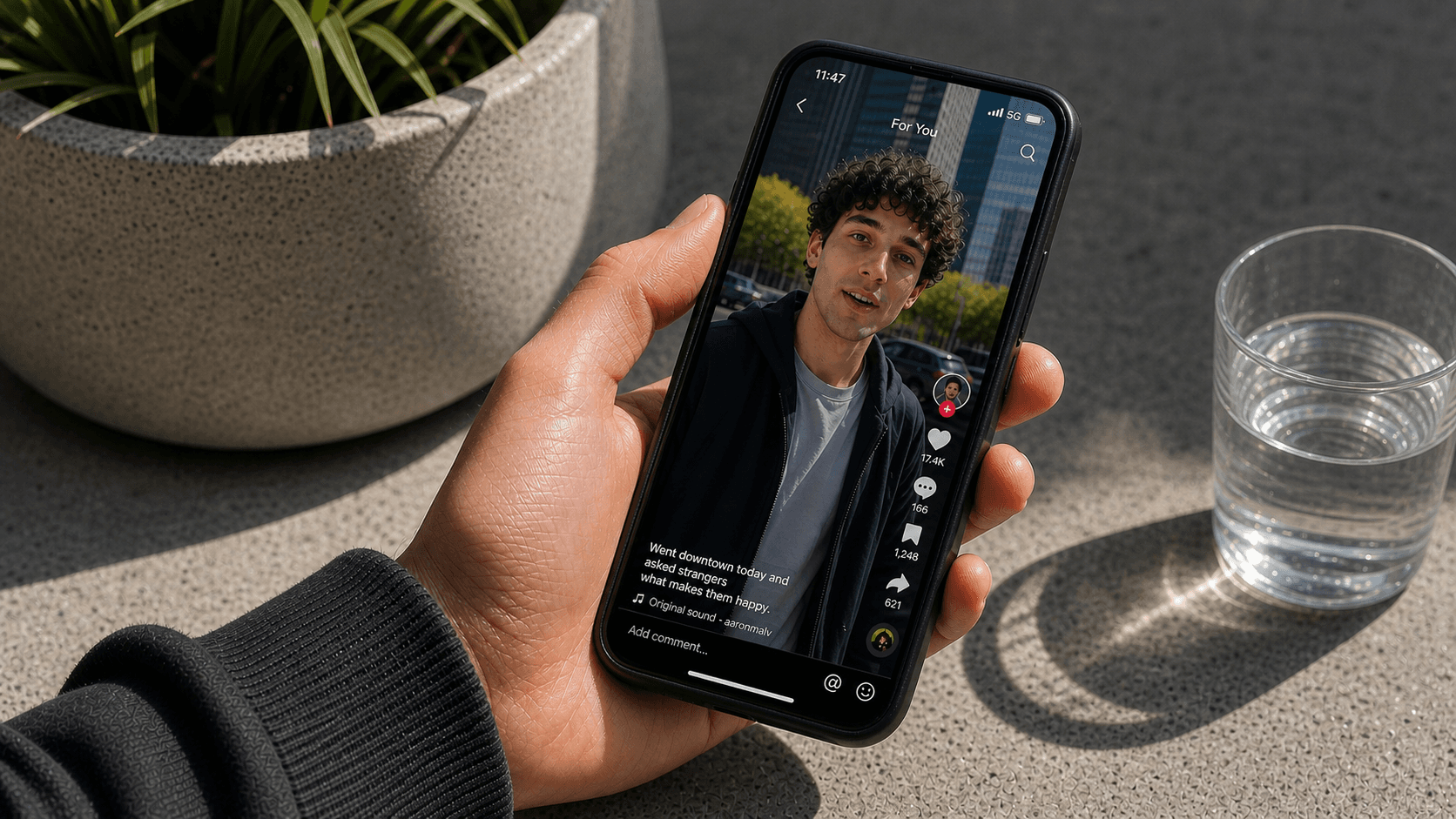
Among the best AI video editors, auto-generation beats manual entry for speed, but rarely delivers publish-ready accuracy out of the box. Run the auto-caption pass first, then do a focused review for proper nouns, product names, and technical terms the transcription got wrong. One pass of corrections takes a fraction of the time manual entry would.
With 91% of businesses using video as a marketing tool in 2026, the competition for viewer attention is fierce, and captions are one of the clearest ways to hold it. Viewers who encounter uncaptioned content on mute simply scroll past.
A few styling rules worth following:
- Keep lines to two rows maximum, three words per row when possible
- Use high-contrast text with a subtle background or stroke so captions stay readable across any footage
- Sync caption breaks to natural speech pauses, not arbitrary character limits
How to Add Translated Captions and AI Dubbing to a Video
Translated captions and AI dubbing solve different problems. Translated subtitles keep the original audio intact and add a second-language text track, while AI dubbing replaces the vocal track with a generated voice in the target language. The right choice depends on your audience and context.
For most social content, translated captions are faster and cheaper. Upload your video, run auto-translation on the existing transcript, review for fluency, and export with the new caption layer burned in. AI dubbing is worth the extra step for long-form content, courses, or promo videos for your business where reading subtitles creates friction.
Before publishing either version, check two things:
- Caption timing can drift from speech rhythm when sentence structures differ between languages, so scrub through a few key moments before exporting.
- Unnatural phrasing signals machine translation. A native speaker review of even five minutes of content catches the errors that matter most.
For AI dubbing, watch lip-sync accuracy on close-up shots, especially when you make training videos with talking-head segments. Wide shots forgive most timing gaps; tight talking-head frames do not.
How to Reformat a Video for Multiple Aspect Ratios After Adding Text
Text placement decisions made in 16:9 can break completely when you export the same video in 9:16. A lower-third that sits cleanly in widescreen gets cropped out in vertical, and centered overlays collide with UI elements in square format.
Safe zones are your first defense. Keep all text within 10% margins from each edge, and on vertical in particular, avoid the top 15% and bottom 20% where app overlays live. If you’re building for multiple ratios from the start, place text in the center vertical strip where all three formats overlap.
Many Descript alternatives offer smart reframe tools that handle footage repositioning automatically, but they won’t move your text layers. Those need to be repositioned manually per format unless your editor treats text as format-aware elements tied to the canvas and not the footage layer.
The fastest workflow: finish your edit in widescreen (16:9), duplicate the project for each additional ratio, reposition text layers to the safe zone for that format, and batch export all versions.
Best Practices for Text Timing and Readability
As covered earlier, one second per three words is a reliable baseline for simple copy, but technical terms or longer phrases need more time. When in doubt, read the text aloud at a relaxed pace and match the clip length to that.
Contrast is where most text overlays fail. Light footage kills white text; dark footage swallows black text. A thin stroke, drop shadow, or semi-transparent background block behind your copy keeps it legible regardless of what’s happening behind it.
Two other rules worth internalizing:
- Limit each frame to one idea, a principle that holds true whether you’re using Cardboard or one of the Runway AI alternatives on the market. If you need three sentences to say it, break them into three separate text moments instead of stacking them on screen at once.
- Suppress captions during extended silences. Text sitting over a quiet moment with no corresponding speech looks like a bug. Good caption tools handle this automatically; manual setups need an explicit gap in the timeline.
How to Add Text to a Video on Desktop vs. Browser vs. Mobile
| Environment | Best for | Trade-offs |
|---|---|---|
| Desktop software | Complex multi-track edits, precise keyframing | Steep learning curve, no real-time collaboration |
| Browser-based | Team workflows, quick turnaround, no install | Requires a stable connection |
| Mobile apps | On-the-go publishing, fast social posting | Limited text control, no fine timeline editing |
Each option suits a different moment in your workflow. Mobile wins when speed matters more than precision. Desktop wins when the edit is complex enough to warrant the setup time, and tools like the AI video editor for Mac are built for exactly that. Browser-based editors increasingly cover both cases well enough that many creators never open a desktop app at all.
For text, mobile apps offer preset styles with limited font control, which is fine for quick Stories or Reels but frustrating when you need brand-accurate typography. Desktop tools give you full control but require exporting and re-uploading to share. Browser editors skip that step entirely.
How Cardboard Handles Text, Captions, and Reformatting
Cardboard puts most of what this article covered into a single workflow. Describe what you need in plain language (“add captions and burn them in,” “reframe this for vertical”) and the editor acts on it directly.
The Word Pop caption style reveals words as they are spoken and surfaces keywords at larger size on their own line, handling timing and readability without manual adjustment. Captions automatically suppress during extended silences, so you never get text hanging over quiet moments.
Smart Reframe repositions footage automatically when you switch aspect ratios, and because text layers are canvas-aware and not baked into the footage layer, repositioning per format is fast. Translated captions and AI dubbing are both built in, so switching from burned-in English captions to a Spanish-dubbed version requires no separate tool. Caption translation starts on the Starter plan at $29/month, and our pricing plans begin at $8/month with Lite. Check the pricing page for current launch offers, since rates change.
Final Thoughts on Using Text Effectively in Video
Text in video does a lot of heavy lifting, from keeping silent viewers engaged to making your content accessible across languages and formats. The details, contrast, timing, safe zones, add up fast, but they become second nature once you work through a few edits. Give Cardboard a try if you want a faster way to get from raw footage to a polished, captioned, multi-format video.
FAQ
What is the easiest way to add translated captions and AI dubbing to a video?
Translated captions are faster for most social content: run auto-translation on your existing transcript, review for fluency, and export with the caption layer burned in. AI dubbing replaces the original vocal track entirely and is worth the extra effort for long-form content, courses, or product videos where reading subtitles creates friction for the viewer.
How do I reformat a widescreen video into vertical and square versions without breaking the text?
Smart reframe tools reposition footage automatically, but they won’t move your text layers. Those need manual repositioning per format unless your editor treats text as canvas-aware elements. Keep all text within 10% margins from each edge, avoid the top 15% and bottom 20% of vertical frames where app UI sits, and place copy in the center vertical strip so it survives all three aspect ratios.
Cardboard vs Descript for adding captions and reformatting video for multiple aspect ratios?
Cardboard’s Word Pop captions auto-suppress during silences and its Smart Reframe keeps text as canvas-aware layers, so switching from 16:9 to 9:16 doesn’t require rebuilding your text placement from scratch. Descript handles captions well but its reframe and agentic first-cut capabilities are more limited for teams working from raw multi-scene footage across formats.
How do I add text to a video without installing software?
Browser-based editors let you upload footage, create text layers, adjust font and timing, and export at up to 4K without downloading anything. For teams, browser editing also removes the export-and-re-upload loop that desktop tools like Premiere Pro and DaVinci Resolve require when sharing cuts for review.
Should I use burned-in captions or a separate SRT file for social media?
Use burned-in captions for social media. Most feeds ignore external SRT and VTT files, so soft captions simply won’t appear for the majority of viewers watching on mute.