How to Make Training Videos Without a Production Team with Cardboard AI
Build training videos in-house with no production team. This guide covers formats, low-cost gear, AI editing tools, and key metrics for 2026.
 Cardboard TeamUpdated 13 min read
Contents13 sections
- Why Training Videos Work (and Why Most Businesses Still Don't Use Them)
- The Most Common Training Video Formats
- When to Create a Training Video vs. Other Formats
- How to Plan Your Training Video Before You Record Anything
- How to Script a Training Video That Holds Attention
- How to Record a Training Video Without a Studio
- How to Edit Training Videos Efficiently
- How to Use AI to Speed Up Training Video Production
- How to Repurpose a Single Training Video Into Multiple Assets
- How to Measure Whether Your Training Videos Are Working
- How Cardboard Helps Teams Ship Training Videos Without a Production Team
- Final Thoughts on Producing Training Videos Without a Production Team
- FAQ
Repeating yourself in onboarding calls and one-off Slack threads is a slow way to train a growing team. Training videos solve that, but the assumption that you need a production team to make them is what keeps most businesses stuck with slide decks and shared docs. You don’t need a crew, and this will show you why.
TLDR:
- Companies with strong training programs tend to report higher income per employee than those without
- Sound quality matters more than camera quality; a $50-100 USB mic solves most audio problems
- Use video when sequence or visual context matters; write docs when someone can skim to find the answer
- Track completion, replay behavior, and learning outcomes to identify sections that need work
- Cardboard AI (cardboard.ai) lets teams edit training videos with AI-proposed cuts and semantic footage search
Why Training Videos Work (and Why Most Businesses Still Don’t Use Them)
Most businesses default to documentation, slide decks, or one-off meetings when they need to train someone. The problem is that none of those scale, and most of them don’t stick. Video does both.
An MIT analysis cited by SUNY found that viewer engagement peaks at around six minutes before dropping sharply, meaning a well-structured training video, kept tight, can deliver more than a 45-minute session ever could. The business case holds up financially too: companies that invest in training tend to see stronger results per employee than those that don’t.
The barrier has never been belief. It’s been production. Most teams assume they need a crew, a studio, or a dedicated video editor to make anything worth watching. They don’t.
The Most Common Training Video Formats
Different goals call for different formats. Here’s a quick breakdown to help you pick the right one.
| Format | Description | Best For |
|---|---|---|
| How-to walkthroughs | Step-by-step guides for repeatable tasks | Onboarding, SOPs where consistency matters |
| Screencasts | Screen recordings with voiceover | Software training, tool demos |
| Presenter-style videos | A person on camera explaining a concept | Culture, leadership messages, human-touch topics |
| Explainer/animated videos | Visuals that break down abstract ideas | Concepts that are hard to show literally |
| Live session recordings | Recorded meetings, webinars, or workshops | Repurposed on-demand content |
| Microlearning clips | Short, focused videos under five minutes covering one concept | Reinforcement, just-in-time learning |
No single format wins across every use case. A compliance training video and a product walkthrough have almost nothing in common in terms of what the viewer needs from them.
When to Create a Training Video vs. Other Formats
Video isn’t always the answer. Sometimes a two-sentence Slack message or a shared doc gets the job done faster than anything you’d film.
The clearest signal that video is the right call: you’re explaining something easier to show than describe, or multiple people need the same information consistently over time. Onboarding walkthroughs, software demos, and process-heavy SOPs all fit that description. A new hire watching the same recorded walkthrough on day one gets the same quality of instruction whether they join in January or August.
Where video tends to be overkill:
- Simple policy updates, since a doc is faster to write, easier to update, and easier to search
- One-time questions that won’t recur
- Information that changes frequently and would require constant re-recording
- Short answers that take longer to watch than to read
A good rule: if someone could reasonably skim to find the relevant part, write it. If the sequence or visual context matters, film it.
How to Plan Your Training Video Before You Record Anything
Good planning matters more than good gear. Most training videos fall flat because the scope was muddy before anyone hit record, not because the lighting was off.
Start by writing down one learning objective, not three. A viewer should finish your video able to complete a specific action or understand a specific thing. If you can’t write that objective in a single sentence, the video isn’t scoped yet.
Work through this checklist before touching any recording software:
- Who is watching? A new hire on day one needs different framing than a senior employee learning a new tool.
- What format fits the content? A software walkthrough almost always calls for a screencast, while a values or culture video probably needs a person on camera.
- What does the viewer need to do, know, or believe by the end?
- Do you need visuals, or can audio carry it?
A rough outline comes next. Full scripts are worth writing if delivery consistency matters, but even a bullet-point outline will prevent the biggest planning failure: recording ten minutes of content when you only needed three.
How to Script a Training Video That Holds Attention
Writing for video is different from writing anything else. The instinct is to write the way you’d present in a meeting, but that rarely lands on screen.
Start with the viewer’s problem, not a title card or introduction. If someone is watching a video on how to approve expenses in your system, they don’t need a thirty-second overview of why the expense process exists. They need step one.
A few rules that hold across almost every format:
- One idea per segment. If you catch yourself writing “and also,” that’s a new segment.
- Short sentences. Read it out loud. If you run out of breath, break it up.
- Write the way you’d explain it to a colleague, not the way you’d write a help doc.
- Cut anything that comes before the actual point. The opener is usually the first thing to delete.
Screencasts and on-camera delivery need slightly different treatment. Screencasts can lean more instructional since the visual carries most of the load, so your narration only needs to explain what isn’t obvious from watching. On-camera scripts need more energy in the language itself because there’s less happening visually to hold attention.
A tight script also cuts editing time considerably. When raw footage follows a clear structure with no rambling, you spend far less time removing filler later.
How to Record a Training Video Without a Studio
Professional training video production can run $1,000 to $25,000+ per module, which prices most teams out before they even start. The gap between “looks professional” and “needs a crew” is mostly solved by three things: light, sound, and a clean frame.

Camera, Lighting, and Audio
Some quick setup principles worth knowing before you hit record:
- A $50 webcam at eye level in a well-lit room will outperform an expensive camera pointed at someone backlit by a window. Viewers forgive a lot when audio is clear and light is good. Your phone camera works well for this too, so put it to use.
- Natural light works if the source is in front of you. A single ring light or cheap LED panel facing you directly covers most situations. Avoid overhead lighting and windows behind you.
- Sound matters more than video quality. A USB microphone in the $50-100 range removes most of the problem. Record in a small room with soft furnishings, close the door, and move away from your HVAC vent to cut echo without any acoustic treatment.
Screencasts
For software walkthroughs, screen recording removes most hardware concerns entirely. Record at your native resolution, slow your mouse movements slightly, and narrate after the fact if live delivery feels awkward. A separate audio pass is almost always cleaner than recording both simultaneously.
How to Edit Training Videos Efficiently
Editing is where most training videos go to die. Raw footage sits in a folder, trimming it feels overwhelming, and suddenly it’s two weeks later and nothing shipped.
The fix is treating editing as a checklist, not a creative exercise.
The Core Editing Sequence
- Remove dead air first. Silence at the start, long pauses mid-sentence, and trailing filler at the end account for most of the bloat. Cut those before anything else.
- Trim for pacing. If a section feels slow when you watch it back at 1x speed, it is slow. Cut the middle, not the ends.
- Normalize audio. Uneven volume between segments is the fastest way to lose a viewer. Most editing tools have a one-click audio leveler.
- Add captions. Viewers watch without sound constantly, and captions also improve retention for those who do have audio on.
- Drop in b-roll or screen recordings where the main recording gets visually flat.
- Export for the destination. An LMS needs a different spec than a Slack link or an internal wiki embed. Set your export presets once and reuse them.
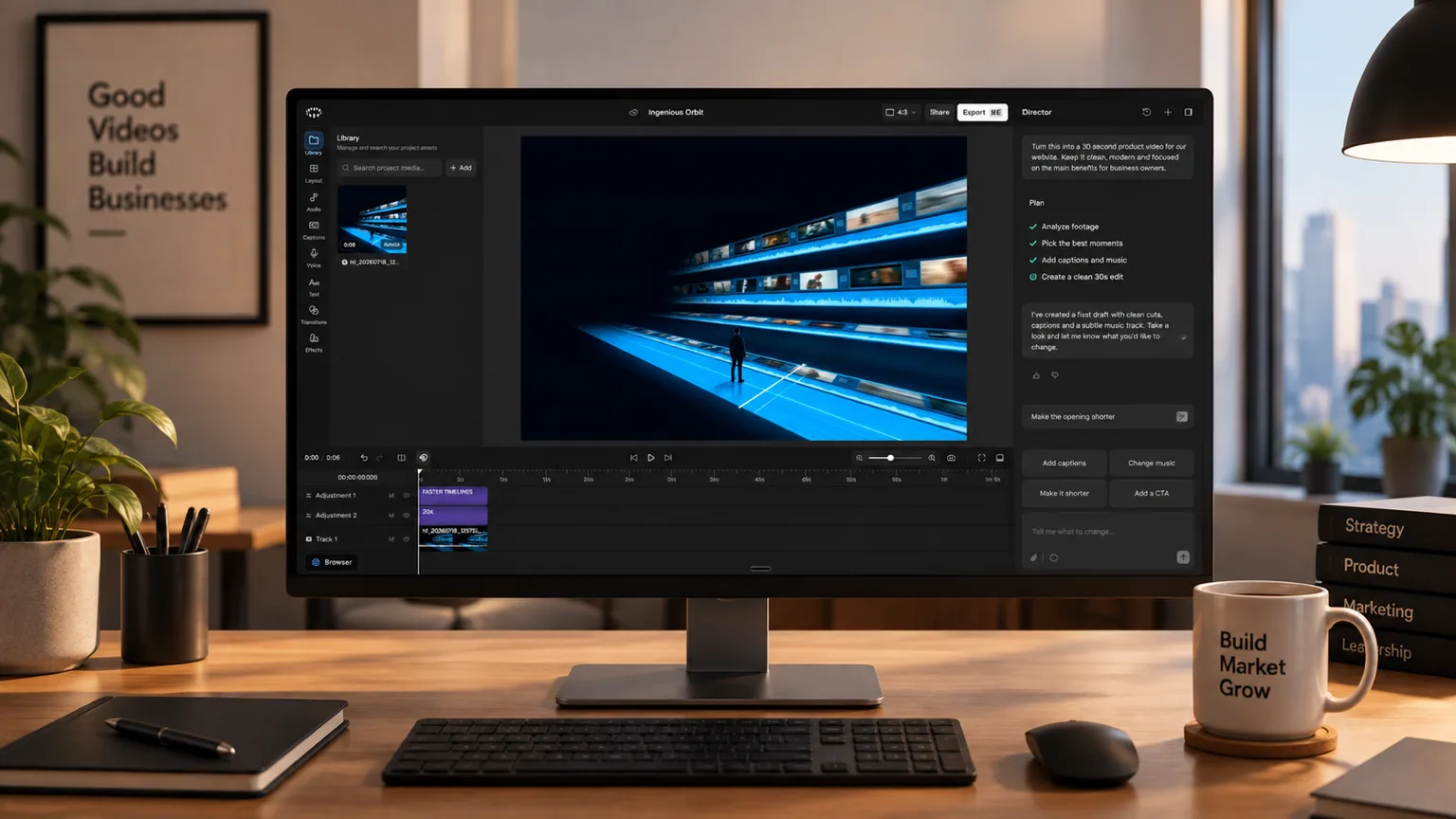
AI video editing tools have cut this workflow down considerably for non-editors. Tools can now auto-remove filler words, generate captions, and propose rough cuts from transcripts, turning what used to be a half-day job into something you can finish before lunch.
How to Use AI to Speed Up Training Video Production
Manual editing scales poorly. Once your team needs more than a handful of training videos per quarter, the time cost compounds fast and backlogs build. Teams comparing the best AI video editors for this workflow will find meaningful differences in how each tool handles unstructured raw footage.
AI handles several parts of this workflow that used to require either patience or a professional editor:
- Auto-captioning: Transcription-based captions are now accurate enough to use with light cleanup, cutting what used to be an hour of work down to minutes.
- Video cleanup: one-click removal of dead air, filler words, and retakes keeps recordings tight even when the take wasn’t perfect.
- Footage search: Some tools let you search raw footage by topic, keyword, or speaker instead of scrubbing through timelines manually.
- Automatic first cuts: AI can scan a raw recording and propose a rough cut based on the transcript, removing silences and organizing segments before you touch anything.
- Smart reframe: AI reframing keeps the subject centered across formats automatically, so resizing a widescreen recording to vertical or square no longer means re-editing from scratch.
None of these replace editorial judgment, but they remove the parts that don’t require it. For a team producing training videos without dedicated editors, that distinction matters.
How to Repurpose a Single Training Video Into Multiple Assets
One recording can do more work than most teams realize. A 15-minute product walkthrough, shot once, can become a full onboarding module, a 60-second clip for a new hire Slack channel, a captioned summary reel for LinkedIn, and a localized version for a different market, all from the same source file.
The repurposing logic follows a simple pattern:
- Full-length cut: the complete recording, lightly trimmed, used in your LMS or internal wiki
- 60-90 second social clip: pull the clearest, most self-contained segment, usually the moment where something clicks visually
- Summary reel: 3-5 key moments stitched together, captioned, works well for async previews or team recaps
- Vertical/square reformat: the same clip reframed for mobile-first contexts, with captions carrying the audio load
- Localized version: translated captions or dubbed audio for teams in other markets
Reframing for vertical is where most teams get stuck. Smart reframe tools keep the subject centered automatically, without frame-by-frame adjustments. Caption translation follows the same logic: translate once from the source transcript instead of re-recording anything.
One constraint worth keeping in mind: shorter cuts need a self-contained point. Find segments where the value is obvious without setup, and those travel furthest.
How to Measure Whether Your Training Videos Are Working
View count feels satisfying but tells you almost nothing. A video with 200 views and 40% completion is underperforming. One with 80 views and 90% completion is working.
The metrics worth tracking fall into two categories: engagement signals and outcome signals.
Engagement Signals
- Completion rate helps show where viewers stop watching. Compare it with replay behavior, learner feedback, and quiz results before deciding whether a section needs a recut.
- Replay behavior reveals where learners struggle. If someone is rewinding the same 30-second segment repeatedly, that section is either confusing or worth memorizing. Both are useful signals.
- Quiz and knowledge-check scores, if you’re running an LMS, tell you whether information transferred, not simply whether someone hit play.
Outcome Signals
These take longer to surface but matter more.
- Onboarding ramp time: are new hires reaching productivity faster after you added a video module?
- Support ticket volume: a good software training video should reduce “how do I do X” tickets measurably.
- Product adoption: if a feature walkthrough goes live and adoption doesn’t move, the video either missed the real friction point or never reached the right audience.
The feedback loop most teams skip is simply asking. A one-question survey after each video, something like “did this answer your question?”, surfaces problems no analytics dashboard will catch.
How Cardboard Helps Teams Ship Training Videos Without a Production Team
Cardboard was built for exactly this situation: a team with raw product walkthroughs and training recordings, no dedicated editor, and videos that need to ship.
It runs in the browser and as a Mac app for Apple Silicon, and the Mac app is free on the Lite plan. You describe the edit in plain language and Cardboard proposes a first cut on the timeline. Semantic Footage Search lets you find specific moments, quotes, or scenes across hours of recordings without scrubbing manually. Share links let stakeholders leave timecoded comments without file exports or version sprawl.
On the web, Lite costs $5 for the first month, then $8/month, and includes three watermarked exports in total at up to 1080p. Lite is free in the Mac app. See current pricing for plan limits and other options.
Final Thoughts on Producing Training Videos Without a Production Team
Good training videos come from good planning, not expensive gear. Keep your objective tight, match the format to the content, and don’t let editing be the thing that stops you from shipping. Your team deserves training material that actually holds attention.
Try Cardboard on the web or in the free Lite Mac app to start editing your first training video.
FAQ
What’s the best AI video editor for marketing and growth teams who need to ship training videos fast?
Cardboard is built for exactly this use case: describe the edit in plain language, get a first cut on the timeline, and export. For teams comparing options like Descript or Kapwing, Cardboard’s main advantages as an AI video editor are first cuts from raw footage, semantic search across recordings, and review links with timecoded comments without file exports.
Can I repurpose a single training video recording into short clips, vertical formats, and localized versions without re-editing everything from scratch?
Yes. Smart Reframe keeps the subject centered when you convert a widescreen recording to vertical or square, and caption translation works from the source transcript so you’re not re-recording for different markets. One raw recording can produce a full LMS module, a 60-second social clip, a summary reel, and a localized version before you touch the timeline a second time.
How do I edit training videos without a dedicated video editor on my team?
Start with a tight script, one objective per video, then treat editing as a checklist: cut dead air first, normalize audio, add captions, and export for your destination. AI tools handle the parts that don’t require editorial judgment, auto-captions, noise removal, and rough cuts from transcripts, so a single person can finish a polished training video in a single session.
What completion rate should I expect from a training video, and when should I recut it?
There is no single completion-rate target for every training video. Compare results with the video’s purpose, audience, and length, then inspect drop-off points alongside replay behavior, quiz scores, and learner feedback. Recut when that evidence points to confusing or unnecessary sections; view count alone does not measure learning.
Descript vs Cardboard for teams producing training videos without a production setup?
Descript is strong for transcript-based editing and podcast-style content. For a deeper look, see our full breakdown of Descript alternatives. Cardboard’s differentiation is first cuts from multi-scene raw footage, semantic footage search across long recordings, 4K exports on Creator and Pro, and review links with timecoded comments, with no version sprawl across a team.