Understanding B-Roll: Types and Examples
See what b-roll is, its key types, and how to use it well in your edits. Updated October 2026 with Cardboard tips.
 Cardboard Team9 min read
Contents7 sections
You’ve cut a long pause from your founder video, and now the picture jumps between sentences. A supporting shot can cover that cut while the speaker’s voice keeps going, but it still needs to fit the message. That’s one useful role for b-roll. Knowing its types and seeing them in context will help you choose clips that keep your edit clear.
TLDR:
- B-roll is supplemental footage that supports your main narrative with visual context.
- Match product close-ups, action shots, or screen recordings to what your speaker says.
- Plan b-roll beside your script; capture wide, medium, and close views where useful.
- Cover visual jumps with relevant b-roll while preserving your speaker’s meaning.
- Cardboard offers footage search and plain-language instructions to assemble edits.
What Is B-Roll?
B-roll is supplemental footage that adds visual context to a video or supports what a speaker is saying. As StudioBinder’s b-roll definition explains, it can be captured separately or sourced from stock footage.
A-roll carries the primary narrative, such as a founder speaking to camera about a product. Cut to someone using that product while the founder’s voice continues, and you’re using b-roll. The supporting shot connects the explanation to the action on screen.
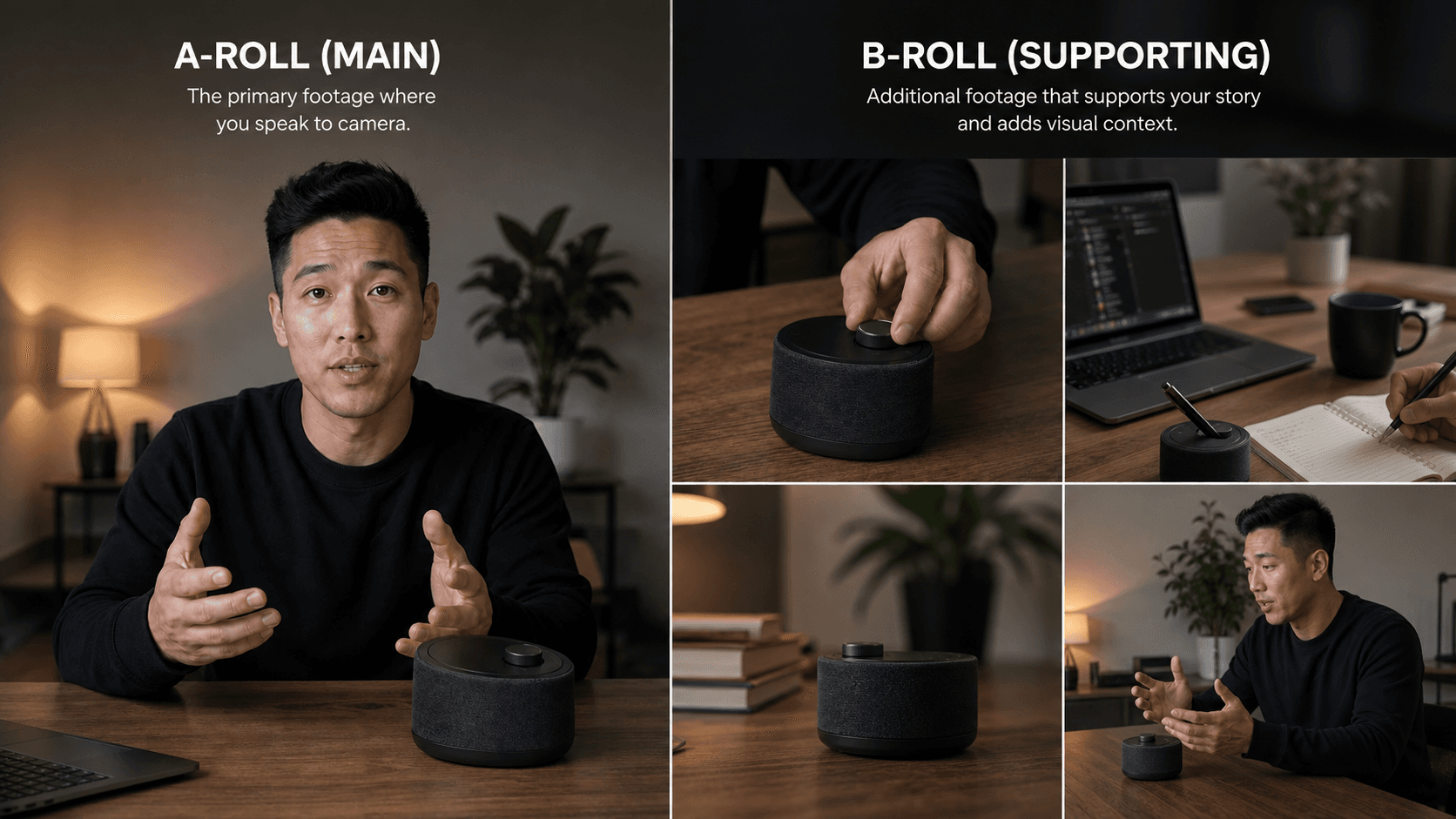
“Secondary” describes b-roll’s editorial role, not its quality or importance. A close-up of a product can be as valuable to the story as the main shot.
Types of B-Roll Footage
You can group b-roll by what viewers see: a setting, a detail, or an activity. These editing categories overlap. Hands sealing a package could work as both detail and process footage. A cutaway takes attention away from the main action, such as an audience reaction during a presentation. It describes an editing choice, separate from the footage’s source.
| Practical category | Example | Editorial purpose |
|---|---|---|
| Setting footage | Exterior of an event venue | Introduce the location |
| Detail footage | Close-up of a product control | Draw attention to a feature |
| Action footage | Someone using a product | Show the activity described |
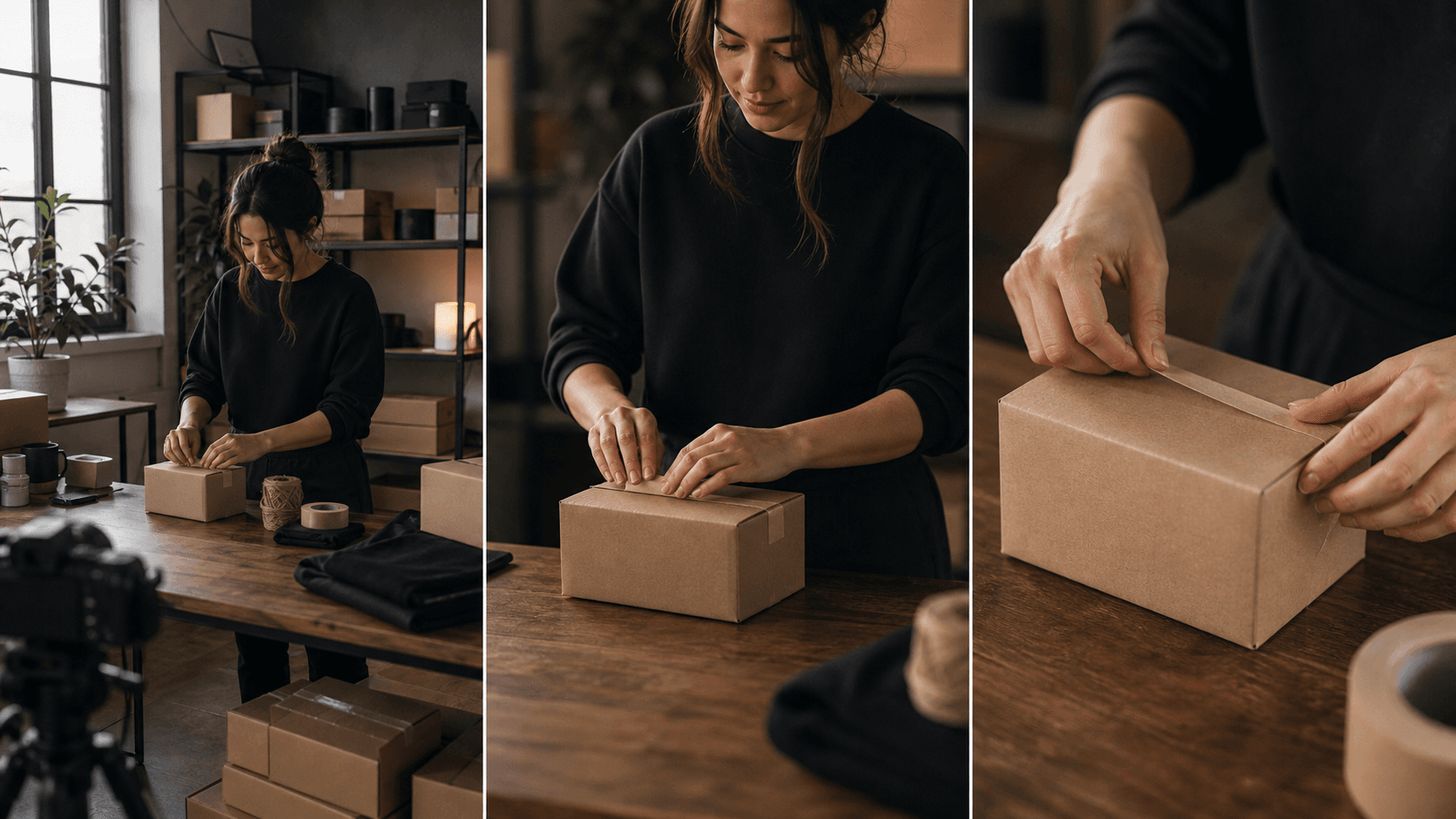
| Process footage | Packaging an order | Show how work happens |
| Screen recordings | Moving through a software workflow | Support a feature explanation |
B-roll describes a clip’s relationship to the main footage, while original footage, licensed stock, and archival material describe its source. A screen recording might carry the main tutorial or support narration about a feature, depending on the edit.
For shot-list planning, use our remixable video editing guides for edit references. Choose footage that fits your message. A simple test helps: mute the narration and check whether the clip still hints at the topic. A close-up of a hand tapping a settings toggle does that, while a generic city skyline only fills time.
B-Roll Examples
These hypothetical edits apply the A-roll and b-roll distinction to two marketing stories, matching supporting footage to spoken words.
Founder launch video
For this hypothetical founder launch video, keep the story focused on one task: sending reminders for unpaid invoices. Record the founder explaining the problem and the workflow so their delivery provides a continuous audio track. Capture the product steps with sample customer data, keeping invoice names and amounts consistent between shots. Frame the screen recordings tightly enough for viewers to read the selected invoice and reminder without losing the controls that explain each action. Open on the founder introducing the problem with the following A-roll statement.
“Chasing unpaid invoices eats into time you could spend with clients.”
Keep the founder’s audio running over these b-roll shots:
- “Start with the invoices awaiting payment.” Show a spreadsheet beside an email inbox.
- “Choose who needs a reminder.” Show overdue invoices being selected in the product.
- “Your follow-up is ready to send.” Show the reminder with recipient and invoice details visible.
Check whether the footage makes the promised benefit clear. Stock footage of a busy coworking space with no connection to invoicing offers little help understanding invoice reminders.
Educational short
For a presenter teaching phone product photography, pair each instruction with an action. Short instructions suit short shots, so viewers see the technique at the moment they hear it and can repeat it on their own. Try this sequence:
- “Lock focus on the label.” Show a screen recording of focus lock.
- “Bounce light into the shadow.” Show a hand positioning white card.
- “Crop out the table edge.” Show a screen recording of the crop adjustment.
The presenter’s audio can bridge these shots, as in a talking head video edit; separately recorded narration serves as voiceover. Hold each shot until the action is clear. For format planning, see our AI Reel maker guide or YouTube Shorts creator guide.
How to Plan and Edit B-Roll
Before you shoot, annotate your script with b-roll ideas beside passages that need supporting footage. For physical tasks, capture wide, medium, and close views when each adds useful information. Leave the camera running briefly before and after the action for trimming room. For existing assets, such as when you turn a podcast into short clips, use your notes to track available shots and gaps that need filming.
When selecting b-roll, check continuity between shots. Sudden changes in lighting or product position can confuse viewers. Preview footage in the intended crop, especially when fitting horizontal recordings into vertical videos. Check third-party material’s permissions and license terms for your intended use.
Also check shot length. A detail shot that appears for under a second may read as a flicker, while one that lingers past the end of the sentence can pull attention away from the speaker. Match the hold time to the line being spoken.
Build the main narrative first, then place b-roll over relevant passages while keeping dialogue clear. Supporting footage can cover visual jumps between edited speaking segments, but preserve the speaker’s meaning. Cardboard offers footage search to find relevant moments and plain-language instructions to assemble an edit. Try: “Keep the founder’s narration and add matching product footage from these uploads.” Review the proposed timeline, checking that clips fit the narration, listening for distracting audio, and adjusting framing before sharing the cut.
Why B-Roll Matters in Marketing Videos
In marketing videos, b-roll connects a spoken claim to something viewers can see: a product feature, a workflow, or a finished result. For founders and marketing teams, planning those supporting shots also creates options for covering cuts and reusing footage across campaigns. The benefits below depend on choosing shots that serve the message.
- Clarity helps marketing teams build a demo video that converts. For a feature announcement, choose b-roll that makes the advertised capability visible, with enough interface detail for viewers to follow the action.
- Editing flexibility helps founders keep presentations focused. Cover a cut detour or pause with a relevant supporting shot, then listen back to check that the shortened statement still sounds natural.
- Visual pacing gives creative directors control over how much information arrives at once. Give complex product views more screen time; return to the presenter when their expression matters. Avoid changing shots solely to create movement.
- Asset reuse starts with campaign planning, including when you make a product demo video. Capture supporting footage without temporary offer text so editors can reuse it across relevant launches and follow-up content. Check each new context and crop; Cardboard’s Smart Reframe supports vertical and square versions.
- Team review turns vague feedback into shot-level decisions, whether reviewing a polished edit or a UGC video with captions. Ask stakeholders to flag outdated interfaces, off-brand visuals, or mismatched story details. Cardboard supports shared projects and timestamped comments so feedback stays attached to the relevant moment.
Final Thoughts on B-Roll for Marketing Videos
Relevant b-roll makes your product easier to understand. You can start with one feature and show it in use. Pair that footage with your narration in Cardboard.
A launch video might need a close-up of a settings toggle, a screen recording of a checkout flow, or a shot of hands unboxing a sample order. Match each clip to a specific line in your script instead of reaching for generic office or lifestyle shots. Keep a running list of gaps so you can schedule a short shoot before your next campaign deadline.
FAQ
Should you use stock b-roll or film your own product footage for a launch video in Cardboard?
Film your own footage when viewers need to see your interface, product controls, or customer workflow; use licensed stock for general context, such as a location or workplace. Before adding stock to your Cardboard project, check that its license covers your intended marketing use.
What should you do if you don’t have enough b-roll for your Cardboard edit?
Keep the presenter visible wherever supporting footage would add no useful information. Search your existing uploads in Cardboard for relevant details or actions, then record only the missing shots needed to explain a claim or cover an awkward visual cut.
If a dedicated shoot isn’t possible, repurpose what you already have: a screen recording from an earlier demo, a customer photo with permission, or a wide shot cropped tighter to read as a new angle. A short phone clip of a product detail, held steady for a few seconds, often covers a gap well enough to keep the narration moving.
How do you check whether b-roll audio clashes with narration in Cardboard?
Play each b-roll passage with the narration and music together, listening for competing voices, sudden volume changes, or distracting background sounds. Ask Cardboard to mute supporting clips whose audio adds nothing, then replay the transitions to check that the speaker stays clear.
Watch for a cafe clip with loud chatter under a quiet voiceover, a workshop shot with sudden power-tool noise, or a product demo recorded with a different room tone than the main interview. In each case, lower the clip’s volume or mute it entirely instead of adjusting narration levels. Keep a short gap of ambient sound at the start and end of each b-roll segment so the cut doesn’t feel abrupt.