AI Reel Maker: Generate Reels in Minutes (October 2026)
Discover how AI reel makers automate clip selection, captions, and reframing to help you publish Reels faster in October 2026.
 Cardboard Team13 min read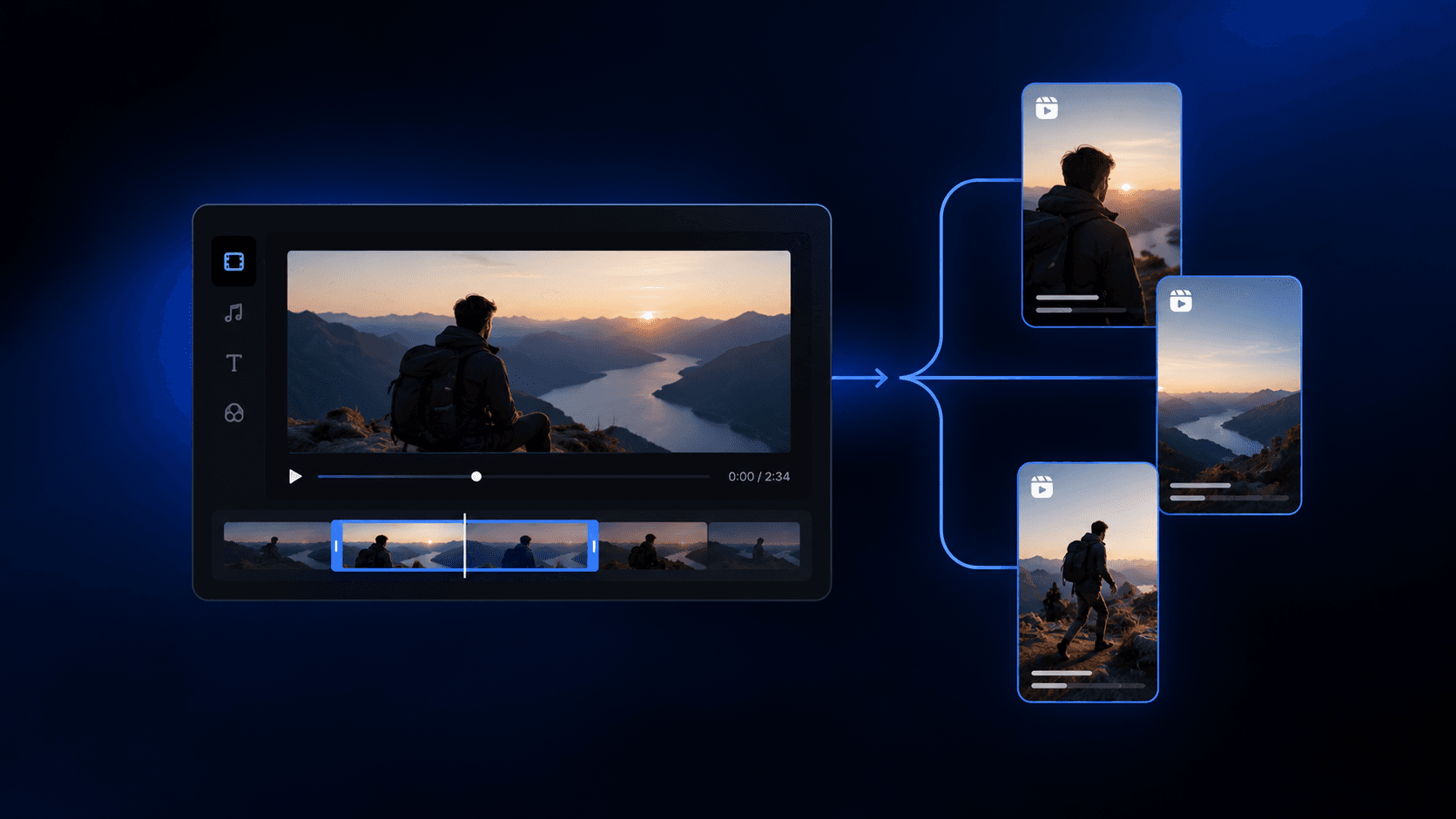
Contents13 sections
- Why Reels Demand Faster Video Production in 2026
- What an AI Reel Maker Actually Does
- Types of AI Reel Makers
- How to Turn Long-Form Video Into Reels Automatically
- How to Reframe Widescreen Video for Reels Automatically
- How to Use Natural Language to Describe Your Edit
- How Semantic Footage Search Saves Hours in the Edit
- How to Add Captions and Localization to AI-Generated Reels
- AI Reel Maker Use Cases by Creator and Team Type
- Limitations of AI Reel Makers to Know Before You Start
- How Cardboard Handles the Full AI Reel Workflow
- Final Thoughts on What an AI Reel Maker Can Do for Your Workflow
- FAQ
Most video production bottlenecks aren’t about ideas or even quality. They’re about time. Finding the right moment in an hour of footage, reframing it for vertical, syncing captions, exporting at the right resolution. Each step is small, but together they make daily posting feel impossible. Here’s what the workflow looks like when AI handles the repetitive parts for you.
TLDR:
- 63% of marketers use AI tools to scale video production as manual editing can’t keep up with demand
- AI reel makers handle clip selection, auto-reframe to 9:16, captions, and exports without touching a timeline
- Semantic search lets you query hours of footage by meaning, skipping frames you don’t need to watch
- AI produces a strong first cut, but clip selection, captions, and reframes each need a quick review pass
- Cardboard covers the full workflow in a browser-based editor with a plain-language Director agent, Smart Reframe, and AI dubbing
Why Reels Demand Faster Video Production in 2026
Short-form video now takes up 58% of social media time, and that number keeps climbing. Algorithms on Instagram, TikTok, and YouTube Shorts reward volume as much as quality, which means posting once a week rarely cuts it anymore.
The production side hasn’t kept up. Most teams still treat video editing as a manual, project-by-project task, even as the expectation to publish daily grows. Time remains the biggest barrier to output, which is exactly why so many teams have turned to AI video editors to close the gap. The math on doing it by hand stopped working.
What an AI Reel Maker Actually Does
A standard video editor gives you a timeline and a razor blade. An AI reel maker gives you a result. The distinction matters because the bottleneck has never been the tools themselves; it’s the hours you spend using them.
At its core, an AI reel maker analyzes raw footage using speech recognition and computer vision. It reads what’s being said, identifies who’s on screen, detects scene changes, and scores moments by how likely they are to retain attention. From that analysis, it proposes cuts, assembles a sequence, and outputs something close to a finished clip without you touching a timeline.
The automation typically covers:
- Clip selection from long-form footage, so you skip the manual scrubbing process entirely
- Auto-reframing to 9:16 vertical for Reels
- Caption generation and styling
- Background noise removal
- Export at post-ready resolutions
Where an AI video editing tool differs from a traditional editor is in where the labor sits. The AI makes a first pass; you refine it. For teams publishing at volume, that shift cuts production time from hours to minutes.
Types of AI Reel Makers
| Type | How It Works | Best For |
|---|---|---|
| Clip extraction tools | Analyze long-form video and pull the highest-retention moments automatically | Podcasters, YouTubers, and teams repurposing existing footage |
| Text-to-reel generators | Build a reel from a script, prompt, or product URL with no source footage required | Marketers creating ads or product content from scratch |
| Agentic timeline editors | Let you describe the edit in plain language and execute cuts, captions, reframes, and more inside a real timeline | Growth teams and creators who need full editorial control without the manual work |
Each type solves a different version of the same problem. Clip extraction tools are useful if you already have footage and want the best 60 seconds pulled out. Text-to-reel tools skip footage entirely, generating video from a concept. Agentic editors sit closest to how a human editor actually works, only much faster: you describe what you want, and the tool proposes a cut you can refine, which is why they rank among the best video editors for social media.
How to Turn Long-Form Video Into Reels Automatically
Upload your source footage first. Whether it’s a 60-minute webinar, a podcast recording, or a product walkthrough, the process starts the same way: get the raw file into your AI reel maker tool of choice.
Once uploaded, the AI transcribes the audio and scans the footage for high-retention moments, usually defined by speech clarity, topic density, and pacing. This all happens in the background without any input from you.
From there, the workflow looks roughly like this:
- Review the proposed clips the AI surfaces, typically ranked by engagement potential
- Trim clip boundaries if the start or end feels off
- Check auto-generated captions for accuracy and adjust styling
- Reframe to 9:16 if your source footage is in widescreen format
- Export at your target resolution
The review step is where most of the real editing judgment still lives. AI clip selection gets you most of the way there fast, but a quick pass to tighten the in and out points usually makes the difference between a clip that feels punchy and one that starts a half-second too late.
How to Reframe Widescreen Video for Reels Automatically
Most footage starts life in 16:9. Cameras, screen recorders, Zoom calls are all widescreen by default. Reels, Shorts, and TikTok want 9:16. Manually re-editing for every format is repetitive work that compounds fast when you’re posting across multiple channels, especially once you’re running a TikTok business account alongside Reels and Shorts.
AI auto-reframe solves this by tracking the subject across every frame instead of applying a static crop. The tool identifies who or what should stay centered, then follows that subject through cuts, movement, and camera changes, adjusting the crop window in real time. A talking head stays in frame. A product demo keeps the key action visible. You get a vertical clip that reads as intentional, not mechanically cropped.
Getting it wrong is obvious. A bad reframe cuts off the speaker’s chin, places them at the edge of frame, or misses the moment a product is actually shown. Those errors signal low production value regardless of how strong the underlying content is.
A few things worth checking in any reframe tool before you commit:
- Subject tracking accuracy across motion and cuts
- Whether it handles multiple speakers or switches subjects cleanly
- Support for 1:1 square in addition to 9:16
- Whether the output is editable or locked
Cardboard’s Smart Reframe handles this automatically, tracking subjects across cuts so the result looks intentional, not mechanically cropped.
How to Use Natural Language to Describe Your Edit
Natural language editing replaces the timeline-first workflow with something closer to a conversation. Instead of dragging clips and setting in and out points manually, you type what you want: “make a 60-second recap,” “cut the silences,” “beat-sync this to the track.” The AI reads that instruction, interprets the footage, and proposes a cut on the timeline for you to refine.
Template tools can’t do this. They lock you into predefined structures where you swap in your clips. Natural language editing works from your actual footage and your actual intent, so the output reflects the specific video you’re trying to make.
Instructions that tend to work well:
- Duration-based: “trim this to 90 seconds”
- Content-based: “pull the strongest quote from each speaker”
- Pacing-based: “remove all pauses longer than two seconds”
- Style-based: “cut this into a 20-second ad”
YouTube launched a conversational editing tool in September 2026, which signals how mainstream this direction has become. Cardboard’s Director agent works the same way inside a real editorial timeline, so the first draft it proposes is something you can actually finish and publish, and not merely preview.
How Semantic Footage Search Saves Hours in the Edit
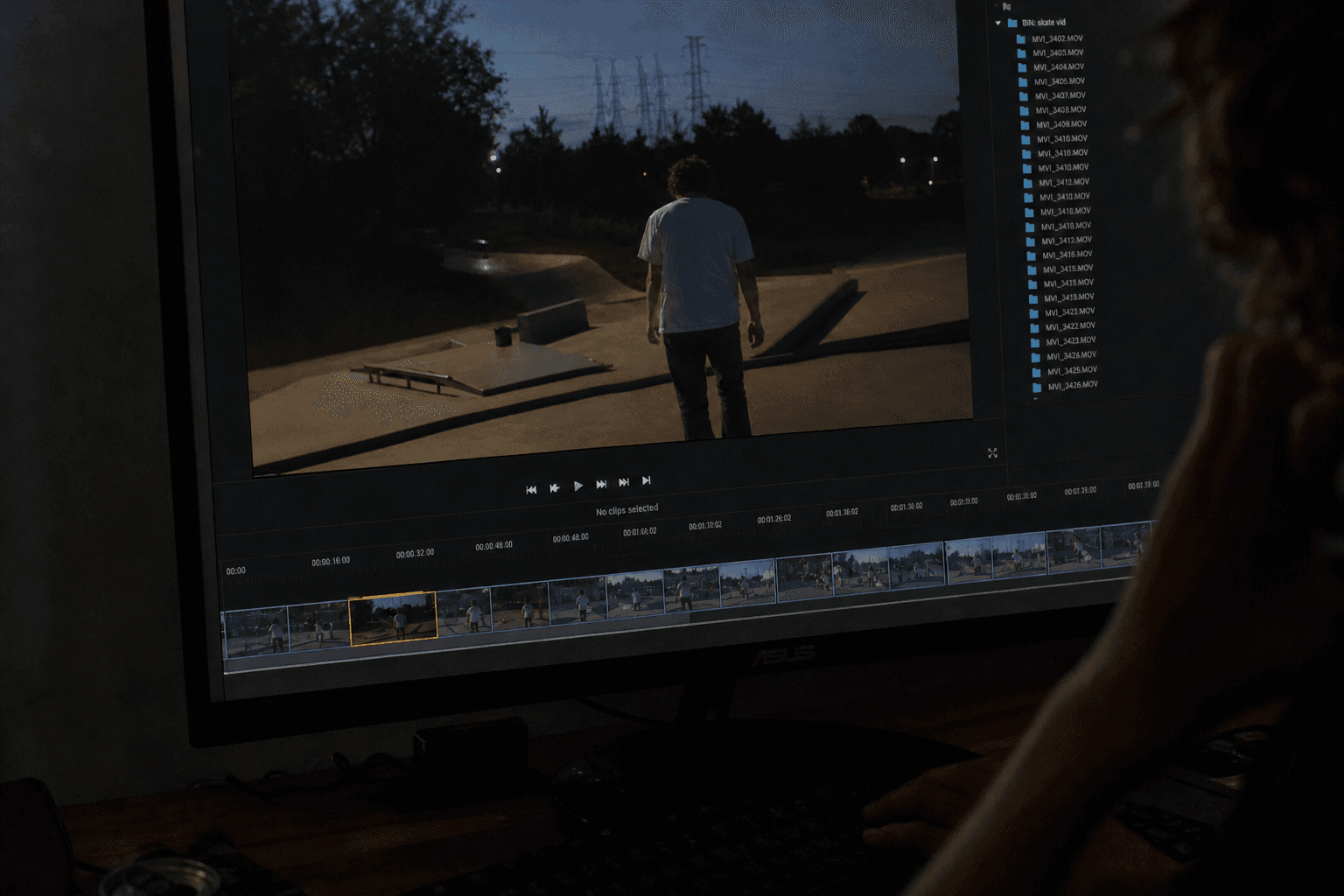
Scrubbing through raw footage is the most expensive habit in video production. A 90-minute interview might have three usable quotes, and finding them traditionally means watching the whole thing, or fast-forwarding and hoping you catch the right moment.
Semantic search changes that by letting you query footage the way you’d query a search engine. Type “moment where she talks about pricing” or “reaction shot after the product reveal” and the AI surfaces the relevant clip directly, without you watching a single frame you don’t need to.
The difference from keyword search matters here. Keyword search finds exact transcript matches, while semantic search understands meaning, catching a quote about “cost” even if “pricing” was never said. That is a capability growth teams comparing Descript alternatives often look for first. It also extends beyond speech into visuals, identifying emotions, scene types, and on-screen subjects through computer vision instead of just reading a transcript.
For reel production, this compresses one of the slowest parts of the workflow. Search for the moments you want, pull them, and sequence from there.
How to Add Captions and Localization to AI-Generated Reels
Most Reels are watched without sound, so captions are what keeps viewers watching past the first few seconds. Social media video data consistently shows that silent autoplay is the default viewing context on every major service.
Auto-generated captions are a solid starting point, but accuracy drops with proper nouns, product names, or technical language. Treat them as a first draft and do a quick manual pass before publishing.
A few caption decisions worth getting right:
- Keep line length to two or four words so text reads cleanly on mobile screens
- Position captions in the lower third, clear of UI overlays on Instagram and TikTok
- Suppress captions during extended silences so text doesn’t linger awkwardly on screen
- Use word-reveal formats that display words as they’re spoken, with keywords enlarged for emphasis
For localization, AI translation and dubbing workflows now cover dozens of languages without re-recording. One Reel can reach Spanish, Portuguese, and French-speaking audiences without a separate production run for each.
AI Reel Maker Use Cases by Creator and Team Type

The raw material already exists across all four cases, but getting it into a publishable reel used to require a dedicated editor or a large block of time. AI compresses that gap whether you’re a solo creator or a marketing team shipping across multiple channels.
| Use Case | The Pain | How AI Solves It |
|---|---|---|
| Brand and product teams | A promo video sits unused because cutting it into a 30-second ad takes half a day | AI pulls the clearest moments, reframes to 9:16, and outputs a draft ad in minutes |
| Creators with long-form content | A 90-minute podcast has four strong clips, but finding and cutting them is slow | Semantic search surfaces the moments; clip extraction handles the cuts |
| Educational and explainer content | A tutorial is 20 minutes long but the useful answer is 45 seconds buried in the middle, a common problem when you make training videos without a production team | AI transcribes, identifies the answer segment, and cuts around it automatically |
| Ad creative testing | A team needs five cut variations of the same spot to test hooks | Natural language editing produces each variation from a single source file without rebuilding the timeline. Cardboard regenerates all five variations from one source file in minutes. |
Limitations of AI Reel Makers to Know Before You Start
AI reel makers are fast, but they’re not infallible. A few limitations are worth knowing before you build a workflow around one.
Clip selection is the most common failure point. AI scores moments by speech clarity and pacing, but it can’t read a room. A pause before a punchline, a quiet moment that recontextualizes everything after it, a setup that only pays off two minutes later: these get cut because the algorithm sees dead air, not storytelling. You will need a review pass.
Captions are a close second. Auto-generated transcripts handle clean speech well but struggle with brand names, product jargon, heavy accents, and audio over background noise. Plan for a correction pass on every export.
Reframing has limits too. Single-subject, static footage is where auto-reframe performs best. When two speakers share frame or subjects move quickly, tracking accuracy drops. Check reframed outputs before publishing, especially anything with fast movement or multi-person framing.
The broader expectation to set: AI produces a first cut, and first cuts need finishing. The time savings are real, but they show up in the draft phase.
How Cardboard Handles the Full AI Reel Workflow
Cardboard brings the full workflow described in this article into a single browser-based editor, or the Mac desktop app if you prefer a native build. No install, no plugins, no server-side processing. Everything runs client-side, so you open a tab and start cutting.
The Director agent takes a plain-language instruction and proposes a first cut directly on the timeline. “Make a 60-second recap from this walkthrough” or “cut this into a 20-second ad” returns a draft you can actually finish. Semantic footage search lets you query hours of raw material by meaning, pulling the moment a speaker mentions pricing or the reaction shot after a product reveal without scrubbing a single frame.
Here is what else the editor handles automatically:
- Smart Reframe outputs vertical, square, and widescreen versions simultaneously, tracking subjects across cuts so each format looks intentional and not mechanically cropped.
- Word Pop captions reveal words as they’re spoken and call out keywords inline, designed for Reels-style retention.
- AI dubbing and translation handle localization across languages without a separate production run.
- Real-time collaboration with timestamped comments keeps feedback inside the project instead of scattered across email threads.
- Exports go to 4K 60fps on Creator and Pro plans, with Premiere Pro and DaVinci XML support on Starter and up when you need to hand off to a traditional pipeline.
Plans start at $8/month for Lite (with a $5 first month), then step up to Starter at $29/month, Creator at $59/month, and Pro at $175/month. Starter adds unlimited exports and Premiere Pro and DaVinci exports, while Creator adds 4K exports and voice cloning. See the full breakdown on the Cardboard pricing page.
Final Thoughts on What an AI Reel Maker Can Do for Your Workflow
Faster output does not have to mean lower quality. With the right AI reel maker, your review pass replaces most of the manual build, and that alone changes what a small team can publish in a week. The tools are mature enough now that the limiting factor is usually the footage you bring in, not the edit. Cardboard is worth a look if you want a browser-based option that covers the full workflow without any install.
FAQ
How do I reformat a widescreen video into vertical and square versions automatically?
AI auto-reframe tracks the subject across every frame instead of applying a static crop, so the speaker or key action stays centered through motion and cuts. Cardboard’s Smart Reframe outputs vertical, square, and widescreen versions at the same time, with each version tracking subjects across cuts so the result looks edited by hand. Check reframed outputs before publishing if your footage has fast movement or two speakers sharing frame, since tracking accuracy drops in those situations.
How do I use natural language to edit videos instead of manually dragging clips on a timeline?
Type the edit you want, and the AI reads the instruction, interprets your footage, and proposes a cut on the timeline for you to refine. Instructions like “trim this to 90 seconds,” “pull the strongest quote from each speaker,” or “cut this into a 20-second ad” all work. Cardboard’s Director agent does this inside a real editorial timeline, so the first draft it returns is something you can actually finish and publish, and not merely preview.
Cardboard vs OpusClip vs Descript for turning long-form video into Reels?
OpusClip and Descript focus on clip extraction and transcript-based editing, while Cardboard operates as a full agentic editor with semantic footage search, Smart Reframe, and a real timeline you can cut inside. If you need a polished, publish-ready Reel with captions, localization, and 4K export from a single workflow, Cardboard covers the full production run where clip extraction tools stop at the draft clip.
How does semantic video search work, and which editors support it?
Semantic search queries footage by meaning, not exact transcript matches, so searching “moment she talks about pricing” surfaces a clip where a speaker says “cost” or “what we charge” even if the word “pricing” never appears. It also reads visuals through computer vision, identifying emotions, scene types, and on-screen subjects beyond what the transcript contains. Among current editors, Cardboard supports semantic footage search natively; most traditional editors like Premiere Pro and DaVinci Resolve rely on manual bin organization or basic keyword search instead.
How do I turn raw product footage into a polished reel without hiring an editor?
Upload your source footage to an AI reel maker, let it transcribe and score moments by speech clarity and pacing, then review the proposed clips, tighten any in and out points that feel off, and export. The AI handles clip selection, reframing, captions, and noise removal in the draft pass; your job is a quick review pass to catch anything the algorithm misread as dead air. Cardboard plans start at $8/month (Lite), with Starter at $29/month and Creator at $59/month, and it runs entirely in the browser with no install required.