ChatGPT Video Editing Prompts: 6 Picks for 2026
Get working video editing prompts for ChatGPT plus a November 2026 comparison of tools that turn footage into editable timelines.
 Cardboard Team8 min read
Contents12 sections
- What Are Video Editing Prompts for ChatGPT?
- How Do You Compare Tools for Video Editing Prompts for ChatGPT?
- Cardboard
- Descript
- invideo
- VEED
- Canva
- Adobe Express
- What Should You Check Before Connecting a Video Tool to ChatGPT?
- When Should You Use Cardboard for Video Editing in ChatGPT?
- FAQ
- How Do You Start Your Next Video Edit?
Video editing prompts for ChatGPT need a connected editing tool to turn your footage into an edited file. Name your footage, target length, aspect ratio and finishing touches, such as captions for a 20-second product ad.
TLDR:
- ChatGPT needs a connected editing tool to produce an edited video file.
- Name your footage, target length, aspect ratio and finishing touches in each prompt.
- Try: “Cut this 40-minute webinar into three 30-second vertical clips in 9:16 with captions.”
- Check ChatGPT access and timeline export options before you choose an editor.
- Cardboard AI (cardboard.ai) turns your footage into editable cuts you can refine by chat or hand.
What Are Video Editing Prompts for ChatGPT?
Video editing prompts for ChatGPT are plain-language requests to cut, caption, reframe or assemble footage. A plain chat can’t produce an edited video file; a connected editing tool handles that work.
“Make my video better” leaves too much open. Try:
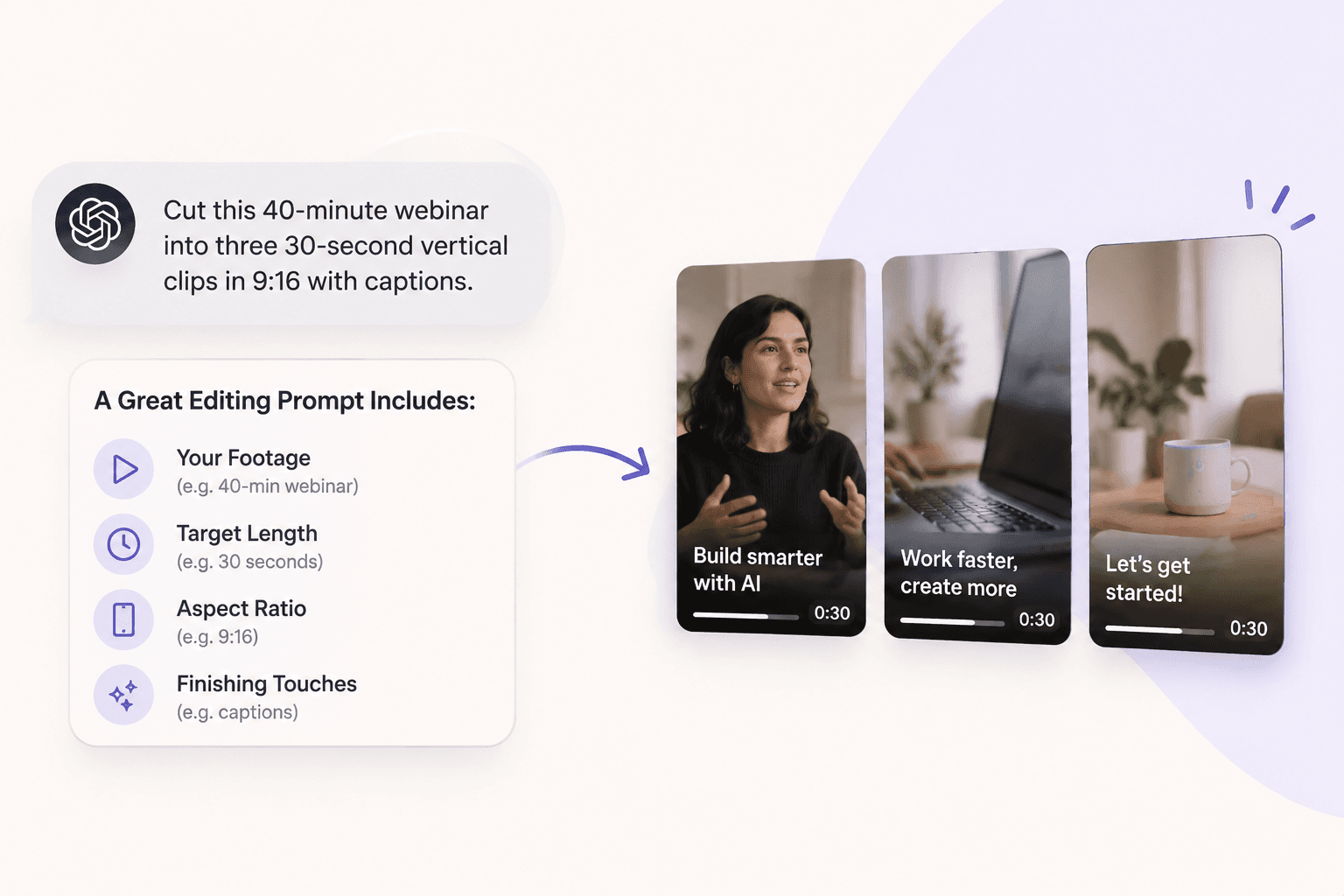
Cut this 40-minute webinar into three 30-second vertical clips in 9:16 with captions.
A useful prompt names four things: your footage, the target length, the aspect ratio and finishing touches, since turning a plain request into a finished cut is one of the hard problems in video editing. Use this structure to tell the editing tool what you want from your footage.
How Do You Compare Tools for Video Editing Prompts for ChatGPT?
Compare tools for video editing prompts for ChatGPT by your source material and finishing needs. The groups below cover footage editing (Cardboard and Descript), generation-supported video (invideo and VEED), and design work (Canva and Adobe Express). Use these questions to compare options:
- Does the tool edit your footage or generate new video?
- Can you refine an editable timeline, or do you receive a finished file?
- Can one prompt remove filler words and silences, then add captions?
- Can it reframe for Shorts, Reels or TikTok?
- Can you finish in Premiere Pro or DaVinci Resolve?
- Which plan includes ChatGPT access?
For a 60-minute podcast, focus on trimming dialogue and keeping the cut editable. Try: “Make three vertical podcast clips, each with one complete idea.”
Cardboard
Cardboard turns video editing prompts for ChatGPT into edits on a multi-layer timeline using your footage, where account access is available.
Best for: Turning your podcast, interview or demo footage into cuts you can refine by chat or by hand.
Limitation: The ChatGPT connector is in early access and may not be available on every account.
Try these prompts:
- “Make three vertical podcast clips, each with one complete idea.”
- “Remove pauses and filler words, then add captions.”
- “Reframe to 9:16, keeping the speaker visible.”
- “Make a 60s recap.”
- “Add B-roll where I discuss the product.”
- “Beat-sync this to my music.”
For setup and finishing:
- Attach clips, type @Cardboard, and describe your edit.
- Refine by chat or by hand.
As of November 2026, Lite is free in the Mac app. Chat editing uses plan credits.
Descript
Descript lets paying users trigger imports and edits through a connected AI assistant, as of November 2026. Its API and MCP page describes the workflow (checked November 2026).
How Do You Start a Podcast Edit in Descript?
- Connect Descript through MCP, then ask the assistant to import your podcast footage.
- Try this starter prompt: “Create a video project from this 60-minute podcast and remove the filler words.”
Best for: Podcasters already using Descript who want to start projects through chat. If you want other options, see these Descript alternatives.
Limitation: As of November 2026, Descript’s API uses media minutes for imports, and Underlord edits can use AI credits.
invideo
invideo supports footage editing and generated supporting visuals through ChatGPT. Its Video GPT page describes the workflow (checked November 2026).
How Do You Edit Demo Footage with invideo?
- Connect invideo to ChatGPT, upload your demo footage, and ask it to select takes and remove repetition.
- Ask for stock visuals or generated footage where your demo needs a supporting shot.
- Request titles, animation, effects, or color and sound adjustments, then review the timeline.
Try: “Remove repeated takes from this demo and cut it into a 20-second product ad.”
Best for: Generation-heavy edits through ChatGPT.
Limitation: Generating new images, video or audio uses invideo credits, and your ChatGPT usage limits apply separately (checked November 2026). The page also does not describe a Premiere Pro or DaVinci Resolve timeline handoff.
If you need that handoff, check export options before building your first cut, or compare invideo and Cardboard for your own footage.
VEED
VEED’s Video GPT lets ChatGPT Plus users turn an idea into a video, as of November 2026. Its ChatGPT video generator guide explains how to customize the result in VEED’s editor (checked November 2026).
How Do You Create a Video with VEED’s Video GPT?
- Give VEED’s Video GPT your topic, style and purpose, then refine the script.
- Try: “Create a 30-second product explainer using stock footage and a voiceover.” Open the result in VEED to replace clips and adjust the voiceover.
Best for: People without footage who want to start with an idea.
Limitation: The Video GPT workflow takes you into VEED’s editor to customize and export the generated video.
If you already shot an interview, consider Cardboard for editing your footage, or browse these Runway AI alternatives if you’re comparing generation tools.
Canva
Canva lets you create, edit and preview designs in ChatGPT. Canva’s Canva connection guide explains how to continue editing in Canva (checked November 2026).
How Do You Create Designs with Canva in ChatGPT?
- Connect Canva, then describe your design type, style and text in the chat.
- Preview the design options and select one to continue editing in Canva.
Best for: Creating decks and graphics. Try: “Create six launch slides using these product screenshots and this outline.”
Limitation: Canva saves only the designs you select in ChatGPT, so choose Save or Open in Canva to keep your work.
Choose Canva for slides. If you’re editing recorded footage, such as a launch demo, look for a video editing workflow instead, like the one compared in OpusClip vs Cardboard.
Adobe Express
Adobe Express capabilities are available through Adobe’s broader ChatGPT plugin for designs, images, videos and documents. Adobe’s ChatGPT connector page describes the available workflow (checked November 2026).
How Do You Use Adobe Tools in ChatGPT?
- Find Adobe in ChatGPT’s plugin directory and connect it.
- Type @Adobe, attach a still from your recorded podcast and describe the result. Try: “Create three social graphics promoting this podcast episode using this still.”
Best for: Creating a flyer or social graphic alongside other Adobe design work.
Limitation: Adobe’s ChatGPT plugin includes selected capabilities, not every feature from each Adobe app.
Choose Adobe Express for design work around your video, such as a podcast episode graphic. For cutting the recorded episode, compare the editing workflows in Premiere Pro vs Cardboard.
What Should You Check Before Connecting a Video Tool to ChatGPT?
Video editing prompts for ChatGPT depend on the connected tool. Confirm ChatGPT access before choosing any of these options.
| Feature to check | Cardboard | Descript | invideo | VEED | Canva | Adobe Express |
|---|---|---|---|---|---|---|
| ChatGPT plugin or connection available | Confirm before use | Confirm before use | Confirm before use | Confirm before use | Confirm before use | Confirm before use |
For a 20-minute interview in Cardboard, try: “Cut this interview into three clips, each with one complete idea.” If you have only an idea, look for generation or design support.
When Should You Use Cardboard for Video Editing in ChatGPT?
Use Cardboard for editable cuts of your own footage, where the early-access ChatGPT connector is available on your account. Try “Cut this product walkthrough into a 20-second ad.” The result sits on a timeline, so you can refine pacing through chat or adjust cuts by hand.
Account access may be limited. To connect Cardboard in ChatGPT, open cardboard.ai/mcp, then use your footage and a clear target length in your first request.
FAQ
How do I choose between Cardboard, Descript, invideo, VEED, Canva and Adobe Express for video editing prompts in ChatGPT?
Start with your source material: if you have recorded footage such as a podcast, interview or demo, look at Cardboard and Descript. If you have an idea but no footage, consider invideo or VEED for generated or stock visuals. For launch graphics and slides, Canva and Adobe Express fit better.
Is Cardboard or Descript better for podcast footage you want to refine after the first cut?
Cardboard suits podcast edits you want to keep adjusting on a multi-layer timeline by chat or by hand, and it exports to Premiere Pro XML and DaVinci Resolve FCPXML on Starter and above. Descript suits podcasters already inside its own workflow who want to trigger imports through a connected assistant.
When should you use VEED or invideo instead of Cardboard for a ChatGPT video prompt?
Use VEED or invideo when you have no footage and want generated video or stock visuals built around an idea. If you already shot a demo, interview or walkthrough, Cardboard keeps your own material at the center of the cut.
How do you write a video editing prompt that works across Cardboard, invideo and VEED?
Name four things in every prompt: your source material, target length, aspect ratio and finishing touches. For recorded footage, try: “Cut this 40-minute webinar into three 30-second vertical clips in 9:16 with captions.” State whether you want footage edited, stock visuals added or scenes generated.
What should you check before connecting Cardboard, Descript or any video tool to ChatGPT?
Confirm account access first, since Cardboard’s ChatGPT connector is still in early access as of November 2026 and may not be available on every account. Also check whether the tool returns an editable timeline or a finished MP4, and whether it exports XML for Premiere Pro or FCPXML for DaVinci Resolve if you plan to finish the cut elsewhere.
How Do You Start Your Next Video Edit?
Video editing prompts work best with clear targets. For your podcast, try: “Make three vertical clips, each with one complete idea, and add captions.” Bring your footage to Cardboard and build a first cut.