Make a YouTube Intro That Holds Viewers (2026)
Make a YouTube intro that keeps viewers watching. Get hook formulas, length tips and step by step editing help.
Contents17 sections
- What a YouTube Intro Is and Whether You Need One
- How Long a YouTube Intro Should Be
- How Do You Plan a YouTube Intro Hook Before Editing?
- What YouTube Intro Structures Work Best?
- How to Make a YouTube Intro Step by Step
- How Do You Cut a YouTube Intro From Footage You Already Have?
- How Do You Add Captions, B-Roll, and Music Without Burying the Voice?
- How Do You Add a Title Card or Lower-Third to a YouTube Intro?
- When Do Templates From Canva, CapCut, or Intro Makers Fit?
- How to Make a YouTube Intro on iPhone or Phone
- How to Reuse a Clip From an Existing YouTube Video
- How Do You Export a YouTube Intro for 16
- How to Tell Whether Your YouTube Intro Is Working
- What Are the Most Common YouTube Intro Mistakes?
- How Does Cardboard Build a YouTube Intro From Your Own Footage?
- Final thoughts on creating a YouTube intro
- FAQ
Your retention graph probably drops hard in the first 15 seconds, and the intro is the usual suspect. Most channels do need one, but it has to earn the click before it shows a logo. You can fix it with the footage you already shot, a 5 to 15 second opening, and a clear idea of what the first sentence should be.
TLDR:
- Open with your best line, then add a title card of 5 seconds or less.
- Hit your promised topic within 30 seconds, since that retention number is your intro score.
- Check YouTube Studio retention for drops in the first 15 seconds, then change one thing per upload.
- Templates from Canva or CapCut suit logo stings without footage, but check watermark and license first.
- Cardboard AI (cardboard.ai) builds an editable first cut from your footage, with captions and 9:16 reframing.
What a YouTube Intro Is and Whether You Need One
A YouTube intro is the first 5 to 30 seconds of a video: a cold-open hook, a short branded sting, or both. Most channels need one, but it has to earn the click before it shows a logo.
A hook-first opening drops viewers into the payoff, then brands briefly. A long logo animation asks them to wait, which is a common reason people leave early. Picture a podcaster opening a 45-minute interview with the guest’s best 8-second line, then a 2-second title card. Logos still work as a 2-second sting after the hook.
How Long a YouTube Intro Should Be
Keep any branded element under 5 seconds, and reach the promised topic inside the first 30. YouTube’s audience retention report counts the share of viewers still watching after 30 seconds as your intro number.
Planning numbers by format:
| Format | Opening length | What goes in it |
|---|---|---|
| Shorts-style opening | 3 to 5 seconds | The hook, then straight to the topic |
| Long video, hook plus title | 5 to 15 seconds | Your best line, then a title card of 2 to 5 seconds |
| Tutorial | 0 seconds of branding | The answer first |
Viewers also leave when the opening fails to confirm the title and thumbnail, per Asendify. If your thumbnail promises a camera test, show the camera.
How Do You Plan a YouTube Intro Hook Before Editing?
Write the first line before you touch a timeline. Once you know the sentence that opens the video, the edit has a target, and the greeting can wait.
Pick one formula:
- Result first: “This edit took 12 minutes, here is how.”
- Bold claim: “You do not need a logo animation.”
- Curiosity gap: a line like “I deleted my intro, and here is what changed.”
- Short personal opener: “I’m Sam, and I film one-take tutorials.”
Gamers can open on the session’s best moment, then cut to a title. Funny channels can use a one-line joke that lands in under 3 seconds.
What YouTube Intro Structures Work Best?
Four structures cover most channels, and each suits a different format.
- Cold open, then title: play the best line or result, then a 2-second title. Fits podcasts and interviews.
- Hook, brand, content: one promise sentence, a quick sting, then the video. Fits vlogs.
- Fast montage: 5 to 8 seconds of top moments cut to music. Fits travel and gaming, the same approach used when you edit a travel vlog.
- Plain title card: static text over the first frame. Fits tutorials.
Keep one idea per intro: one hook, one brand signal, one reason to keep watching. A founder demo might show the finished result for 4 seconds, add a 2-second title, then start the walkthrough.
How to Make a YouTube Intro Step by Step
Follow these seven steps in any editor, free or paid:
- Decide the intro’s job: hook, brand signal, or both.
- Pick the single best moment or line from your footage.
- Trim it to 5 to 15 seconds.
- Add a title and captions from the first word, with music kept under the voice.
- Watch it once with the sound off. If the promise still reads, it works.
- Export at your video’s resolution.
- Place it first on the timeline.
Free tiers make a free intro realistic. Check watermarks, export counts, and resolution caps first, and compare them against Cardboard’s pricing if you outgrow the free tier.
How Do You Cut a YouTube Intro From Footage You Already Have?
Find the single strongest sentence in the recording and move it to the front of the timeline. Everything before it is setup, and viewers won’t wait for setup.
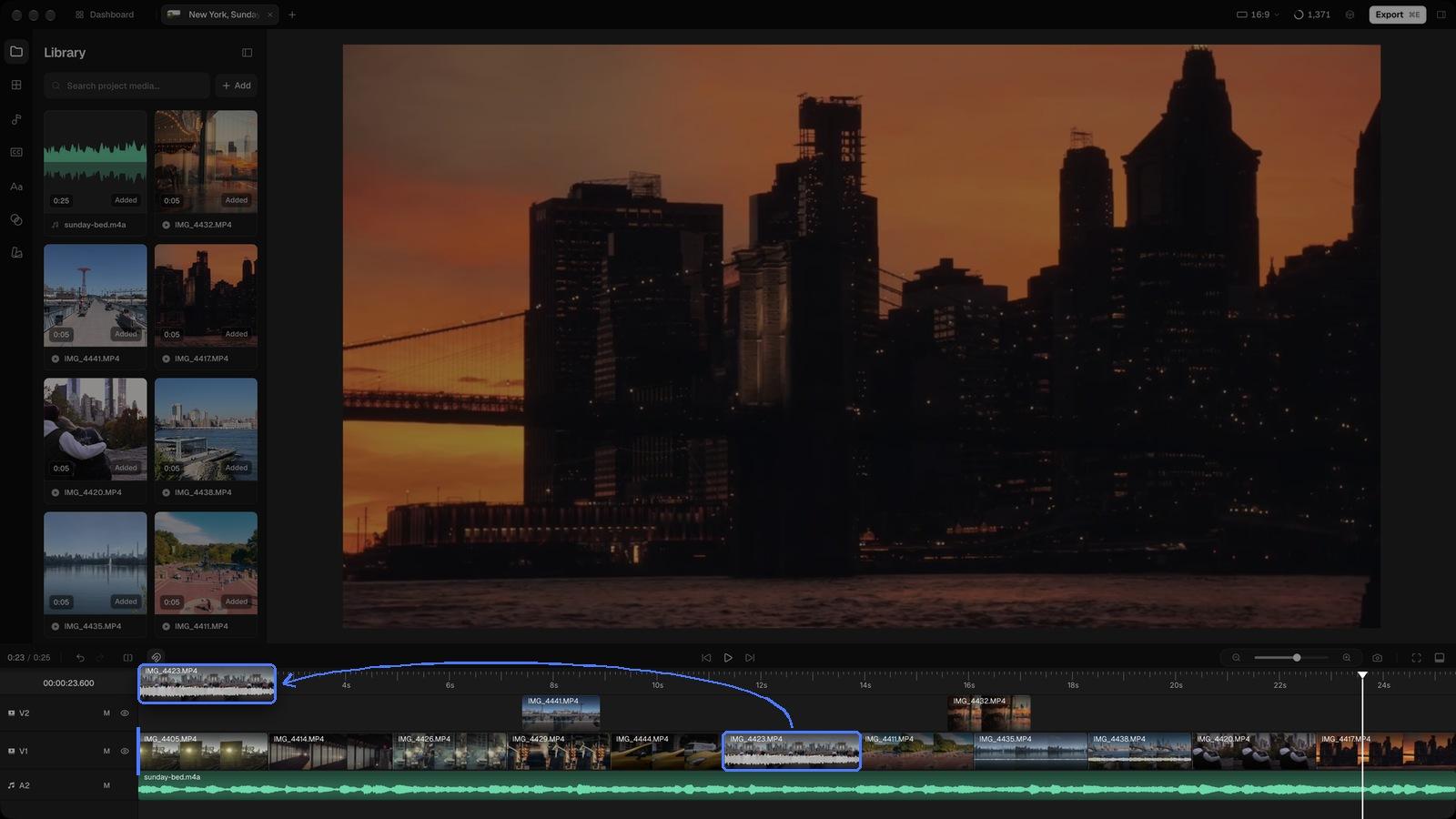
If you’re working from a talking head video, read the transcript for the line that makes a claim, delivers a result, or gets a laugh. Or search the footage by what happened, such as “the guest laughs about the first launch.”
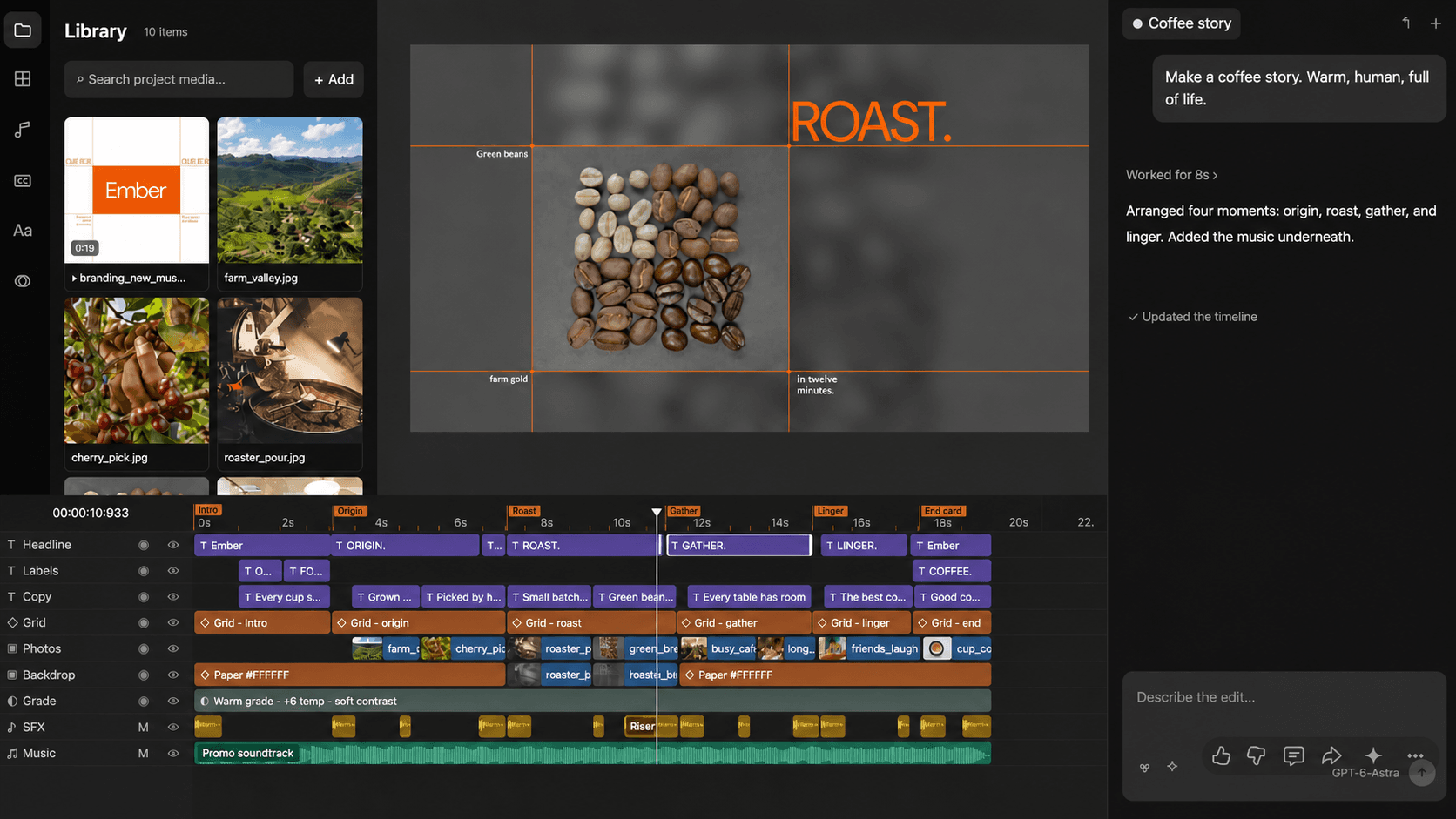
Then tighten the first 10 seconds. In Cardboard, type “Move the best quote to the start, then remove filler words and dead air.” Leave about 0.2 to 0.3 seconds between lines so speech doesn’t sound robotic.
Want to see an edit like this on a timeline? Watch this Cardboard video.
How Do You Add Captions, B-Roll, and Music Without Burying the Voice?
Captions belong in the hook, since many viewers watch with the sound off. Use word-level captions that appear as each word is spoken, and keep them on screen from the first frame. Place B-roll on the exact concept being named: say “my camera bag” and show the bag.
Ducking means lowering music automatically while someone talks. Keep music at about 15 to 20% of voice level during speech, then raise it in the gaps. Add keyframes by hand, switch on auto-duck in your editor, or ask Cardboard to “duck the music under my voice.”
For a montage intro, cut on the beat. At 120 BPM, a beat lands every 0.5 seconds, so cutting on every other beat gives you roughly 5 cuts in 5 seconds.
How Do You Add a Title Card or Lower-Third to a YouTube Intro?
Keep the title card or lower-third to 2 to 5 seconds and 6 to 8 words that name the topic or your channel. Set it large enough to read on a phone, inside the safe margins (about 10% in from every edge).
For explainers, add a labeled arrow or simple chart only while the voiceover mentions it, then remove it. A one-line opener like “Edit a podcast clip in 3 minutes” can replace a logo sting, the kind of line you land by writing a hook-driven video script. In Cardboard, ask for “Add a 3-second title card with my channel name over the first shot.”
When Do Templates From Canva, CapCut, or Intro Makers Fit?
Canva, CapCut, and free intro makers fit when you need an animated logo or channel sting and have no footage, and this CapCut versus Cardboard comparison breaks down the difference further. They load fast and look polished, but they look like everyone else’s. Before committing, check four things:
- Watermark: does “no watermark” apply to the free tier?
- Resolution: can you export at 1080p or higher?
- Music license: is the track cleared for YouTube monetization?
- Logo swap: can you add your own logo, or only edit text?
Free templates rarely pass all four. With real footage, build the intro from your best moment instead.
How to Make a YouTube Intro on iPhone or Phone
Yes, a phone camera is enough for a strong intro. Edit on the phone in an app such as CapCut, or move the clips to a computer and finish there.
For the phone route, follow these steps:
- Pick horizontal for standard videos or vertical for Shorts.
- Record the hook as its own 5 to 10 second take.
- Trim the take to the first clear word.
- Add captions from the first frame.
- Export at 1080p.
To move iPhone clips to a computer, use AirDrop on a Mac, iCloud or Google Drive.
How to Reuse a Clip From an Existing YouTube Video
To reuse a clip from your own video, open YouTube Studio, go to Content, open the video’s options menu, and select Download. Use your original project files when you have them, since they give better quality. Reuse only your own footage, Creative Commons clips, or clips with written permission. A two-second flashback right after the hook works well.
How Do You Export a YouTube Intro for 16:9 and 9:16?
Export the same opening twice: a 16:9 file for the channel and a 9:16 file for Shorts, Reels, or TikTok. Reframing the vertical copy keeps the speaker centered instead of cropping to an empty wall.
Keep 9:16 captions mid-frame, about 20% up from the bottom, in lines of 3 to 4 words, similar to how you’d edit a UGC video with captions. In Cardboard, ask for “Reframe this to 9:16, keep the speaker centered, and move captions above the bottom.”
To add the intro to a YouTube video, edit it into the start of the file, then upload in YouTube Studio. Any change means a re-export.
How to Tell Whether Your YouTube Intro Is Working
Open YouTube Studio, pick a video, and read its audience retention report. A steep drop inside the first 15 seconds usually means the opening missed what the title and thumbnail promised.
Line up your last 5 videos of the same format and note where each one dips. Watch the 20 to 30 seconds before each drop, since the cause usually sits just ahead of it, per Asendify.
Then change one thing in the next upload, such as the hook line, the length, or when captions start. Compare only videos of similar format and length.
What Are the Most Common YouTube Intro Mistakes?
Six mistakes come up again and again, and each has a quick fix.
- Logo before any value: open with the hook, then play the logo as a 2-second sting.
- A long animated sting: cut anything past 5 seconds, since viewers came for the topic.
- Introducing the video twice: say what it covers once, in the hook or on the title card.
- Music over speech: drop it to about 15 to 20% of voice level while someone talks.
- Unreadable mobile text: enlarge it, keep it inside the safe margins, and check it on a phone.
- The same intro for years: refresh the hook every video and the sting each season.
A 12-second logo reveal plus “Hey guys, welcome back” becomes a 6-second hook with the result up front, then a 2-second title.
How Does Cardboard Build a YouTube Intro From Your Own Footage?
Cardboard is an AI video editor you talk to. Describe your intro, and the Director builds an editable first cut on a multi-layer timeline. It pulls your best line forward, cuts filler words, adds word-level captions, ducks music, and reframes for 9:16 or 16:9. Try: “Open with my best line, remove the filler words, add captions and a 5-second title.”
Cardboard for Mac is free on Apple Silicon (as of November 2026), and the web editor runs in a desktop browser. For an animated logo sting with no footage, a template tool fits better. With footage, try the free Mac app or open the web editor.
Final thoughts on creating a YouTube intro
The intro does one job: give viewers a reason to stay past 30 seconds. Lead with a hook, add a quick title, and let your retention graph tell you what to fix next. You can try your own opening in Cardboard.
FAQ
Can I make a YouTube intro in CapCut for free, or should I use Cardboard?
Yes, CapCut’s free tier can make a YouTube intro, but check for watermarks, export caps and music licensing before you commit. Cardboard fits better when you already have footage: you describe the intro, including captions and music ducking, and the Director builds an editable first cut. Cardboard for Mac is free on Apple Silicon (as of November 2026).
Can ChatGPT add captions to my YouTube intro video?
Yes, through the Cardboard plugin in ChatGPT, which works on every Cardboard plan. Attach your clip, type @Cardboard and ask for “Add word-level captions from the first frame,” and the edited video plays in the chat. The docs still describe the plugin as early access, so it may not show up on every account yet.
How do I make background music duck under my voice in a YouTube intro?
Turn on auto-duck in your editor, or add keyframes by hand so music drops to about 15 to 20% of voice level while you speak. In Cardboard, ask “Duck the music under my voice” and it lowers the track during speech and raises it in the gaps.
Is Canva or Cardboard better for a YouTube intro with real footage?
Canva is better when you need an animated logo sting and have no footage. Cardboard is better when you have a recording, since it pulls your strongest line to the front, cuts filler words and adds captions on an editable timeline. Both can produce a 5-second branded title.
Can I reuse a clip from my own YouTube video in a new intro?
Yes. In YouTube Studio, open Content, use the video’s options menu and select Download to get an MP4 of your own upload, but original project files give better quality. Reuse only your own footage, Creative Commons clips or clips with written permission.