Turning ChatGPT Prompts Into Finished Videos October 2026
Find out how ChatGPT fits into an AI video workflow, from script writing to final export, as of October 2026.
 Cardboard TeamUpdated 11 min read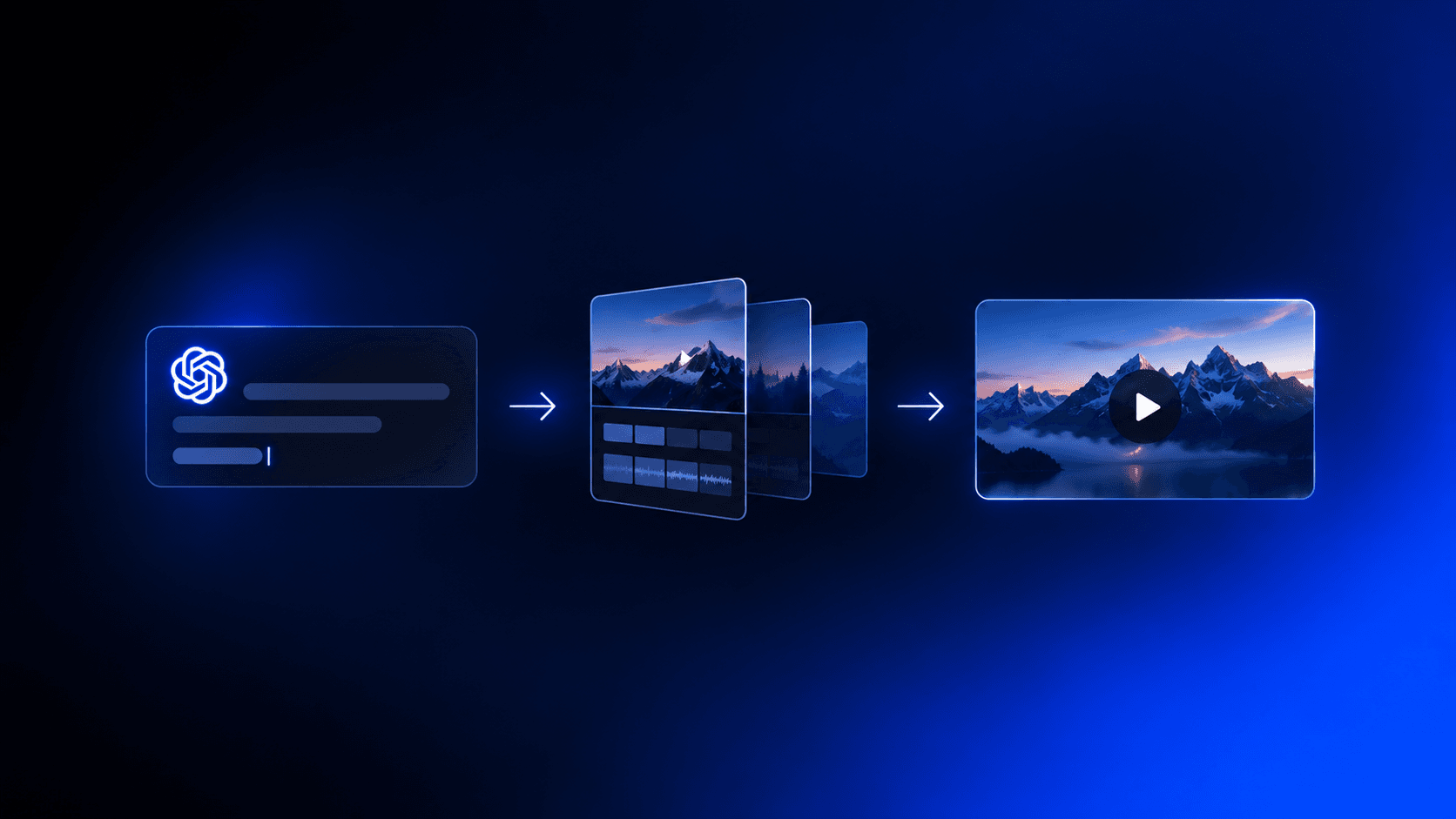
Contents12 sections
- What a ChatGPT Video Generator Actually Is
- How ChatGPT Contributes to Video Creation
- Writing Video Scripts and Prompts with ChatGPT
- Turning a ChatGPT Script Into a Video
- Repurposing Long-Form Video Into Short Clips With AI
- Automatic Reframing
- Adding Translated Captions and AI Dubbing
- Editing and Refining AI-Generated Video
- Choosing ChatGPT Video Generator Tools
- How Cardboard Fits Into an AI Video Workflow
- Final Thoughts on the ChatGPT Video Generator Workflow
- FAQ
So you want ChatGPT to make your videos. The catch is that ChatGPT generates text, not video frames. What you’re actually working with is a strong pre-production tool that hands off to a renderer. Once that clicks, it changes how you think about the whole production process.
TLDR:
- ChatGPT generates scripts and shot lists but cannot render video; Sora was discontinued April 26, 2026
- Include format, audience, tone, and core message in your prompt to get a usable script in one pass
- AI repurposing compresses a full day of editing into minutes of review for Reels, ads, and Shorts
- AI tools cut average video production costs by 40%, according to Digital Applied’s 2026 report
- Cardboard takes your raw footage from script to multi-format draft using plain-language commands in the browser
What a ChatGPT Video Generator Actually Is
Searching “ChatGPT video generator” and expecting to paste a prompt and download an MP4 leads to a different reality. ChatGPT is a text-based AI. It generates scripts, shot lists, and render prompts with impressive fluency, but cannot produce video frames, audio tracks, or exported files on its own.
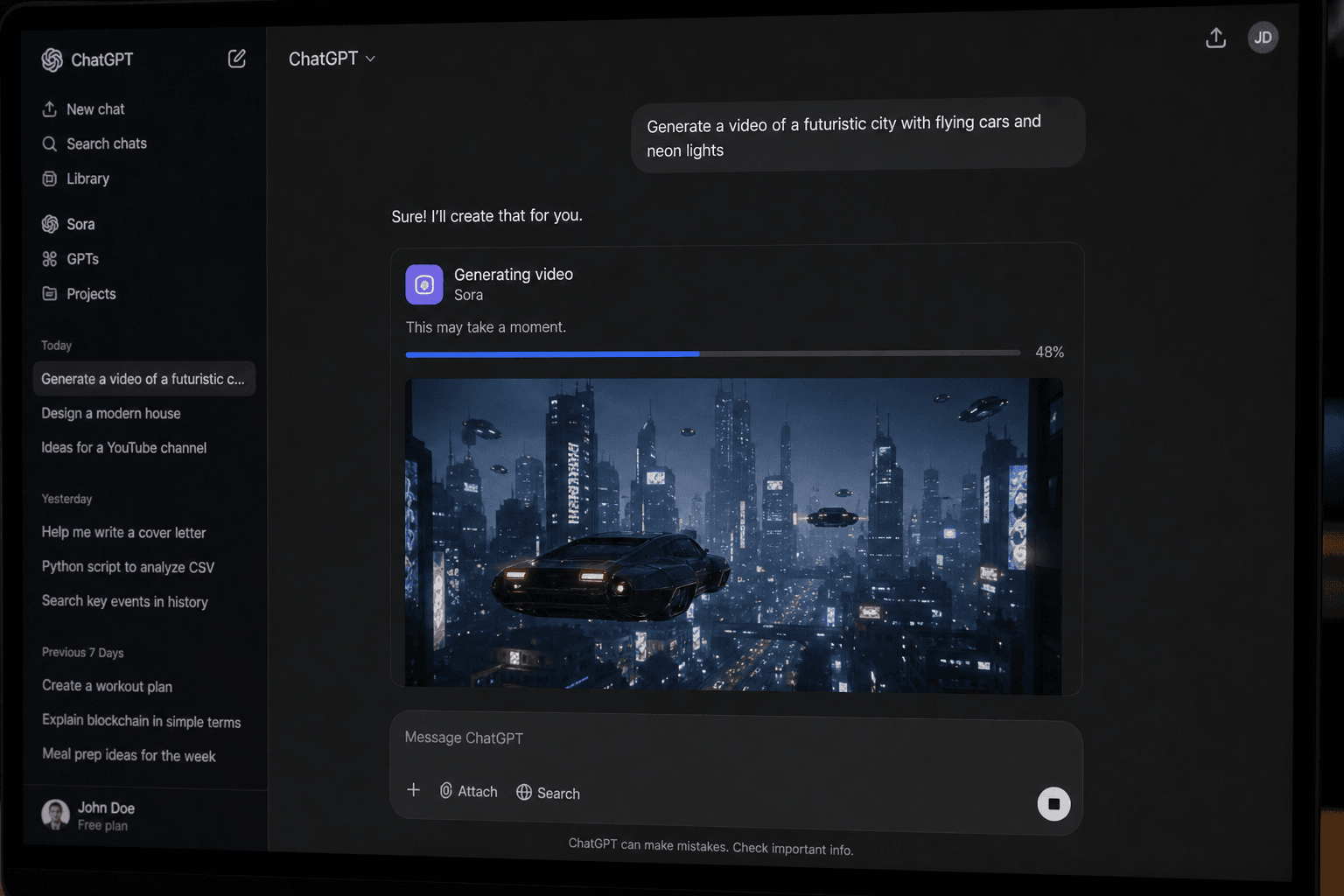
OpenAI did briefly integrate Sora, its text-to-video model, directly into ChatGPT. That changed on April 26, 2026, when Sora was discontinued. Native video output inside ChatGPT no longer exists.
What you’re actually working with is a strong pre-production tool. According to Kompozy’s 2026 review, ChatGPT writes strong scripts and shot lists but produces no clip and publishes nowhere. The video still has to come from somewhere else.
How ChatGPT Contributes to Video Creation
ChatGPT earns its place in a video workflow, just not at the production stage. Here are the three ways creators and marketers actually use it.
GPT Store Video Tools
The ChatGPT GPT Store hosts third-party GPTs built for video workflows. These are wrappers that call external video-processing APIs from inside the ChatGPT interface. You’re still relying on outside video infrastructure, but the prompt-to-output loop feels native.
Script and Prompt Generation
This is where ChatGPT performs best. Feed it a brief, a product page, or a transcript and it returns a tight script, scene-by-scene shot list, or a batch of prompts ready to paste into a video tool.
Pipeline Orchestration
More technical teams wire ChatGPT into automated pipelines where it generates structured instructions that trigger downstream video production tools. ChatGPT writes the logic; other services execute it.
The bottom line: ChatGPT owns the thinking, not the video output. The further it gets from text, the more it depends on something else to finish the job.
Writing Video Scripts and Prompts with ChatGPT
Give ChatGPT a vague brief and you’ll get a generic script. Give it context and it returns something usable. The difference is in how you frame the input.
A good prompt includes four things: target format (60s Reel, 3-minute YouTube explainer), intended audience, tone, and the core message or offer. With those anchors, ChatGPT can produce a scene-by-scene breakdown with speaker notes, B-roll cues, and on-screen text suggestions in one pass.
There’s also a distinction worth knowing between a script prompt and a visual-motion prompt. A script prompt produces narration and dialogue. A visual-motion prompt describes what should appear on screen, camera movement, lighting, and pacing. If you’re feeding output into a text-to-video tool, you want the latter. ChatGPT can generate both, but you have to ask for the right one.
A few prompt structures that work well:
- “Write a 60-second video script for [product], targeting [audience], with an urgent but conversational tone. Include scene labels and B-roll suggestions.”
- “Convert this script into visual-motion prompts for each scene, describing camera angle, subject action, and mood.”
- “Give me five hook variations for the opening five seconds of a video about [topic].”
Output quality compounds when you paste in raw material like a product page, transcript, or customer feedback. ChatGPT synthesizes faster than it invents.
Turning a ChatGPT Script Into a Video
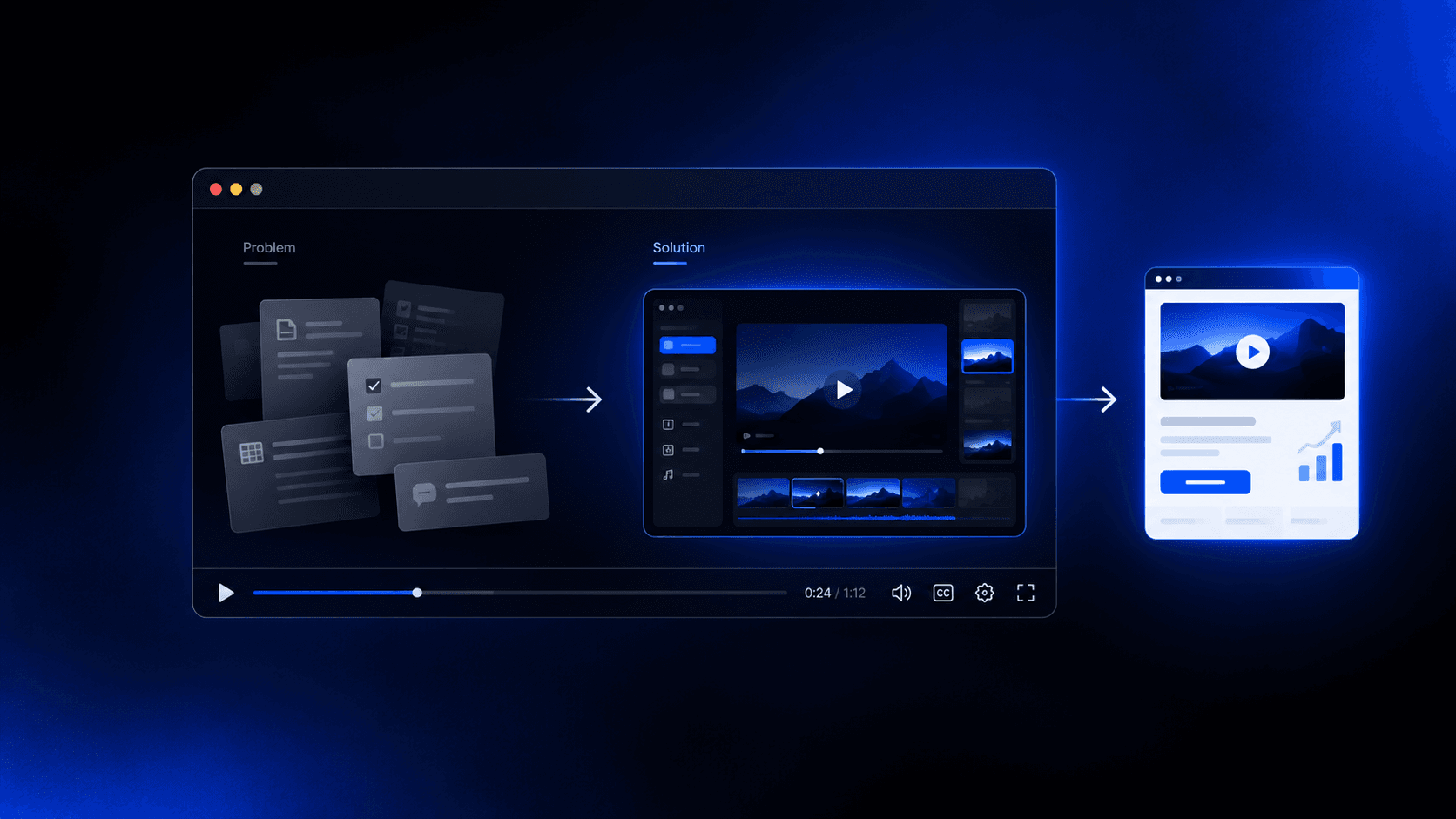
Once the script exists, video production starts. The handoff is straightforward: take what ChatGPT wrote and move it into a dedicated AI video editing tool that produces visuals, applies voice, and exports a finished file.
The general workflow runs like this:
- Paste or import the script into your chosen AI video tool
- Select or generate visuals for each scene, whether stock footage, AI-generated clips, or your own assets
- Choose a voice and sync narration to the timeline
- Refine scene-by-scene, adjust pacing, and export
The global AI video market was valued at $4.6 billion in 2025, is estimated at $5.5 billion in 2026, and is projected to reach $42.3 billion by 2033 at a 33.7% CAGR. That growth reflects real production demand. ChatGPT gets you to a structured script. Everything after that requires a renderer.
Repurposing Long-Form Video Into Short Clips With AI
Most long-form video never gets reused. A 45-minute product walkthrough, a customer interview, or footage meant for training videos gets uploaded once and quietly ignored. The editing work required to slice them into Reels, ads, and YouTube Shorts is too slow to make the output worthwhile.
AI changes that ratio. According to Digital Applied’s 2026 report, AI tools cut average video production costs by 40%. Instead of manual scrubbing, AI analyzes footage to find high-signal moments: strong quotes, emotional peaks, clear value statements. It then proposes clips already cut to the right length and aspect ratio for each channel, without you touching a timeline.
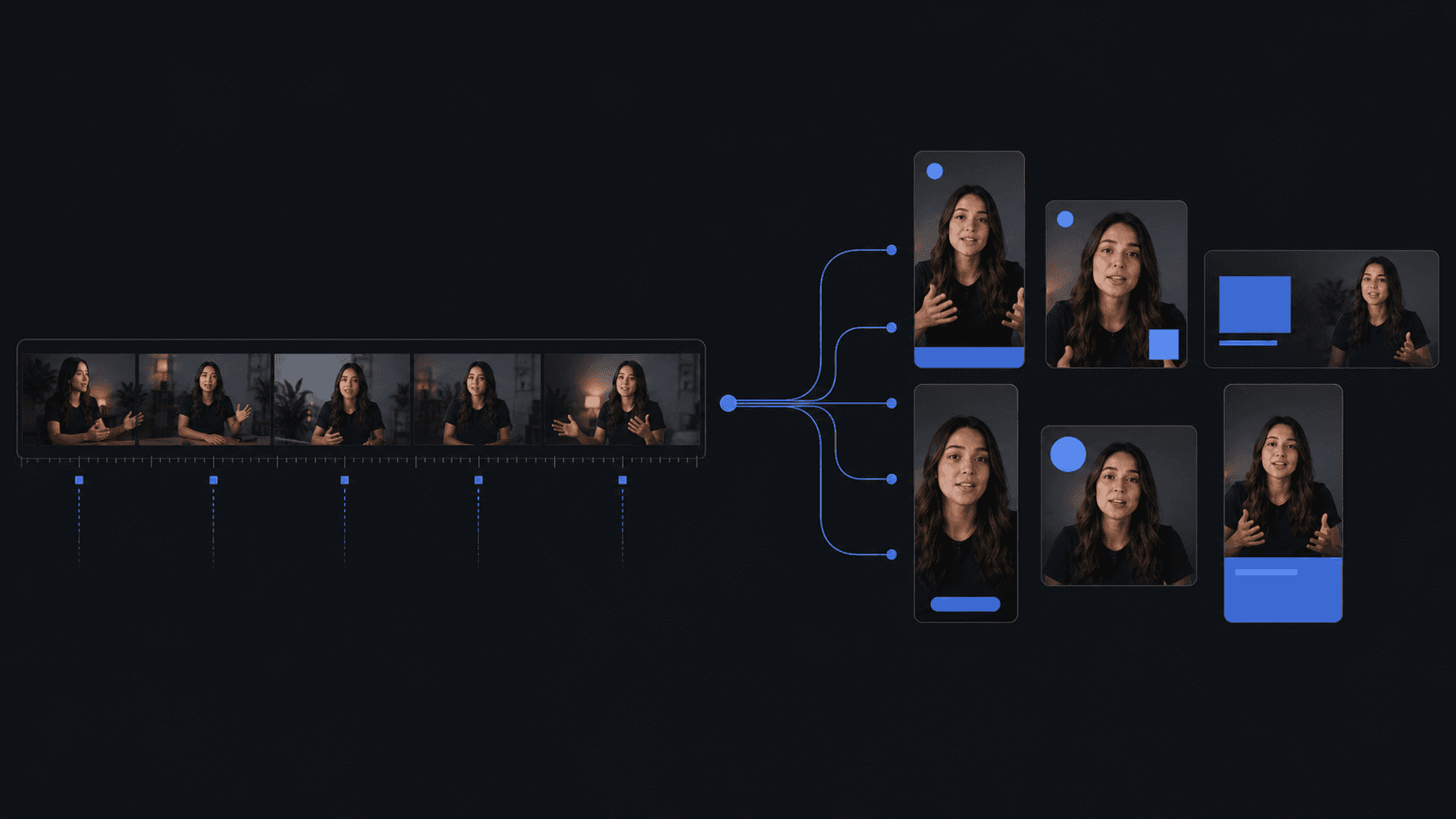
The workflow is short: drop in raw footage, let the AI identify candidate clips, review the proposals, and export. What used to take a day of editing with the best AI video editors compresses into minutes of review.
Automatic Reframing: Widescreen to Vertical and Square
Most footage is recorded in widescreen. Most social consumption happens in vertical, which is why social media video editors matter so much, since that gap costs teams time every single publishing cycle.
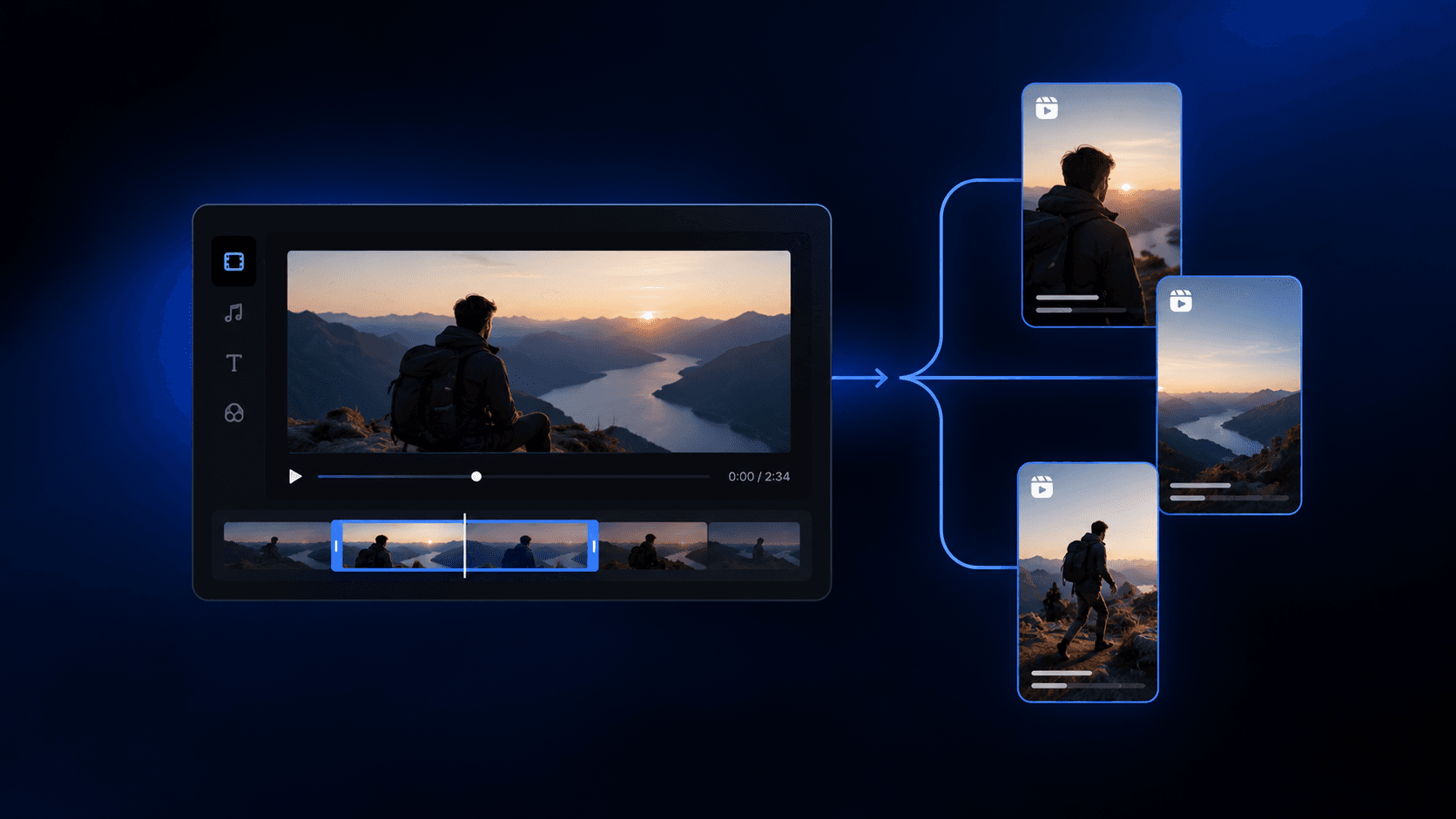
Manual cropping for each format means re-exporting three versions, guessing where to crop, and often losing the subject’s face or the key action to the wrong edge of the frame. Smart reframe solves this by tracking what matters in the shot: subject position, dominant motion, and scene activity. The AI follows that center of gravity across the timeline, keeping the right thing in frame whether the output is 16:9, 9:16, or 1:1. One source file produces all three versions without a human touching the crop tool.
Adding Translated Captions and AI Dubbing
Localization used to mean hiring a voiceover artist per language, syncing audio manually, and burning weeks on a single market. AI has compressed that into a post-production step that takes minutes.
Once your video is cut, caption translation runs automatically. Cardboard supports caption translation across multiple languages, and AI dubbing goes further by replacing the original audio track with a synthesized voice that matches the pacing of the original speaker. The quality factors that separate good localization from awkward localization are lip sync accuracy, tone preservation across languages, and timing alignment so dubbed words land at the right moment in the edit.
Short-form content makes this especially worth doing. A single well-cut short with captions in several languages can reach audiences in each market without producing separate original content for each.
Editing and Refining AI-Generated Video
The first cut is rarely the final cut. AI gets you there faster, but judgment still belongs to you.
A typical AI-generated draft needs a few common adjustments before it’s ready to publish:
- Trimming dead air at scene transitions so the pacing doesn’t drag between cuts
- Fixing captions that clipped a word or ran a beat too long
- Swapping generic B-roll for footage that actually matches the narration
- Leveling audio when one clip is noticeably louder than the next
None of these are heavy lifts, but together they’re the difference between something that looks generated and something that looks edited.
AI handles the bulk of the work that used to consume most of your time. The remaining polish is faster too, because you’re reacting to a draft instead of building from nothing. Reacting is cognitively cheaper than creating, and it’s where human taste actually adds value instead of just adding hours.
Choosing ChatGPT Video Generator Tools: What to Look For
Not every tool marketed as a “ChatGPT video generator” does the same job. A few questions cut through the noise fast:
- Does it render video natively, or does it only generate a script that needs a separate tool to produce anything watchable?
- What export resolutions does it support? 4K 60fps matters if you’re repurposing content across high-quality formats.
- Can teams collaborate in real time, or does feedback route through file exports and email chains?
- How many languages does it support for captions and dubbing?
- Does it export to formats your editor already uses, like Premiere Pro or DaVinci XML?
The video output question is the most important filter. A tool that handles both scripting and video production cuts your workflow in half compared to one that stops at the script.
| Feature | ChatGPT | OpusClip | Descript | Cardboard |
|---|---|---|---|---|
| Script & shot list generation | ✓ | ✗ | ✗ | ✗ |
| Native video output | ✗ | ✓ | ✓ | ✓ |
| Semantic footage search | ✗ | ✗ | ✗ | ✓ |
| Smart reframe (9:16 / 1:1 / 16:9) | ✗ | ✓ | ✗ | ✓ |
| Caption translation & AI dubbing | ✗ | Limited | Limited | ✓ |
| Real-time team collaboration | ✗ | ✗ | ✓ | ✓ |
| Works with raw footage | ✗ | ✓ | ✓ | ✓ |
| Browser-based (no install) | ✓ | ✓ | ✗ | ✓ |
How Cardboard Fits Into an AI Video Workflow
Cardboard sits at the execution end of everything described in this article. ChatGPT writes the script or brief. Cardboard takes it from there.
Unlike the text-to-video tools in our Runway AI alternatives roundup, which generate synthetic clips from text, Cardboard works with your actual raw footage. Drop in a product walkthrough, a customer interview, or a webinar recording from the AI video editor for Mac, describe what you need in plain language, and the Director agent proposes a first cut on the timeline. Semantic footage search finds the right moments across hours of material without manual scrubbing. Commands like “make a 60s recap from this raw footage” or “cut this into a 20s ad” get you to a working draft in seconds, whether you’re a solo creator, a content team, or a marketer managing multiple channels.
Smart Reframe converts that draft into vertical, square, and widescreen versions automatically, keeping the subject in frame across all three. Caption translation and AI dubbing handle localization as a post-production step. Real-time collaboration lets teams leave timestamped comments on a shared project link with no export required, a workflow worth comparing against other Descript alternatives.
Teams at PostHog, Airtable, and Google already use it to ship video consistently from raw assets. Cardboard runs entirely in the browser with no installs, and pricing starts at $8/month on the Lite plan, with a $5 first-month launch offer. Unlimited exports start on Starter at $29/month, and 4K exports start on Creator at $59/month. Pro is $175/month for teams that need the highest usage limits and priority processing.
Final Thoughts on the ChatGPT Video Generator Workflow
ChatGPT gets your ideas into a structured script faster than any blank doc will. From there, a dedicated video production tool takes over. The two work well together once you stop expecting one to do the other’s job. Cardboard is worth a look if you want to see how that handoff works in practice.
FAQ
Can I build a full AI video workflow using only ChatGPT?
No. ChatGPT handles scripting, shot lists, and visual-motion prompts, but it cannot render video, sync audio, or export files. You need a dedicated AI video editor like Cardboard to take a ChatGPT-generated script and turn it into a finished, exported video with captions, voiceover, and proper formatting.
OpusClip vs Cardboard vs Descript for repurposing long-form video into short clips?
OpusClip and Descript automate clip extraction but work primarily from transcripts and lack semantic footage search across raw multi-scene footage. Cardboard lets you describe what you need in plain language, searches across hours of footage by quote, emotion, or subject, and proposes a first cut on the timeline, making it faster for teams working from product walkthroughs, interviews, or webinars over talking-head recordings.
How do I automatically reformat a widescreen video into vertical and square versions without re-editing each one?
AI-powered Smart Reframe tracks the subject and dominant motion across the timeline and generates 9:16, 1:1, and 16:9 versions from a single source file without manual cropping. Cardboard does this after your first cut is ready, keeping the right action in frame for every version automatically.
What is the easiest way to add translated captions and AI dubbing to a video in 2026?
The fastest approach is to cut your video first, then run caption translation and AI dubbing as a post-production step inside your editing tool instead of exporting to a separate service. Cardboard handles both in-browser, translating captions and replacing the original audio track with a dubbed voice that matches the original speaker’s pacing and timing.
How do I collaborate on video editing with my team without exporting files back and forth?
Use a browser-based editor that supports real-time collaboration with timestamped comments on a shared link. Cardboard lets teammates leave comments at exact timecodes on a shared project URL without needing an account, and comment owners can resolve or delete pinned feedback directly with no file exports or version folders required.