Make Your First Video Without Learning a Timeline (2026)
New to editing? This October 2026 guide walks beginners through organizing footage, fixing audio, and exporting a finished first video.
 Cardboard Team20 min read
Contents18 sections
- Why Video Editing Matters More Than Ever
- Video Editing Basics
- Key Video Editing Terms Every Beginner Should Know
- Choosing the Right Video Editing Software for Beginners
- Free Video Editing Apps for Beginners on Android, iPhone, and PC
- DaVinci Resolve for Beginners
- How to Organize Your Footage Before You Start Editing
- A Step-by-Step Workflow for Editing Your First Video
- How to Get Your Audio Right (Without a Studio)
- Adding Captions, Text, and Translated Subtitles
- How to Reformat a Video for Every Channel Automatically
- How to Repurpose Long Videos into Short Clips and Ads
- Common Beginner Mistakes That Make a Video Look Amateur
- Beginner Video Editing Checklist and a 60-Second First Project
- How to Learn Video Editing for Free (Resources and Courses)
- How Cardboard Lets Beginners Skip the Timeline Entirely
- Final Thoughts on Learning Video Editing From Scratch
- FAQ
Getting into video editing, or picking it back up after a gap, feels manageable until the timeline is in front of you. Tracks, bins, export settings, and a dozen panels you didn’t ask for, all before a single cut gets made. Whether you’re publishing your first video or finally bringing production in-house, finishing a clean edit doesn’t require mastering every feature upfront. This guide walks through the manual editing workflow first, then shows where AI editing can shortcut each stage, so you can pick the path that fits your goal.
TLDR:
- Video editing follows 7 sequential stages from rough cut to export. Knowing the order means you’re never lost on what to do next
- DaVinci Resolve 21 is free but requires 16 GB RAM on Windows (8 GB on Apple Silicon Mac) and a 4 GB GPU minimum before you download
- Bad audio kills good video faster than any other mistake. Mix music under speech at -20 to -25 dB
- Word-by-word captions outperform static subtitle blocks on short-form video and most social plays without sound
- Cardboard lets you describe an edit in plain text and generates a first cut automatically, with smart reframe and auto-captions built in
Why Video Editing Matters More Than Ever
91% of businesses now use video as a marketing tool, and 63% of video marketers have already used AI to create or edit video, according to Wyzowl’s State of Video Marketing 2026. The tools have gotten faster, cheaper, and far more accessible, closing the gap between “professional” and “first-timer” quickly.
The creators and marketers publishing consistently right now are not all trained editors. Many are just people who started. According to Wyzowl, 68% of people say they’ve been convinced to buy a product or service by watching a brand’s video, and the same report shows video creation is now dominated by in-house teams over production agencies, a sign that accessible editing tools have made it practical for non-specialists to own the process end to end.
Video Editing Basics: What the Process Actually Looks Like
Most beginners open a video editor expecting to just “cut some clips together” and immediately run into a wall of panels, tabs, and timelines they didn’t anticipate. The process is more sequential than it looks, and knowing the stages upfront makes everything easier.
Here is roughly how a standard edit flows from start to finish:
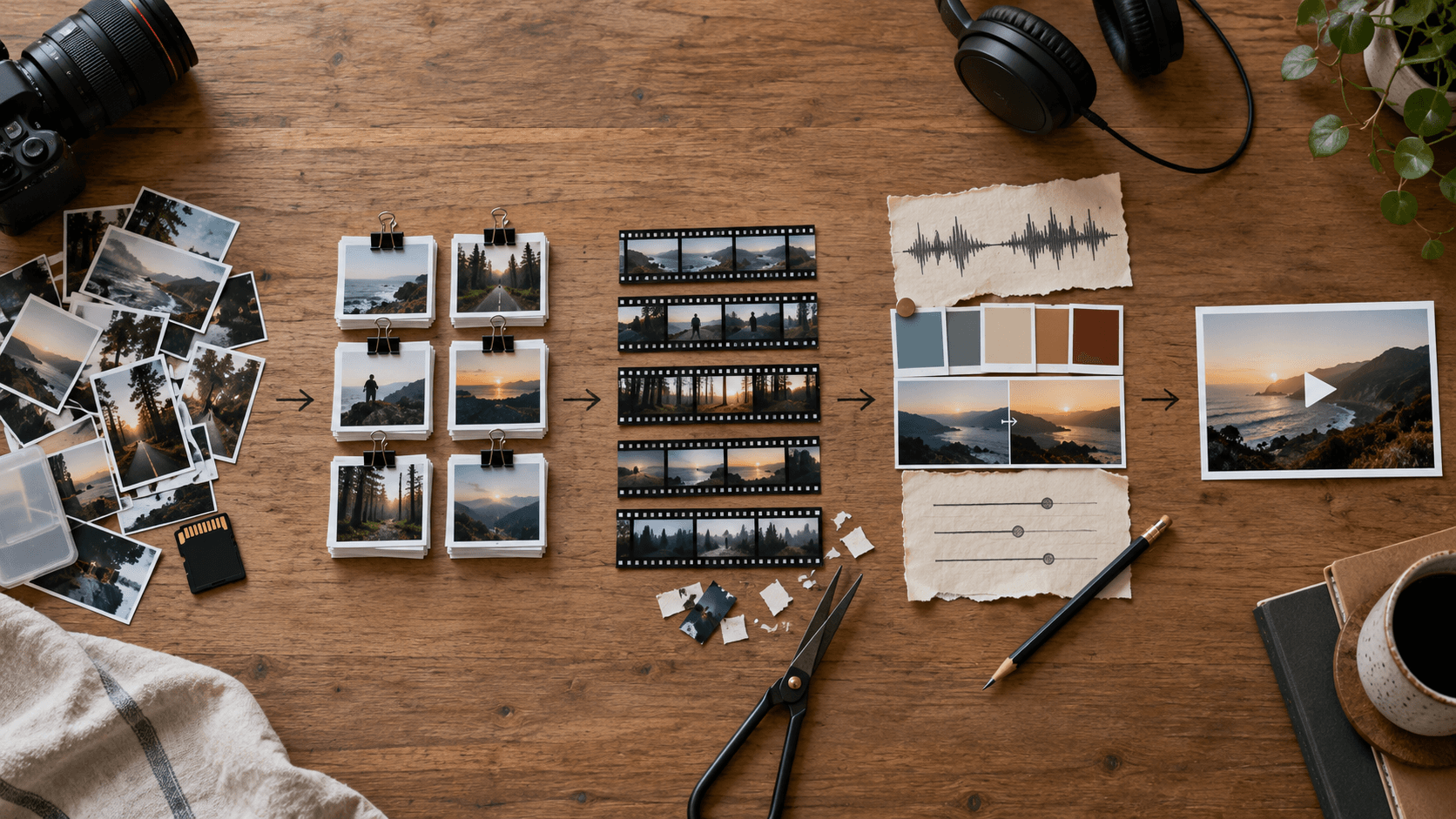
- Ingest and organize your footage: move all raw clips into one place, watch through them, and label or sort what’s usable.
- Rough cut: pull the best clips onto the timeline in the right order. Pacing and polish come later. This is just structure.
- Refine and trim: tighten the cuts, remove dead air, and shape the rhythm so the video holds attention.
- Fix audio: balance volume levels, cut background noise, and sync any music or voiceover.
- Color correct: adjust exposure, white balance, and tone so footage looks consistent across clips.
- Add text and captions: titles, lower thirds, subtitles, or anything the viewer needs to read.
- Export: render the final file at the right resolution and aspect ratio for wherever it’s going.
Some steps take minutes; others take hours depending on the footage. But the order rarely changes, and understanding it means you’re never lost about what to do next.
Key Video Editing Terms Every Beginner Should Know
A few terms come up constantly in tutorials, Reddit threads, and YouTube comments. Learning them now means you spend less time confused and more time actually editing.
| Term | What It Means |
|---|---|
| A-roll | Your primary footage: the main speaker, interview, or action the video is built around. |
| B-roll | Supplementary footage cut over A-roll to add context, cover edits, or break up a talking head. |
| Rough cut | Your first pass at a structured edit. Order is there, polish is not. |
| Final cut | The approved, finished version ready to export. |
| Timeline | The horizontal workspace where you arrange clips in sequence. Every editor has one. |
| Bin | A folder inside your editing software for organizing raw clips, audio, and assets. |
| J cut | Audio from the next clip starts before its video appears. Common in interviews and docs. |
| L cut | Video from the previous clip lingers while the next clip’s audio has already begun. |
| Color correction | Fixing problems: exposure, white balance, consistency across clips. |
| Color grading | Creative choices layered on top of correction. Mood, tone, stylistic look. |
| LUT | A preset color profile applied to footage to shift its look quickly. |
| Resolution | Frame dimensions, typically 1080p or 4K. Higher means sharper, larger file. |
| Frame rate | How many frames per second your video plays back. 24fps looks cinematic; 30fps is standard for web. |
| Codec | The compression method used to encode your video file, such as H.264 or ProRes. |
| Bitrate | How much data is packed into each second of video. Higher bitrate means better quality and bigger files. |
Choosing the Right Video Editing Software for Beginners
The right software depends more on your situation than on any “best of” ranking. Device, goals, and how much time you’re willing to spend learning all matter.
| Tool | Best For | Strengths | Limitations |
|---|---|---|---|
| DaVinci Resolve | PC/Mac users who want professional-grade editing | Free, full-featured, industry standard | Steep learning curve, heavy system requirements |
| CapCut | Mobile or quick short-form content | Fast, template-rich, great for Reels and TikToks | Limited for longer or complex edits |
| iMovie | Apple users who want a zero-cost starting point | Clean interface, no cost, good for beginners | Apple-only, limited advanced features |
| Browser-based editors | Anyone who wants no installs or downloads | Accessible anywhere, collaborative, low friction | Historically weaker on complex timelines |
DaVinci Resolve is genuinely free and used by professionals in Hollywood, but Resolve 21.1 requires 16 GB RAM and a dedicated GPU, so check your specs before downloading. If your machine is older, that matters before you download anything.
CapCut works well if you’re editing on a phone or targeting short-form video. iMovie is a reasonable first step if you’re on a Mac before committing to a steeper learning curve.
Free Video Editing Apps for Beginners on Android, iPhone, and PC
The right free app depends on the device in your hand. On Android or iPhone, CapCut handles quick short-form cuts with templates built for vertical video. If you’re in the Apple ecosystem and want something built in, iMovie covers the basics on iPhone, iPad, and Mac at no cost. On a PC or Mac with enough RAM and a decent GPU, DaVinci Resolve’s free version gives you a full professional toolset without a subscription. If you can’t install anything on the machine in front of you, a browser-based editor lets you cut video with no download at all.
Before you spend hours on an edit, check the export screen and the free tier terms. Some free apps add a watermark, an end card, or cap your export resolution, and finding out after you’ve finished cutting is a bad way to lose an afternoon. DaVinci Resolve’s free version does not add a watermark, which is one reason it holds up as a long-term option even without paying for Studio.
Four things worth checking before committing to any free editor:
- Does the export add a watermark or forced end card?
- Is export resolution capped below 1080p or 4K?
- Are there limits on project length or how many exports you get?
- Are templates or music locked behind a paid plan?
DaVinci Resolve for Beginners: What You Need to Know Before Downloading
DaVinci Resolve 21 is a free professional editing suite from Blackmagic Design that covers editing, color grading, audio post, and visual effects in one app. The free version is genuinely full-featured. DaVinci Resolve Studio, at $295 one-time, adds advanced AI tools, noise reduction, and collaboration features, but most beginners won’t need it to start.
Before downloading, check your hardware. Per davinciresolveclub.com’s October 2026 specs, Apple Silicon Macs can run Resolve on 8 GB RAM (macOS 15 Sequoia or later required), but Linux needs 32 GB. A 4 GB GPU is the minimum across all platforms. On an older or low-spec machine, Resolve will run slowly or refuse to launch entirely.
The learning curve is real. Resolve was built for professional colorists and editors, and its interface reflects that. If your goal is to publish one video quickly, the timeline alone can eat an afternoon before you’ve cut a single clip.
How to Organize Your Footage Before You Start Editing
Skipping this step is how beginners end up 45 minutes into an edit, hunting through 30 unnamed clips for the one good take they know they shot.
A simple folder structure before you touch the timeline saves real time:
- Create a project folder with subfolders: Raw Footage, Audio, Music, Graphics, and Exports.
- Rename clips descriptively: “interview-take3-good” beats “clip0047.”
- Separate A-roll from B-roll into their own bins inside your editor.
- Watch through everything once before editing, then flag the usable takes so you’re pulling from a short list instead of the full pile.
The habit matters more than the software. It works the same way in DaVinci Resolve, CapCut, or iMovie.
A Step-by-Step Workflow for Editing Your First Video
With your footage organized in folders, you’re ready to open your editor and start the actual cut. The timeline looks intimidating at first, but you only need to focus on one step at a time.
- Import your media. Drag your project folder into the software’s media bin. Most editors auto-detect clip types, so you’re just getting files into the app.
- Build the rough cut. Drag your A-roll clips onto the timeline in order. Sequence first, quality later.
- Trim silence and tighten pacing. Cut dead air, false starts, and anything that stalls momentum. If you find yourself skipping ahead while watching, cut that part.
- Layer B-roll and text. Drop B-roll clips over your A-roll to cover a cut or add visual context. Add titles or captions where the viewer needs them.
- Fix and balance audio. Lower background music under speech, cut ambient noise spikes, and keep your loudest and quietest moments from drifting too far apart.
- Correct color. Match exposure and white balance across clips so nothing looks like it was shot on a different day.
- Export for your destination. YouTube wants 1080p at H.264. Instagram Reels wants vertical. Pick the right setting before you render.
One session is enough to get a first cut done. You won’t love it, but finishing is the skill you’re actually building here.
How to Get Your Audio Right (Without a Studio)
Bad audio ruins good video faster than almost any other mistake. A shaky shot is forgivable; a clip where the speaker sounds like they’re recording inside a tin can is not.
Most audio problems fall into a short list, and fixing them doesn’t require expensive gear or studio knowledge.
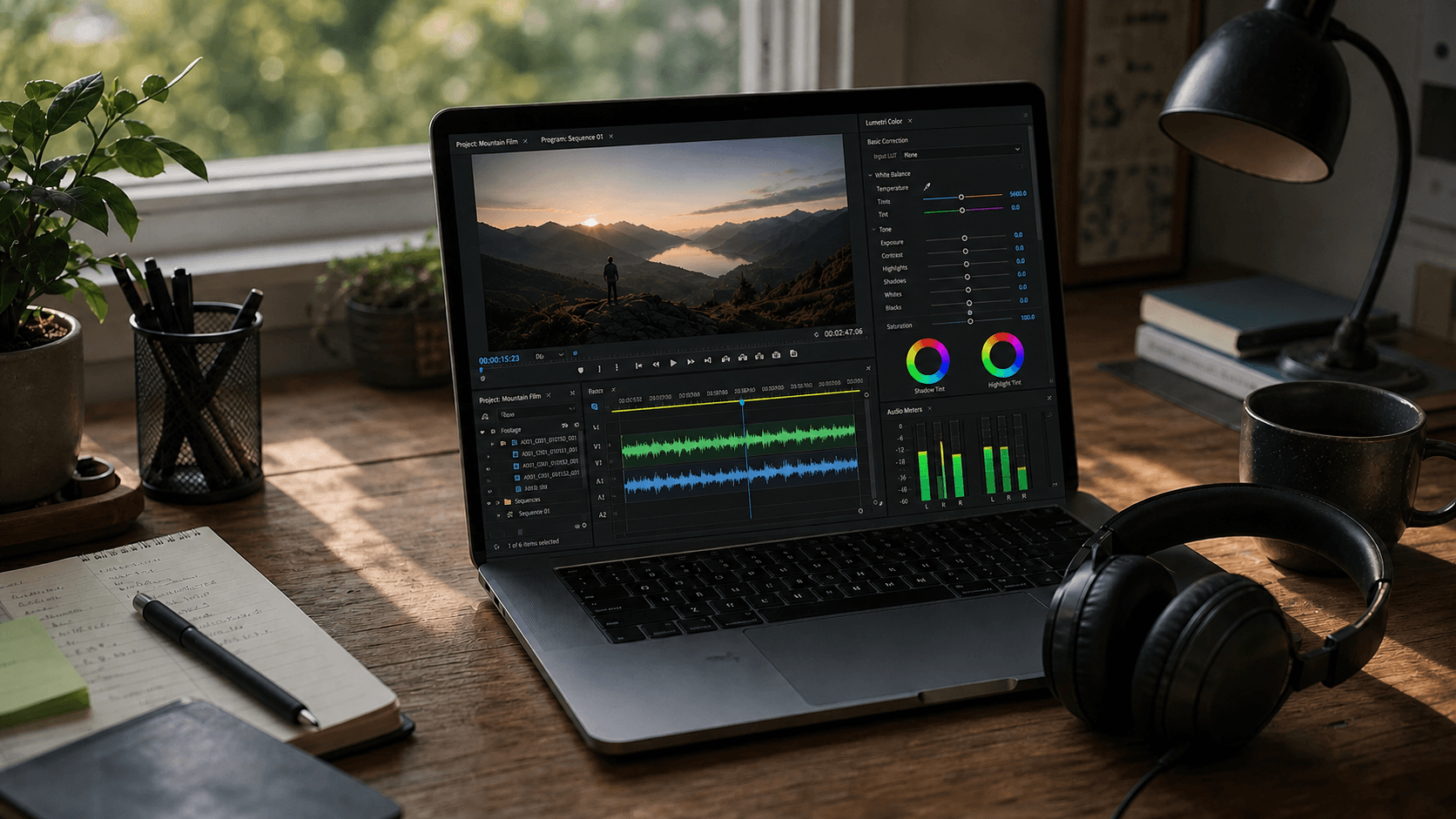
- Remove background noise first. Most editors have a denoise tool. Apply it to your dialogue clips before touching anything else. DaVinci Resolve’s Fairlight panel has one built in. Even a light pass removes hum, fan noise, and room echo that your ear tunes out but the viewer won’t.
- Normalize loudness across clips. If one clip sounds twice as loud as the next, viewers notice immediately. Right-click a clip to apply normalization, or manually adjust volume until everything sits in a similar range.
- Mix music under speech at around -20 to -25 dB. Music should be present but not competing. If you have to choose between hearing the speaker and feeling the music, the speaker wins every time.
- Use silence intentionally. A pause before a key point lands harder than filling every second with background music, and constant music makes a video feel exhausting over time.
Four moves, and your audio goes from amateur to acceptable.
Adding Captions, Text, and Translated Subtitles
Captions stopped being optional a while ago. Most social video plays without sound by default, and viewers who won’t turn on audio will scroll past a video that doesn’t meet them where they are. Beyond accessibility, styled captions actively improve retention. Word-by-word reveals keep eyes on screen longer than a static subtitle block sitting at the bottom.
Adding captions manually means transcribing dialogue and syncing text blocks to the timeline by hand. AI transcription is faster, one of the capabilities that define AI video editing tools: most editors auto-generate captions from your audio in under a minute, and you review and correct instead of typing from scratch. The output is rarely perfect with names, industry terms, or accented speech, so one proofreading pass before export is still worth doing.
Styling is where engagement climbs. Word-by-word reveals, where each word appears as it’s spoken, tend to outperform static subtitle blocks on short-form video. Sizing key words larger or changing color on impact moments gives captions a visual rhythm that keeps viewers reading, a technique that works especially well when you edit a UGC video with captions.
For multilingual publishing, AI dubbing has become a practical option. Instead of re-recording a voiceover, AI translation tools can translate your captions, generate a dubbed audio track in the target language, and attempt lip-sync adjustment. Output quality varies by tool and language pair, so reviewing before publishing still matters.
How to Reformat a Video for Every Channel Automatically
Shooting one video and needing four versions of it is one of the more tedious parts of publishing consistently. A 16:9 YouTube clip reformatted to vertical for Reels or TikTok sounds simple until you realize the subject is centered in the widescreen frame and cropped out entirely in the vertical one.
Blind cropping picks a fixed region of the frame and sticks with it. If your subject moves, steps left, or gestures wide, the crop stays put and you lose the shot. The result looks lazy and often unwatchable on mobile.
Smart reframe solves this by tracking the most important action in the frame, usually a person’s face or body, and repositioning the crop dynamically as movement happens. The output looks like someone actually re-edited the vertical version instead of just squeezing the original.
When assessing any tool that claims to handle this, check for these four capabilities:
- Does it track subjects across cuts, and also within a single clip?
- Can you manually adjust the crop position when the auto-tracking misses?
- Does it handle multiple people in frame without constantly shifting between them?
- Can it output all format variations in one export pass without requiring separate projects?
The goal is one master edit producing vertical, square, and widescreen versions without touching the timeline again for each one, which is why many creators compare social media video editors on reframing quality alone.
How to Repurpose Long Videos into Short Clips and Ads
A one-hour webinar contains maybe four minutes of genuinely clip-worthy content. Finding it manually means watching the whole thing, timestamping moments, and cutting each one separately. That process does not scale when you’re publishing across four channels every week.
The manual approach still works for beginners who want full control: watch through the recording, note timestamps where the speaker says something punchy or self-contained, and trim each moment into its own clip. Short clips work best when they open strong, run under 60 seconds, and do not require context from the longer video to make sense.
AI-based clipping tools take a different approach, and some of the best AI video editors now build this in natively. Semantic clipping scans your transcript for high-value moments based on emotional signals, topic density, or quote-worthiness, then surfaces candidates ranked by likely engagement. You review the shortlist instead of the full recording. The output is not always perfect, especially with niche topics or technical language, but it compresses a 60-minute review into a few minutes of approvals.
For marketing teams turning a product walkthrough into ad variants or turning a podcast into short clips for a week of social posts, the workflow decision is about where human judgment enters. Fully manual gives you control but costs time. Fully automated is fast but sometimes misses context a human would catch. Most teams land somewhere between the two: AI proposes the clips, a human approves and trims.
Common Beginner Mistakes That Make a Video Look Amateur
A jump cut happens when you trim dead air out of a talking head clip and the subject appears to teleport between positions, a problem covered in this guide on fixing jump cuts in talking head clips. Dropping a B-roll clip over the cut fixes it.
Here are the other mistakes that immediately signal amateur work:
- Shaky handheld footage: no stabilization applied means every micro-movement gets amplified on screen. Use your editor’s stabilization tool on wobbly clips, or shoot with a tripod.
- Mismatched audio levels across clips: one clip is quiet, the next is loud, and the viewer reaches for the volume knob. Normalize each clip before mixing.
- Overused transitions: wipes, spins, and dissolves between every cut signal beginner work fast. A straight cut is almost always better. Save transitions for scene changes only.
- Unreadable text overlays: white text over a bright background, font too small, or text that disappears too quickly. Add a semi-transparent background behind text and leave it on screen at least one second longer than feels necessary.
- Wrong export settings: low bitrate or the wrong aspect ratio introduces compression artifacts and black bars. Match your export preset to the destination (1080p H.264 for YouTube, vertical 9:16 for Reels) before you export.
Beginner Video Editing Checklist and a 60-Second First Project
Use this list as a quick reference before you call any cut finished.
- Footage organized into folders, with A-roll and B-roll sorted into separate bins.
- Rough cut done, with clips in order on the timeline before any polish.
- Dead air trimmed and false starts removed so pacing holds attention.
- B-roll covers jump cuts wherever the subject appears to teleport between angles.
- Audio denoised, with background music mixed under speech at around -20 to -25 dB.
- Color matched across clips so exposure and white balance stay consistent.
- Captions proofread for names, industry terms, and accented speech.
- Export preset matches the destination, such as 1080p H.264 for YouTube or vertical 9:16 for Reels.
A reasonable first project is a 60-second video cut from 5 to 8 clips in one sitting. A workable pace might look like 15 minutes organizing footage, 20 minutes on the rough cut and trimming, 10 minutes on audio, 10 minutes on captions, and 5 minutes on export, adjusted to whatever rhythm actually works for you.
How to Learn Video Editing for Free (Resources and Courses)
YouTube remains the most practical starting point. Channels like Justin Odisho, Casey Faris, and Film Riot have years of free tutorials covering DaVinci Resolve, Premiere Pro, and general editing technique. Search for your software plus the specific task you’re stuck on, and you’ll find a walkthrough almost every time.
For structured learning with a certificate, Coursera offers video editing courses from recognized institutions. You can audit most for free and pay only if you want the credential. Skillshare and LinkedIn Learning both have free trial periods worth using to get through a course before committing, and once you’re past the basics it’s worth comparing Descript alternatives for faster transcript-based editing.
Reddit communities like r/VideoEditing and r/davinciresolve are useful for troubleshooting and unfiltered software opinions, alongside structured video editing guides for specific tasks. Discord servers tied to specific tools also tend to have active help channels where beginners get real answers from working editors.
Basic competence, meaning you can cut a clean video with decent audio and captions, takes most people a few weeks of regular practice. Intermediate skills like color grading, multicam, and motion graphics take months. The fastest way to improve is to finish real projects, even imperfect ones, over watching tutorials without applying them, and for generative work it also helps to know the Runway AI alternatives available today.
How Cardboard Lets Beginners Skip the Timeline Entirely
Everything covered in this post, from footage organization to reframing to captions, assumes you’re willing to learn a timeline. Cardboard takes a different starting point: describe what you want, and the editor builds it. The stages above are still worth knowing, since they tell you what to ask for and what to review, whether you cut by hand or describe the edit and let Cardboard build the first draft.
You type something like “cut this into a 60-second recap” or “make a 20-second ad from the best moments,” and Cardboard proposes a first cut automatically. Semantic footage search lets you find a specific quote or reaction across hours of raw clips without scrubbing. Smart reframe converts a widescreen video to vertical and square in one pass, tracking the subject as they move instead of locking to a fixed crop. Auto-captions generate from your audio with Word Pop styling, where words appear as they’re spoken, sized for short-form retention. Audio cleanup and real-time collaboration with timestamped comments are built into every plan, while translated captions and multilingual dubbing start on the Starter plan.
It runs in the browser with no install required, and there’s a native Mac app if you prefer that. Teams at PostHog, Airtable, and Google are already using it. Plans start at $8/month on Lite, with a $5 first-month launch offer. Lite covers captions, reframing, and video cleanup with 1080p exports, capped at 3 exports. Starter ($29/month) adds unlimited exports, translation, AI-generated music, and NLE exports. Creator ($59/month) adds 4K exports and voice cloning, and Pro ($175/month) adds 5,000 generative credits and priority processing.
For a beginner, the timeline is not the goal. The video is.
Final Thoughts on Learning Video Editing From Scratch
You don’t need to master every tool in this post before publishing your first video. Pick one piece of software, follow the workflow steps in order, and fix the obvious mistakes before export. Cardboard is a good option if you want AI to handle the heavy cutting while you focus on the creative side. Finishing something imperfect beats waiting until conditions feel right.
FAQ
How do I reformat a widescreen video into vertical and square versions automatically?
Smart reframe tools track the subject across cuts and reposition the crop dynamically as movement happens, so the output looks intentional instead of blindly cropped. Cardboard’s Smart Reframe does this in one pass, producing vertical, square, and widescreen versions from a single master edit without requiring separate timeline projects. When assessing any tool for this, check that it tracks across cuts, handles multiple people in frame, and lets you manually correct when auto-tracking misses.
What is the easiest way to add translated captions and AI dubbing to a video?
Start with AI auto-captions, which generate from your audio in under a minute, then review and correct before exporting. For multilingual publishing, AI dubbing tools translate your captions, generate a dubbed audio track, and attempt lip-sync adjustment. Cardboard handles caption generation, translation (available from the Starter plan), and AI voiceovers in the same project without switching tools. Output quality still varies by language pair, so one review pass before publishing is worth the time.
DaVinci Resolve free vs Cardboard for a first video?
DaVinci Resolve’s free version is genuinely full-featured and industry-standard, but it requires 16 GB RAM on Windows and a dedicated GPU, and the timeline alone can consume an afternoon before a single cut gets made. Cardboard runs in the browser with no download, lets you describe the edit in plain language, and proposes a first cut automatically. So if your goal is to publish quickly and skip learning professional post-production, Cardboard removes the setup and learning curve entirely. For someone serious about building traditional editing skills over time, DaVinci Resolve is the right long-term investment.
How do I repurpose a long webinar or podcast into short clips and ads without watching the whole recording?
Semantic clipping scans your transcript for high-value moments based on emotional signals and quote-worthiness, surfacing a ranked shortlist instead of requiring a full watch-through. Cardboard’s semantic footage search finds specific quotes, reactions, and scenes across hours of raw footage so you can pull the best moments without scrubbing the timeline. The strongest short clips open strong, run under 60 seconds, and make sense without context from the longer video.
How do I collaborate on video editing with my team without exporting files back and forth?
Real-time collaboration tools let multiple editors work in the same project simultaneously, with timestamped comments pinned to specific moments in the timeline so feedback stays attached to the right cut. Cardboard supports this natively: teams share a project link, leave timecode comments without needing an account, and always see the latest published version, which eliminates version sprawl and async export loops entirely.
What is the best free video editor for beginners on PC or Android without a watermark?
DaVinci Resolve’s free version has no watermark but needs a capable PC or Mac to run well. On Android, check any free app’s export screen for watermarks or resolution caps before you start editing, since policies vary widely between apps. Browser-based editors need no install, and Cardboard’s Lite plan at $8/month (launch offer $5 for the first month) gives 1080p exports with a cap of 3 exports.